Productivity app settings screens
76 settings screens from 62 productivity app templates, each in its own design language. Productivity apps are about getting through the day: dense but calm layouts, clear priority and nothing that slows the next action.
The examples
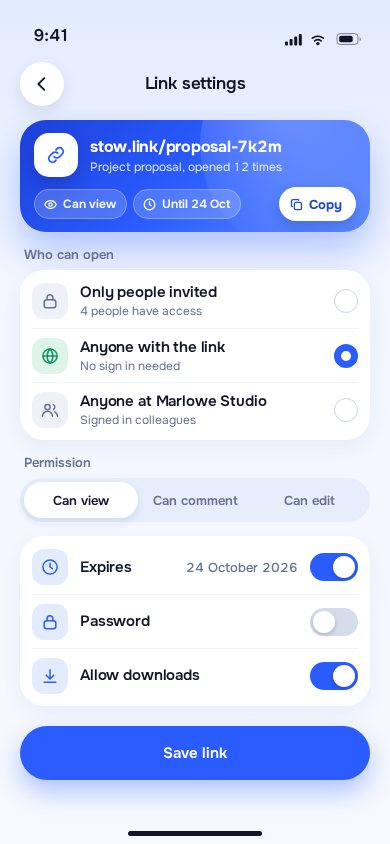 Stow Link settings: Cloud storage, Minimal
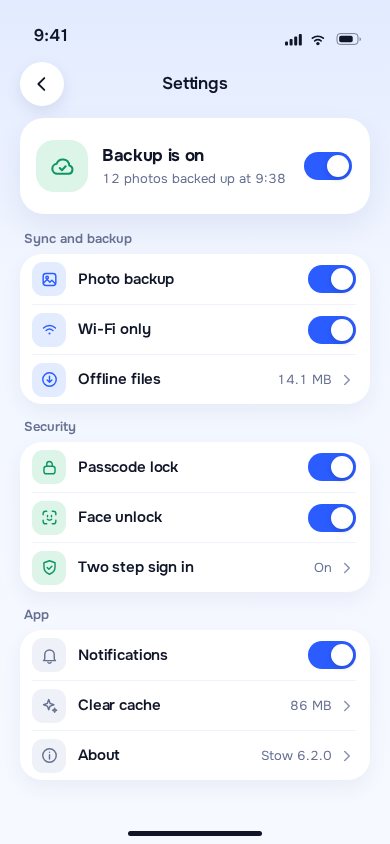 Stow Settings: Cloud storage, Minimal
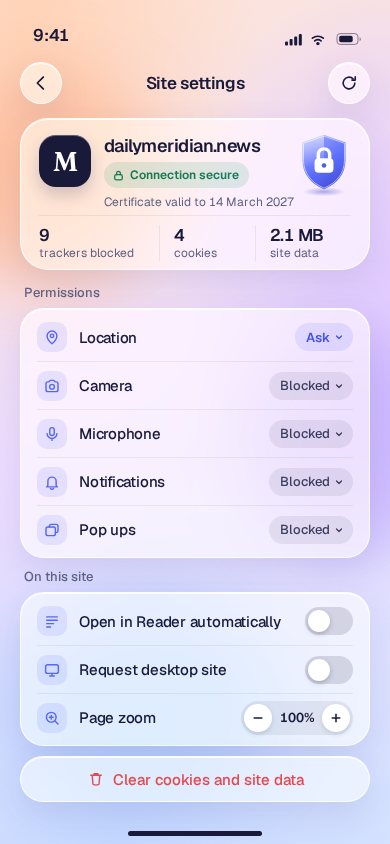 Meridian Site settings: Mobile web browser, Glass
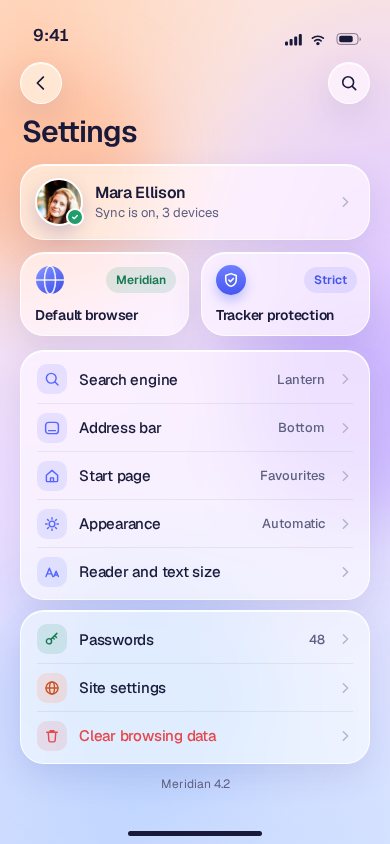 Meridian Settings: Mobile web browser, Glass
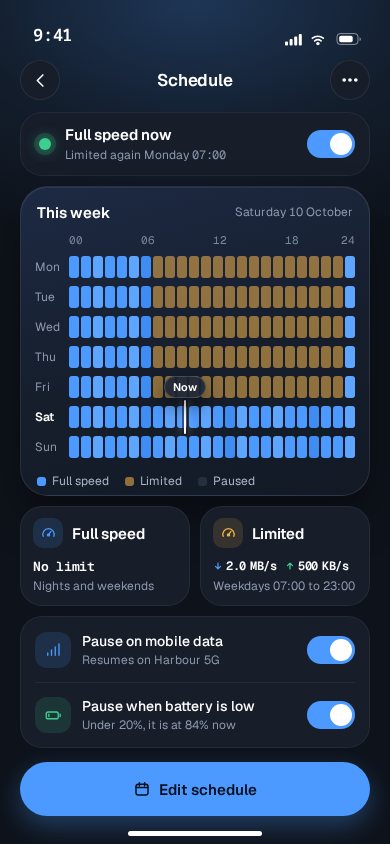 Swarm Schedule: Torrent client, Dark-first, dark
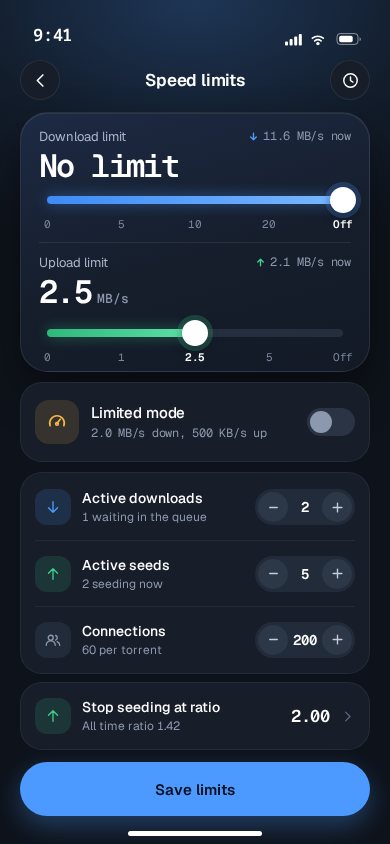 Swarm Speed limits: Torrent client, Dark-first, dark
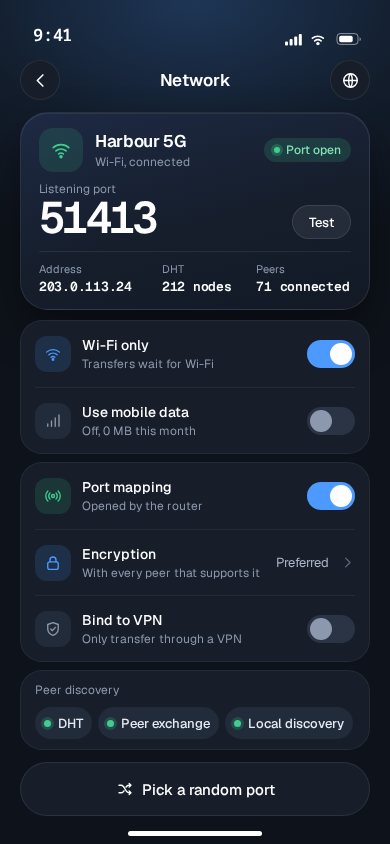 Swarm Network: Torrent client, Dark-first, dark
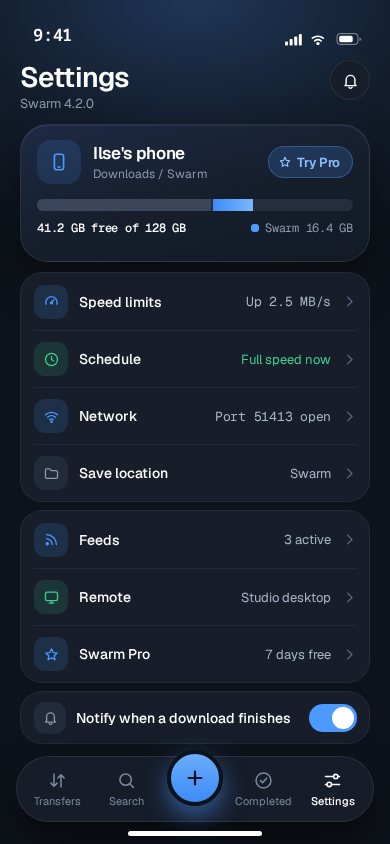 Swarm Settings: Torrent client, Dark-first, dark
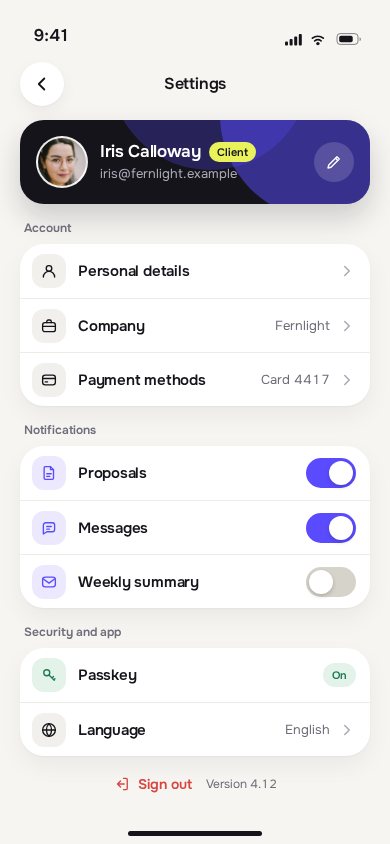 Bench Settings: Freelance marketplace, Enterprise
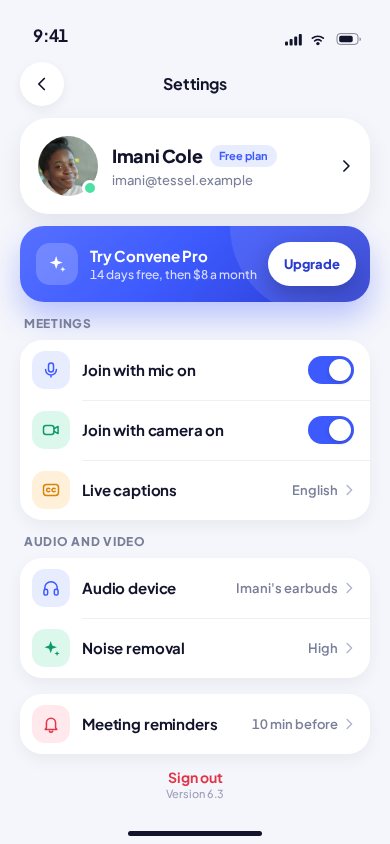 Convene Settings: Video meetings, Minimal
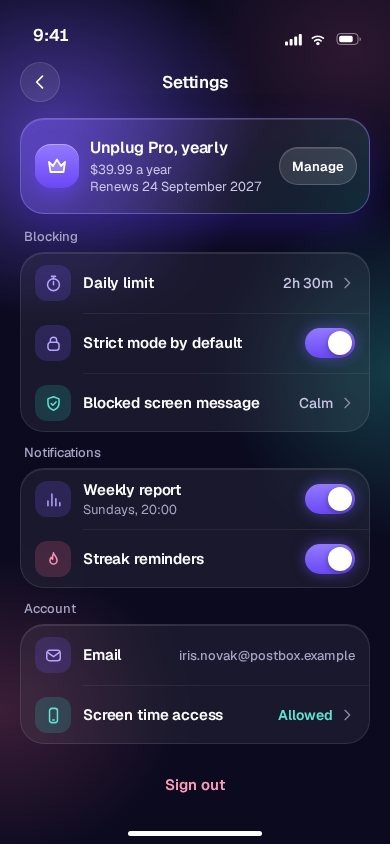 Unplug Settings: Screen time blocker, Glass, dark
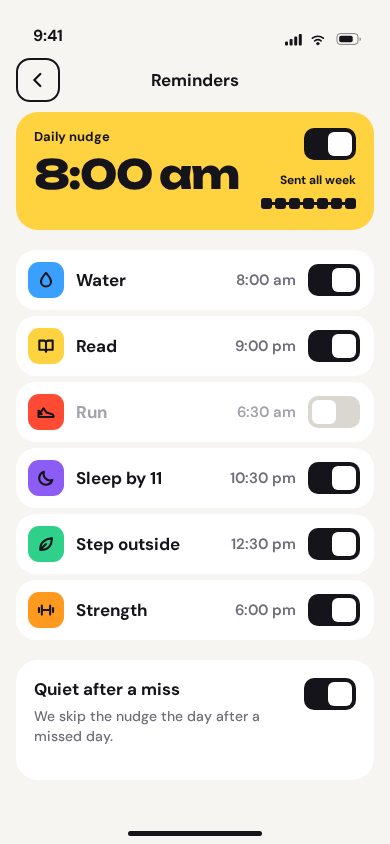 Streak Reminders: Small days, long chains, Playful
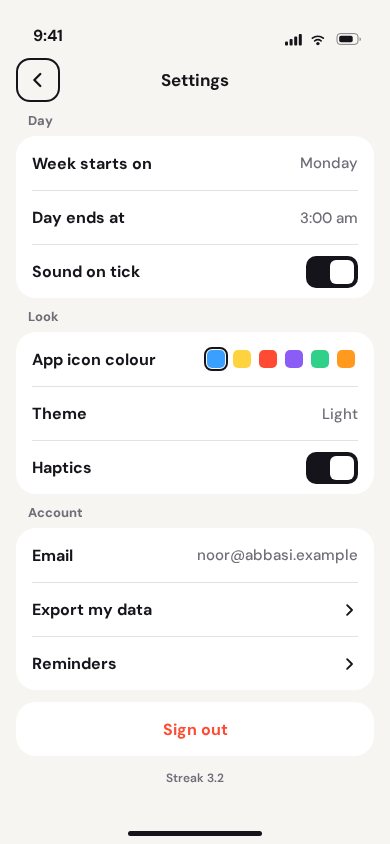 Streak Settings: Small days, long chains, Playful
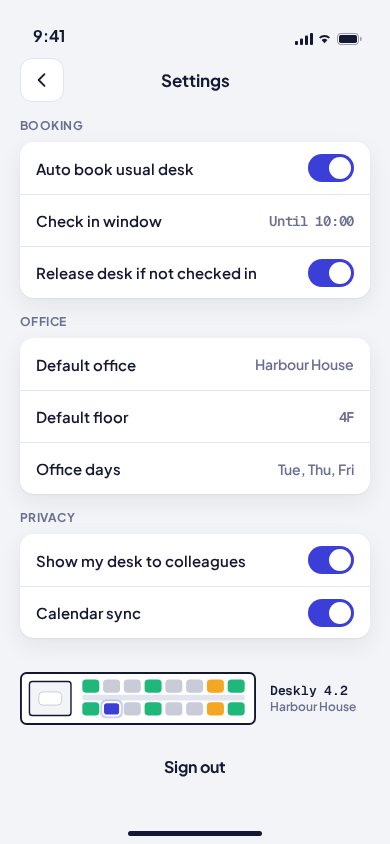 Deskly Settings: Hybrid office booking, Enterprise
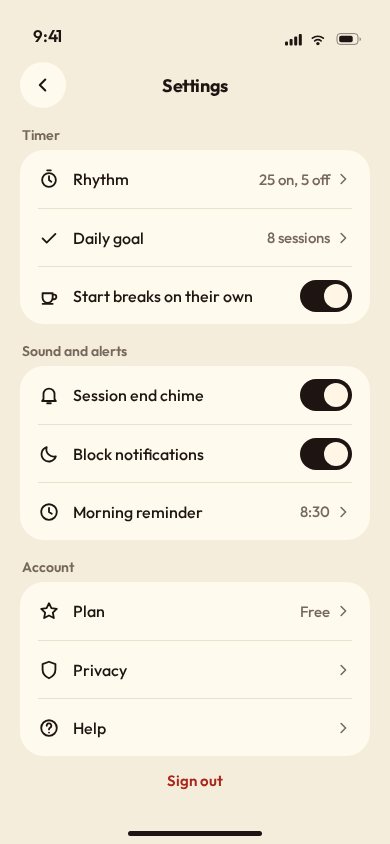 Pomo Settings: Focus timer, Minimal
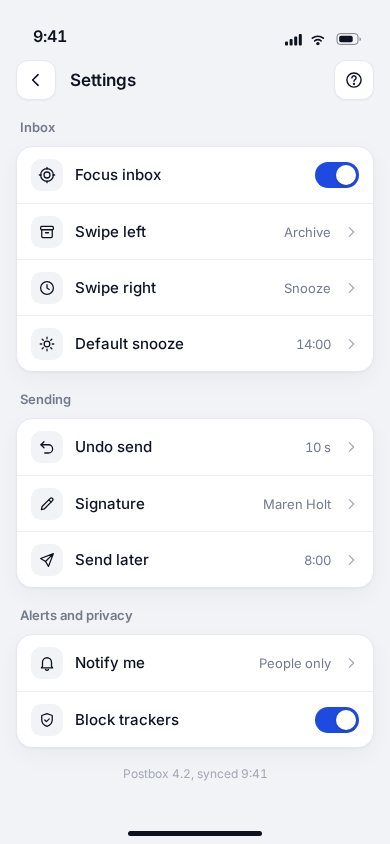 Postbox Settings: Email for busy teams, Enterprise
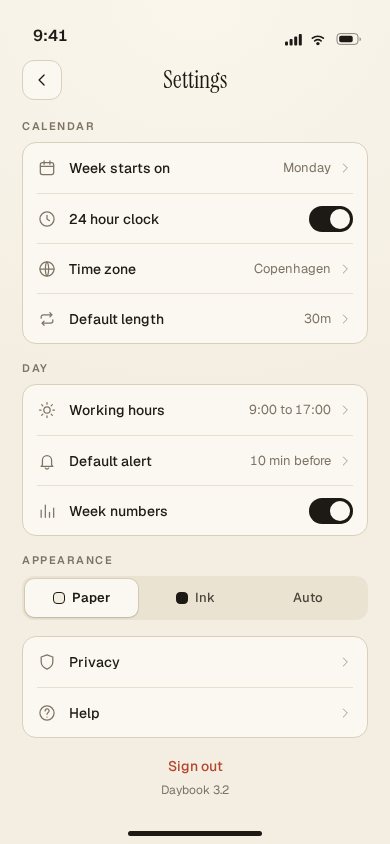 Daybook Settings: Calendar and planner, Minimal
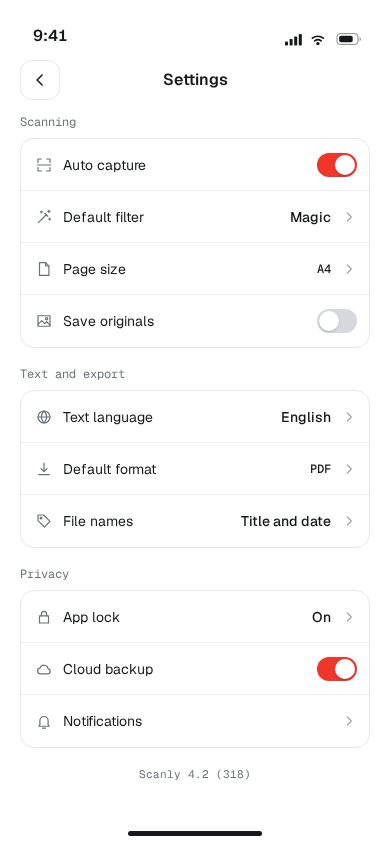 Scanly Settings: Document scanner, Clinical
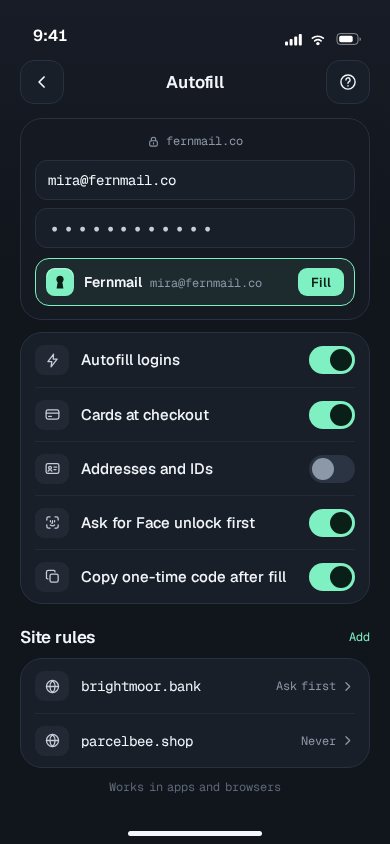 Keyring Autofill: Password manager, Dark-first, dark
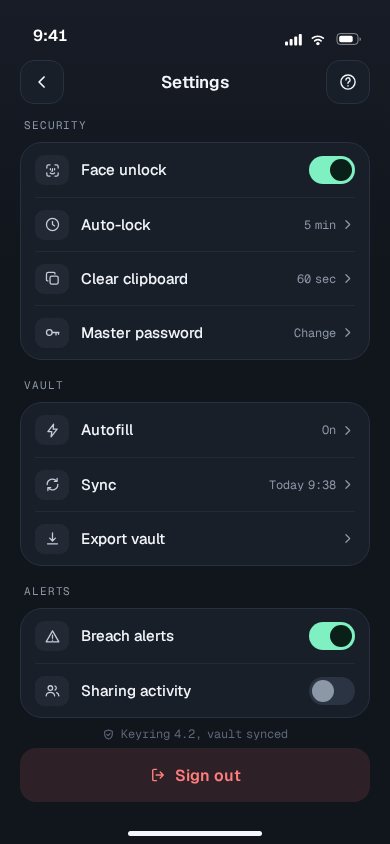 Keyring Settings: Password manager, Dark-first, dark
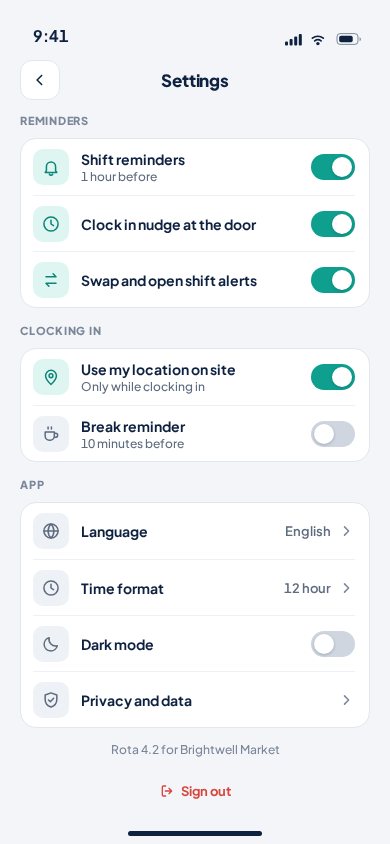 Rota Settings: Shift scheduling for hourly teams, Enterprise
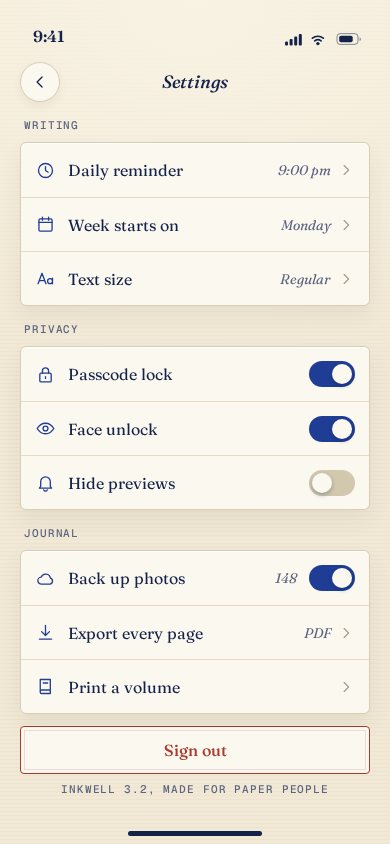 Inkwell Settings: Daily journal, Luxury
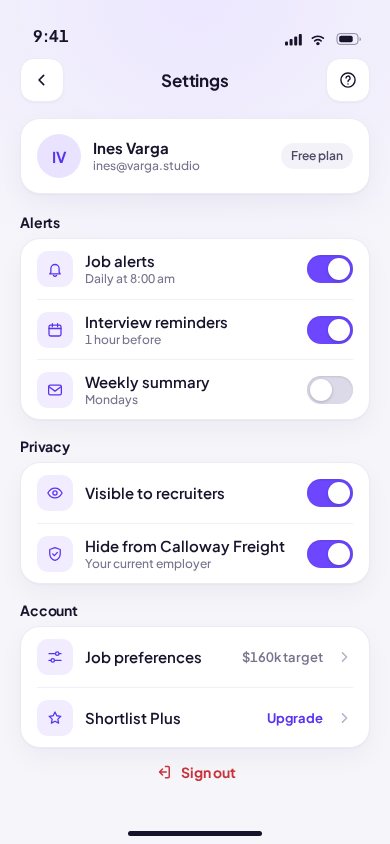 Shortlist Settings: Job search and application tracker, Enterprise
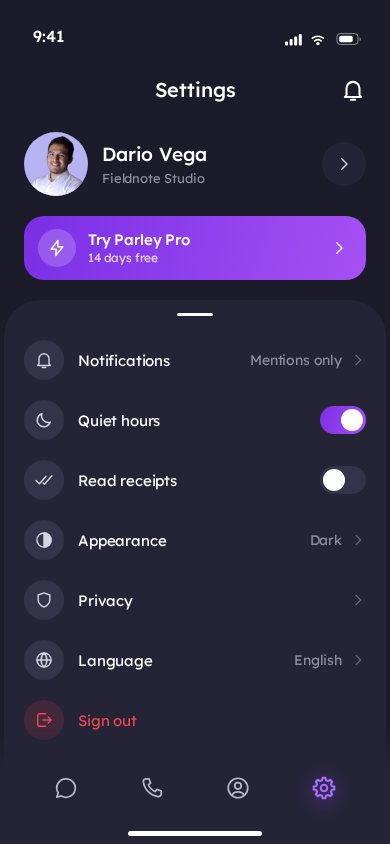 Parley Settings: Team messenger, Dark-first, dark
- Docket Settings: Task and sprint planner, Dark-first, dark
- Kanso Settings: Tasks, calendar and chat, Dark-first, dark
- Margin Settings: AI note taking, Dark-first, dark
- Aide Settings: Executive AI assistant, Dark-first, dark
- Juno Settings: AI chat assistant, Playful
- Opal Settings: Studio dashboard, Glass
- Jot Settings: Quick notes and checklists, Minimal
- Chrono Settings: World clock, timers and stopwatch, Dark-first, dark
- Frontdesk Settings: Customer support inbox, Enterprise
- Campaign Settings: Email marketing campaigns, Playful
- Outpost Settings: Schedule social posts, Minimal
- Pageview Settings: Website analytics, Enterprise
- Polish Settings: Writing assistant and keyboard, Glass
- Tapline Settings: Link-in-bio pages and analytics, Gen Z
- Quill Settings: Docs, wikis and databases in one workspace, Minimal
- Tandem Settings: Team chat, channels and huddles, Enterprise
- Shipyard Settings: Issue tracking for product teams, Dark-first, dark
- Canvas Settings: Design files and comments on mobile, Glass
- Merge Settings: Code, pull requests and reviews, Dark-first, dark
- Query Settings: AI answers with sources, Minimal
- Glossa Settings: Translate text, voice and camera, Minimal
- Layout Settings: Design anything from templates, Playful
- Tick Settings: To-do lists and reminders, Minimal
- Beacon Left behind: Find your devices and people, Glass
- Beacon Settings: Find your devices and people, Glass
- Staffroom Settings: HR, payslips and time off, Enterprise
- Slot Settings: Booking links and meeting scheduling, Minimal
- Sheet Settings: Spreadsheets and databases, Enterprise
- Tunnel Protocol: VPN and online privacy, Dark-first, dark
- Tunnel Kill switch: VPN and online privacy, Dark-first, dark
- Tunnel Settings: VPN and online privacy, Dark-first, dark
- Ping Settings: Internet speed test, Dark-first, dark
- Glance Settings: Visual search with the camera, Glass
- Replay Settings: Record and share screen videos, Glass
- Easel Settings: Collaborative whiteboard, Playful
- Token Backups: Two-factor codes and sign-in approvals, Minimal
- Token Settings: Two-factor codes and sign-in approvals, Minimal
- Beam Brand page: Send big files, Playful
- Beam Settings: Send big files, Playful
- Parchment Settings: Documents, edit and share, Minimal
- Lectern Settings: Slides and presenter remote, Dark-first, dark
- Ringer Settings: Phone, contacts and voicemail, Minimal
- Pipeline Settings: Sales CRM on the road, Enterprise
- Aim Settings: Goals and key results, Minimal
- Scribe Settings: Voice memos to notes, Glass
- Inkline Settings: Sign and send contracts, Clinical
- Dispatch Settings: Field service jobs for technicians, Enterprise
- Stash Display: Read-it-later and highlights, Neubrutalism
- Stash Settings: Read-it-later and highlights, Neubrutalism
- Uptime Channels: Server and site monitoring, Dark-first, dark
- Uptime Settings: Server and site monitoring, Dark-first, dark
- Branch Settings: Mind maps, Playful
What makes a good productivity app settings screen
- Group options into clear sections. Account, notifications, privacy, appearance and help, with headings, so people scan to the right group.
- Label settings by their effect. "Daily reminder at 8:00" is clearer than "Reminders". Add a short description under options that need one.
- Use the right control. Toggles for on and off, a row that opens a list for choices, and sliders only for ranges.
- Apply changes immediately. Most mobile settings take effect when changed, with no Save button to forget.
- Make dangerous actions hard to hit by accident. Delete account and sign out at the bottom, with confirmation. Apple asks apps that let people create an account to also let them delete it from inside the app.
- Show the current value in the row. A row like "Units: Metric" or "Reminder: 8:00" shows the setting without opening it, and saves a tap for people who only want to check.
The full settings screen guide: layouts, mistakes and questions
Settings screens in other kinds of app
- Lifestyle app settings screens (72)
- Social app settings screens (48)
- Finance app settings screens (44)
- Travel app settings screens (42)
- Fitness app settings screens (38)
- Education app settings screens (31)
- Food app settings screens (29)
- Sports app settings screens (23)
- Smart home app settings screens (23)
- Music app settings screens (20)
Other productivity app screens
- Productivity app onboarding screens
- Productivity app sign in and sign up screens
- Productivity app home screens
- Productivity app search and explore screens
- Productivity app list and feed screens
- Productivity app detail screens
- Productivity app booking and checkout screens
- Productivity app paywall screens
- Productivity app success and confirmation screens
- Productivity app profile screens
- Productivity app dashboard and stats screens
- Productivity app player, camera and editor screens
- Productivity app live tracking screens
- Productivity app form and input screens