Education app settings screens
31 settings screens from 29 education app templates, each in its own design language. Education apps are about the next step: what to learn today, how far you have come, and a tone that encourages rather than lectures.
The examples
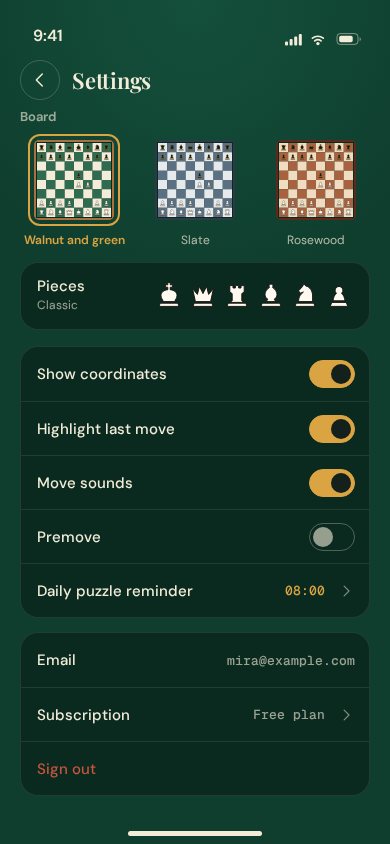 Gambit Settings: Chess training, Luxury, dark
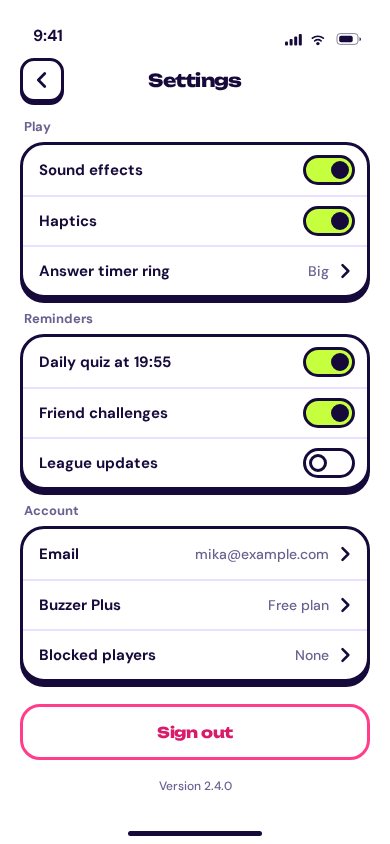 Buzzer Settings: Live trivia, Gen Z
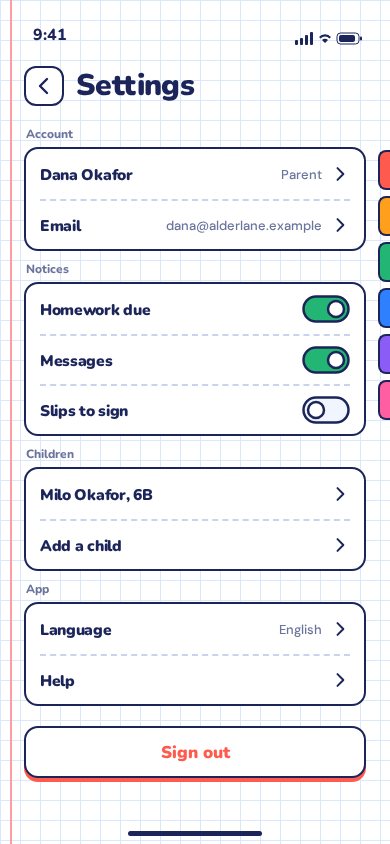 Homeroom Settings: School, all on one page, Playful
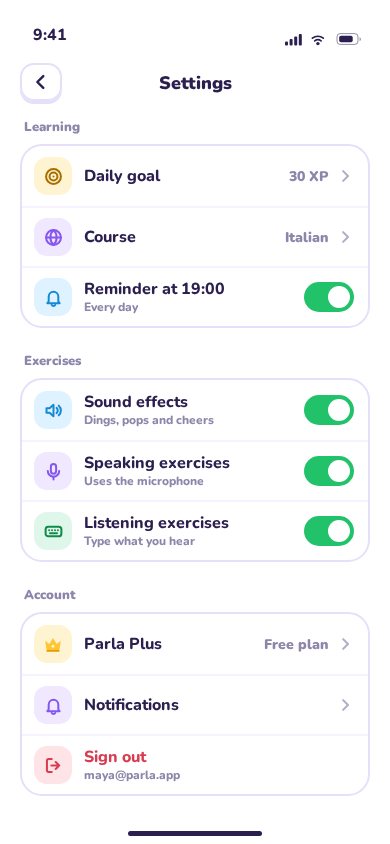 Parla Settings: Language learning, Playful
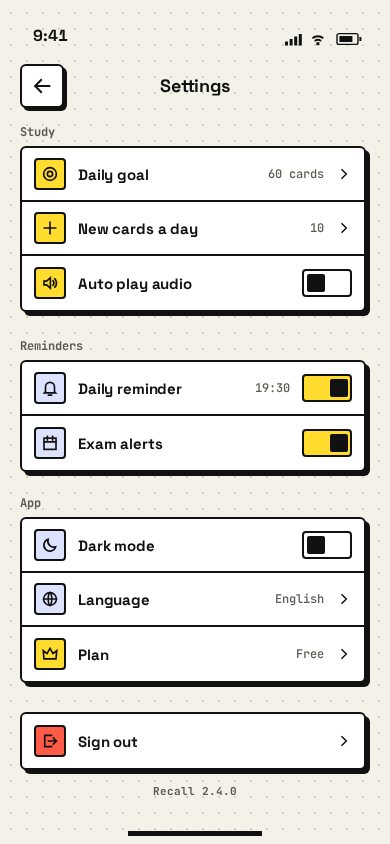 Recall Settings: Flashcards and spaced repetition, Neubrutalism
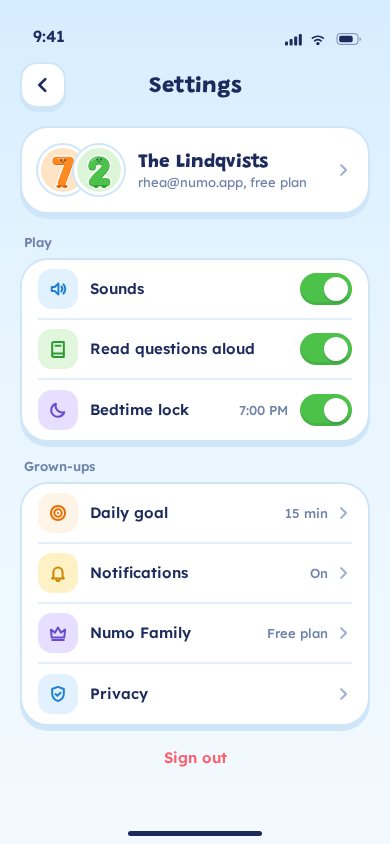 Numo Settings: Kids maths game, Playful
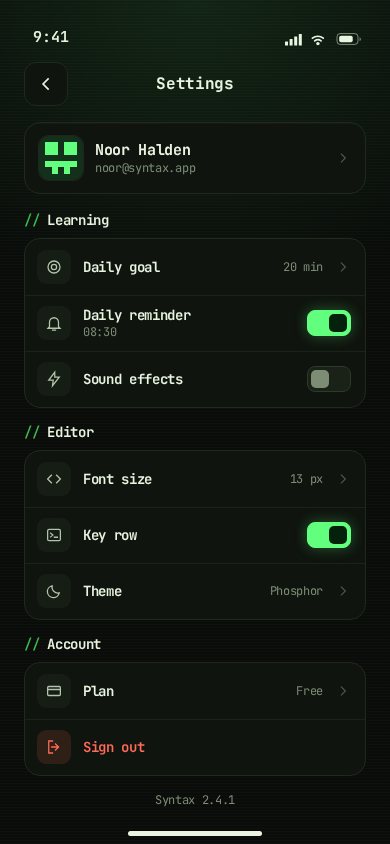 Syntax Settings: Learn to code, Dark-first, dark
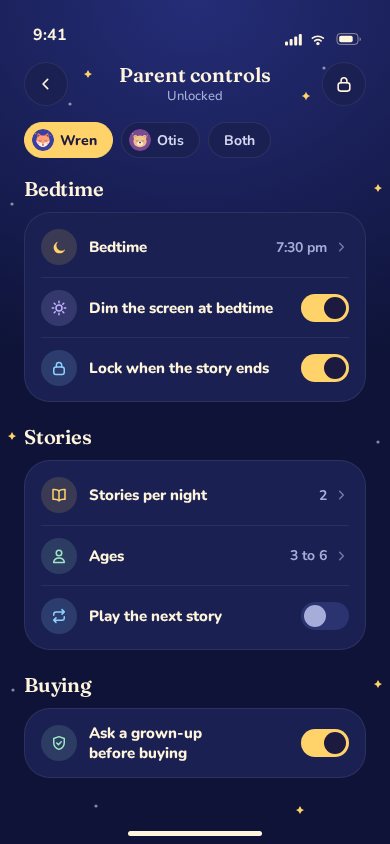 Tuckin Parent controls: Bedtime stories for kids, Playful, dark
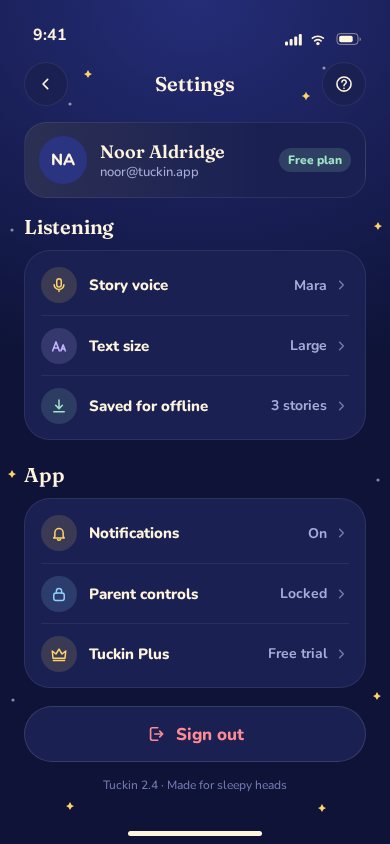 Tuckin Settings: Bedtime stories for kids, Playful, dark
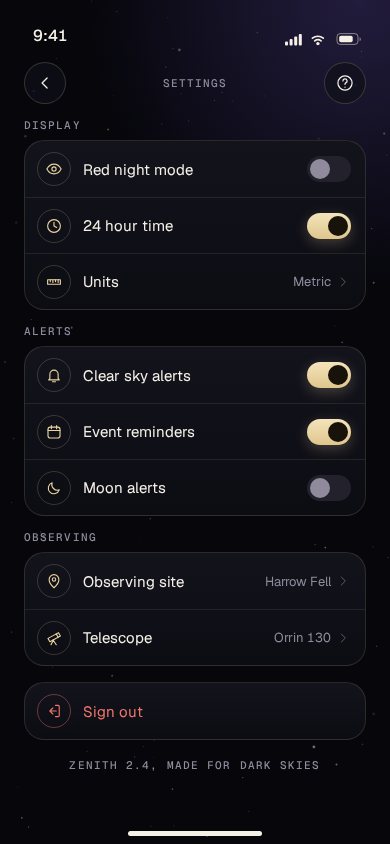 Zenith Settings: Night sky guide, Dark-first, dark
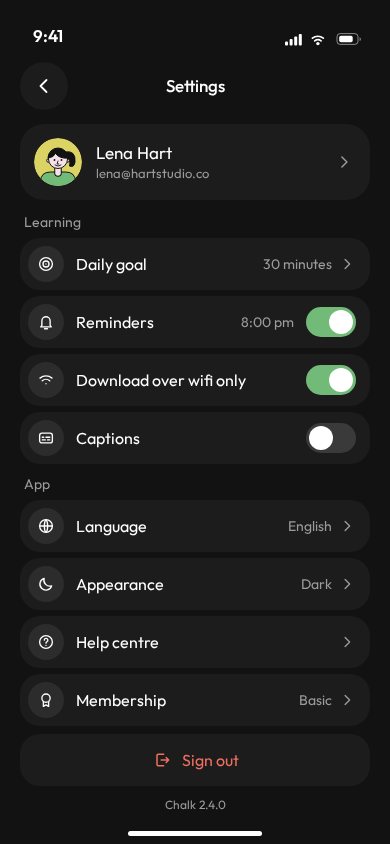 Chalk Settings: Design courses, Playful, dark
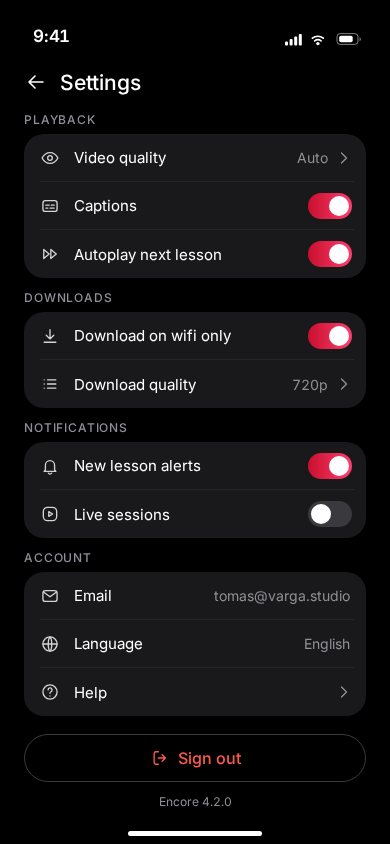 Encore Settings: Creator courses, Dark-first, dark
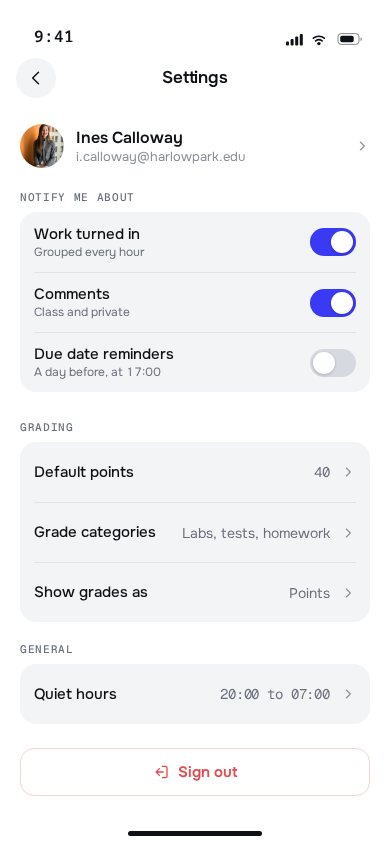 Classroom Settings: Class stream and assignments, Minimal
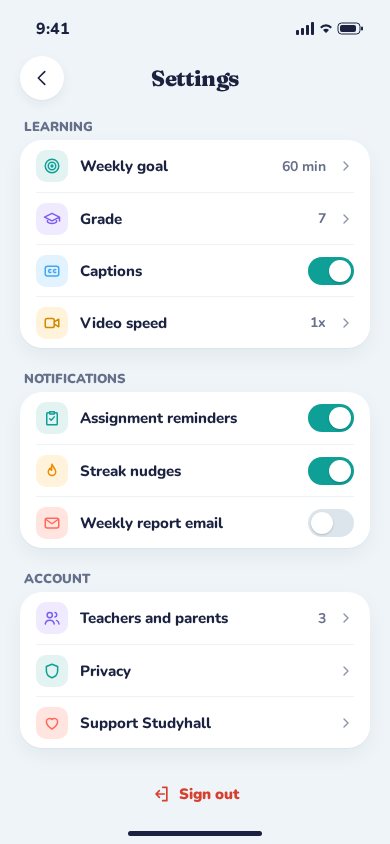 Studyhall Settings: Free lessons and practice for school, Playful
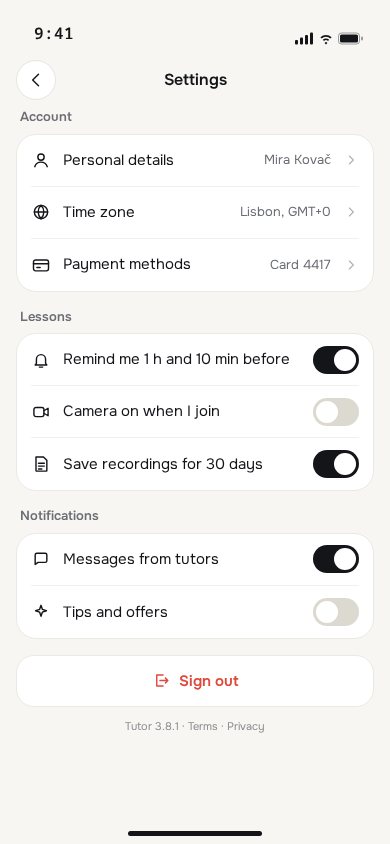 Tutor Settings: Book online tutors for any skill, Minimal
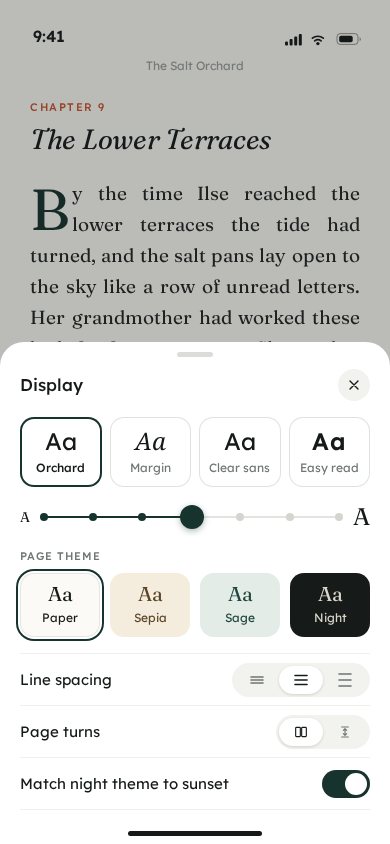 Leaf Display: E-books and reading, Minimal
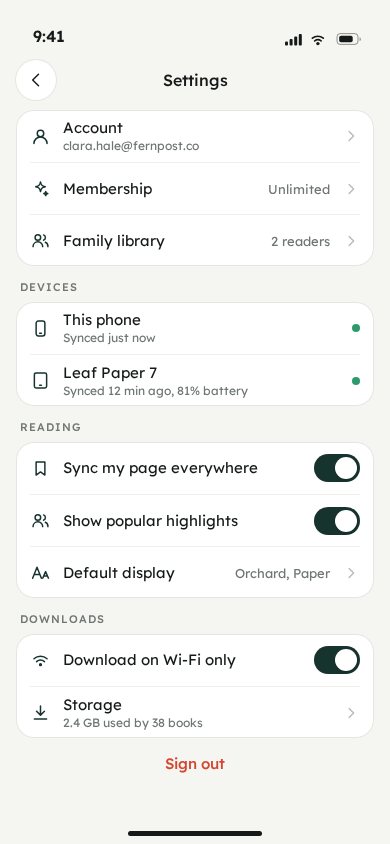 Leaf Settings: E-books and reading, Minimal
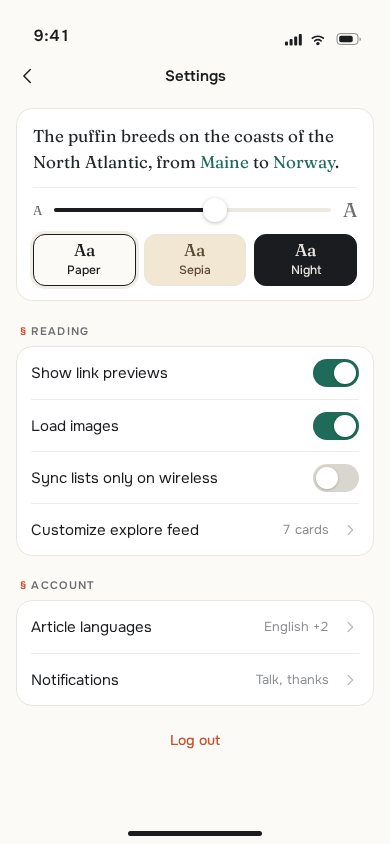 Almanac Settings: The free encyclopedia reader, Minimal
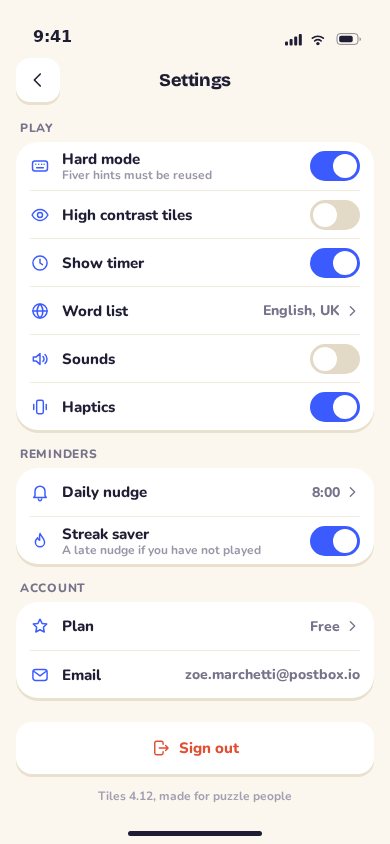 Tiles Settings: Daily word and number puzzles, Playful
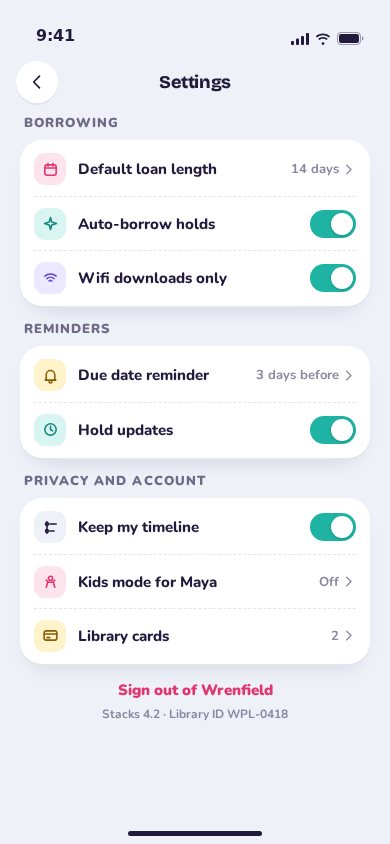 Stacks Settings: Borrow e-books and audiobooks from your library, Playful
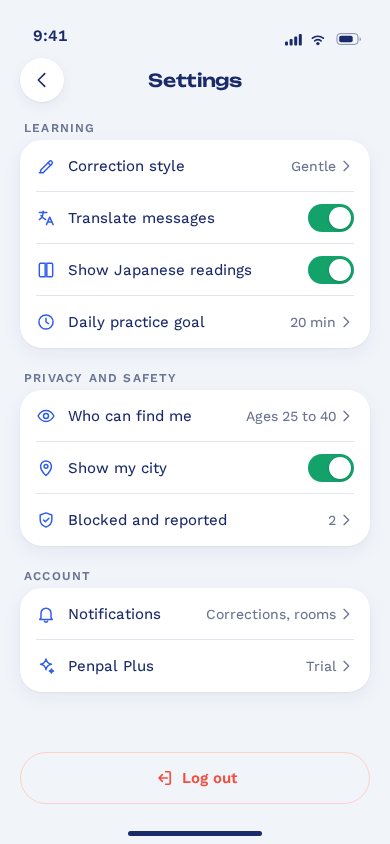 Penpal Settings: Language exchange chat, Playful
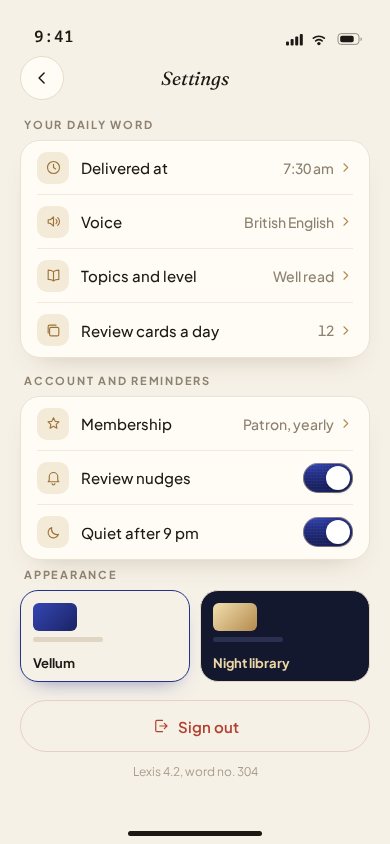 Lexis Settings: A word a day, Luxury
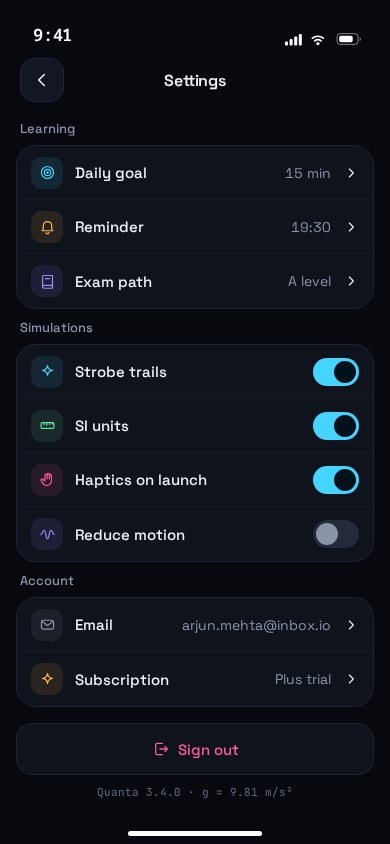 Quanta Settings: Interactive physics lessons, Dark-first, dark
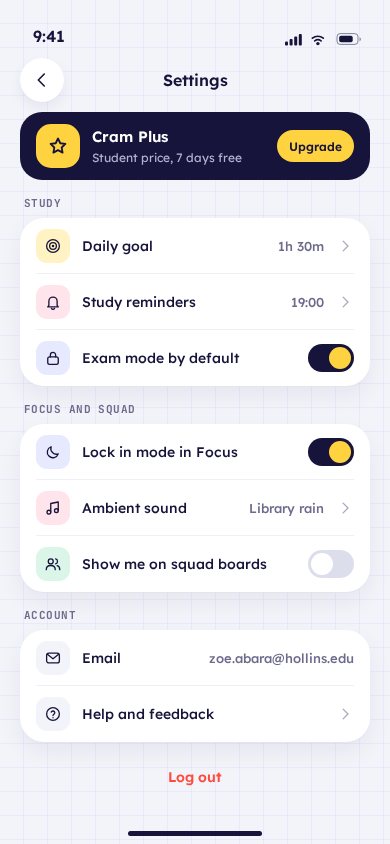 Cram Settings: Exam prep and mock tests, Gen Z
- Quad Settings: University campus app, Enterprise
- Palm Settings: Learn sign language, Playful
- Epoch Settings: History on a timeline, Brutalist
- Wren Settings: Early reading for kids, Neubrutalism
- Proof Settings: Maths tutor that shows its working, Clinical
- Skim Settings: Speed reading trainer, Minimal
- Terra Settings: Geography and flags quiz, Glass
What makes a good education app settings screen
- Group options into clear sections. Account, notifications, privacy, appearance and help, with headings, so people scan to the right group.
- Label settings by their effect. "Daily reminder at 8:00" is clearer than "Reminders". Add a short description under options that need one.
- Use the right control. Toggles for on and off, a row that opens a list for choices, and sliders only for ranges.
- Apply changes immediately. Most mobile settings take effect when changed, with no Save button to forget.
- Make dangerous actions hard to hit by accident. Delete account and sign out at the bottom, with confirmation. Apple asks apps that let people create an account to also let them delete it from inside the app.
- Show the current value in the row. A row like "Units: Metric" or "Reminder: 8:00" shows the setting without opening it, and saves a tap for people who only want to check.
The full settings screen guide: layouts, mistakes and questions
Settings screens in other kinds of app
- Productivity app settings screens (76)
- Lifestyle app settings screens (72)
- Social app settings screens (48)
- Finance app settings screens (44)
- Travel app settings screens (42)
- Fitness app settings screens (38)
- Food app settings screens (29)
- Sports app settings screens (23)
- Smart home app settings screens (23)
- Music app settings screens (20)
Other education app screens
- Education app onboarding screens
- Education app sign in and sign up screens
- Education app home screens
- Education app search and explore screens
- Education app list and feed screens
- Education app detail screens
- Education app booking and checkout screens
- Education app paywall screens
- Education app success and confirmation screens
- Education app profile screens
- Education app dashboard and stats screens
- Education app player, camera and editor screens
- Education app live tracking screens
- Education app form and input screens