Templates · Settings screens · Productivity app · Token
Token Backups screen
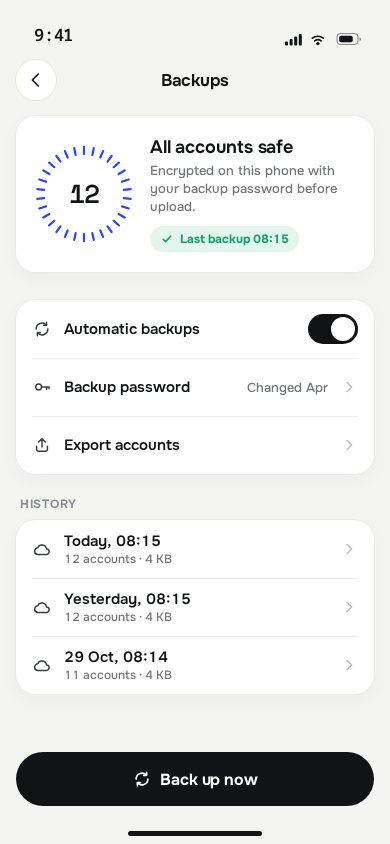
A settings screen from Token, a two-factor codes and sign-in approvals app template in a Minimal style. Screen 17 of 25.
Token is a complete authenticator: welcome, phone sign up and code check, app unlock, a codes home with a live 30 second countdown, an account with its big code, scanning a QR code, adding a key by hand and a ready screen, search, a sign-in request with a map and its approval, request history, weekly activity, devices, backups with a backup password and export, editing an account, groups, alerts, a Plus plan, profile and settings. Paper white and ink, cobalt for time and action, vermilion when a code is about to change.
| Detail | Value |
|---|---|
| Screen type | Settings |
| App | Token: Two-factor codes and sign-in approvals |
| Category | Productivity |
| Design language | Minimal, light |
| Type | Space Grotesk for headings, Onest for text |
| Colours | #f4f4f1 background, #ffffff surface, #111317 text, #74767d text-muted, #2c47f5 accent, #e9ecfe accent-tint, #e7e7e2 border, #ef4b2b danger, #13a36b success |
What this screen says
- Backups
- All accounts safe
- Encrypted on this phone with your backup password before upload. Last backup 08:15
- Automatic backups
- Backup password
- Changed Apr
- Export accounts
- History
- Today, 08:1512 accounts · 4 KB
- Yesterday, 08:1512 accounts · 4 KB
- 29 Oct, 08:1411 accounts · 4 KB
- Back up now
Around it in Token
More settings screens
- Convene Settings: Video meetings
- Unplug Settings: Screen time blocker
- Streak Reminders: Small days, long chains
- Deskly Settings: Hybrid office booking
- Pomo Settings: Focus timer
- Postbox Settings: Email for busy teams
- Daybook Settings: Calendar and planner
- Scanly Settings: Document scanner
- Keyring Autofill: Password manager
- Rota Settings: Shift scheduling for hourly teams
- Inkwell Settings: Daily journal
- Shortlist Settings: Job search and application tracker
Every productivity app settings screen
What makes a good settings screen
- Group options into clear sections. Account, notifications, privacy, appearance and help, with headings, so people scan to the right group.
- Label settings by their effect. "Daily reminder at 8:00" is clearer than "Reminders". Add a short description under options that need one.
- Use the right control. Toggles for on and off, a row that opens a list for choices, and sliders only for ranges.
- Apply changes immediately. Most mobile settings take effect when changed, with no Save button to forget.
The full settings screen guide and every example
Remix Token free: describe your own app and it is drawn in this design. Or get its files from $10: Figma, React Native, SwiftUI, Flutter and HTML.