Templates · Settings screens · Productivity app · Lectern
Lectern Settings screen
A settings screen from Lectern, a slides and presenter remote app template in a Dark-first style. Screen 25 of 25.
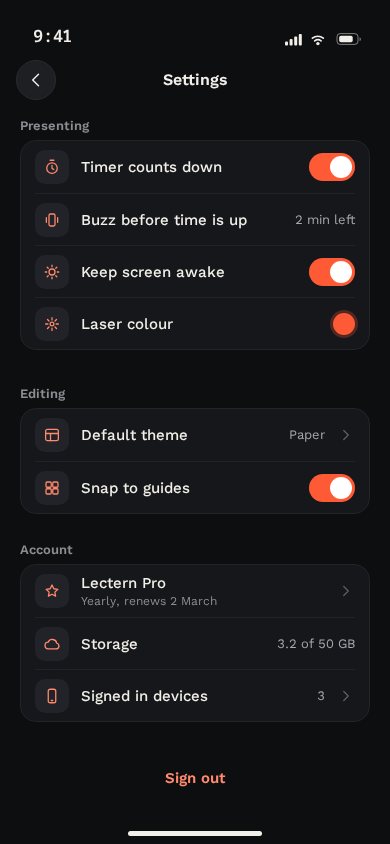
Lectern is a complete slides app: welcome, sign in, a deck gallery with the next talk, search across slides and notes, themes for a new deck, a deck page, the slide navigator, a slide editor with text format, layouts, chart data and builds, comments, rehearsal with a live timer and a report, connecting to a screen, presenter view with notes, the phone as a remote and laser, share, export and a ready file, a Pro plan, activity, profile and settings. Graphite backstage, cream paper slides and a laser vermilion.
| Detail | Value |
|---|---|
| Screen type | Settings |
| App | Lectern: Slides and presenter remote |
| Category | Productivity |
| Design language | Dark-first, dark |
| Type | Instrument Serif for headings, Work Sans for text |
| Colours | #0d0e10 background, #16171a surface, #f2efe9 text, #8e8c93 text-muted, #ff5a36 accent, #ffffff accent-contrast, #f2ece0 secondary, #2a2b30 border, #ffc14d warning, #5ad1b0 success |
What this screen says
- Settings
- Presenting
- Timer counts down
- Buzz before time is up
- 2 min left
- Keep screen awake
- Laser colour
- Editing
- Default theme
- Paper
- Snap to guides
- Account
- Lectern Pro
- Yearly, renews 2 March
- Storage
- 3.2 of 50 GB
- Signed in devices
- Sign out
Around it in Lectern
More settings screens
- Kanso Settings: Tasks, calendar and chat
- Margin Settings: AI note taking
- Aide Settings: Executive AI assistant
- Juno Settings: AI chat assistant
- Opal Settings: Studio dashboard
- Jot Settings: Quick notes and checklists
- Chrono Settings: World clock, timers and stopwatch
- Frontdesk Settings: Customer support inbox
- Campaign Settings: Email marketing campaigns
- Outpost Settings: Schedule social posts
- Pageview Settings: Website analytics
- Polish Settings: Writing assistant and keyboard
Every productivity app settings screen
What makes a good settings screen
- Group options into clear sections. Account, notifications, privacy, appearance and help, with headings, so people scan to the right group.
- Label settings by their effect. "Daily reminder at 8:00" is clearer than "Reminders". Add a short description under options that need one.
- Use the right control. Toggles for on and off, a row that opens a list for choices, and sliders only for ranges.
- Apply changes immediately. Most mobile settings take effect when changed, with no Save button to forget.
The full settings screen guide and every example
Remix Lectern free: describe your own app and it is drawn in this design. Or get its files from $10: Figma, React Native, SwiftUI, Flutter and HTML.