Templates · Settings screens · Productivity app · Margin
Margin Settings screen
A settings screen from Margin, an AI note taking app template in a Dark-first style. Screen 25 of 25.
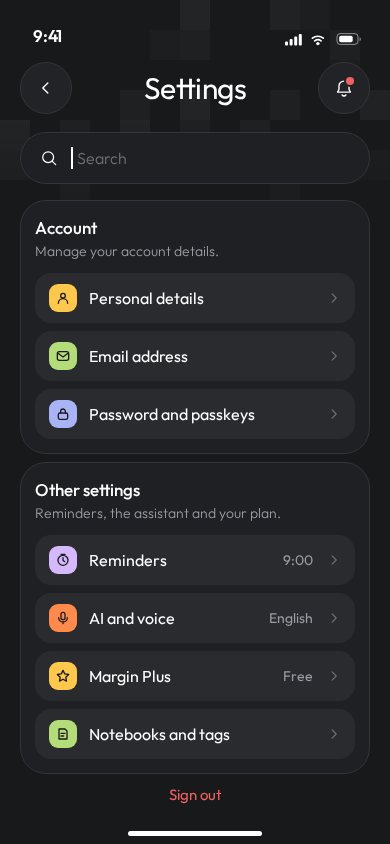
Margin is a complete AI note taking app: onboarding, sign in, a first-run setup, a home wall of colour note cards and photos, search, notebooks, a note with collaborators and a sketch, the note menu, editing, moving a note, voice recording with a transcript, AI summaries, asking your notes and reading the answer, tasks pulled from notes, insights, sharing, notifications, a paid plan, profile and settings. Charcoal dark with huge light headlines, pastel cards and a glossy coral orb for the assistant.
| Detail | Value |
|---|---|
| Screen type | Settings |
| App | Margin: AI note taking |
| Category | Productivity |
| Design language | Dark-first, dark |
| Type | Outfit |
| Colours | #18191b background, #222326 surface, #ffffff text, #9b9ca3 text-muted, #ff8a4c accent, #18191b accent-contrast, #a9b4f7 secondary, #34353a border, #f0625f danger |
What this screen says
- Settings
- Search
- Account
- Manage your account details.
- Personal details
- Email address
- Password and passkeys
- Other settings
- Reminders, the assistant and your plan.
- Reminders
- AI and voice
- English
- Margin Plus
- Free
- Notebooks and tags
- Sign out
Around it in Margin
More settings screens
- Tapline Settings: Link-in-bio pages and analytics
- Quill Settings: Docs, wikis and databases in one workspace
- Tandem Settings: Team chat, channels and huddles
- Shipyard Settings: Issue tracking for product teams
- Canvas Settings: Design files and comments on mobile
- Merge Settings: Code, pull requests and reviews
- Query Settings: AI answers with sources
- Glossa Settings: Translate text, voice and camera
- Layout Settings: Design anything from templates
- Tick Settings: To-do lists and reminders
- Beacon Left behind: Find your devices and people
- Staffroom Settings: HR, payslips and time off
Every productivity app settings screen
What makes a good settings screen
- Group options into clear sections. Account, notifications, privacy, appearance and help, with headings, so people scan to the right group.
- Label settings by their effect. "Daily reminder at 8:00" is clearer than "Reminders". Add a short description under options that need one.
- Use the right control. Toggles for on and off, a row that opens a list for choices, and sliders only for ranges.
- Apply changes immediately. Most mobile settings take effect when changed, with no Save button to forget.
The full settings screen guide and every example
Remix Margin free: describe your own app and it is drawn in this design. Or get its files from $10: Figma, React Native, SwiftUI, Flutter and HTML.