Templates · Settings screens · Productivity app · Keyring
Keyring Settings screen
A settings screen from Keyring, a password manager app template in a Dark-first style. Screen 25 of 25.
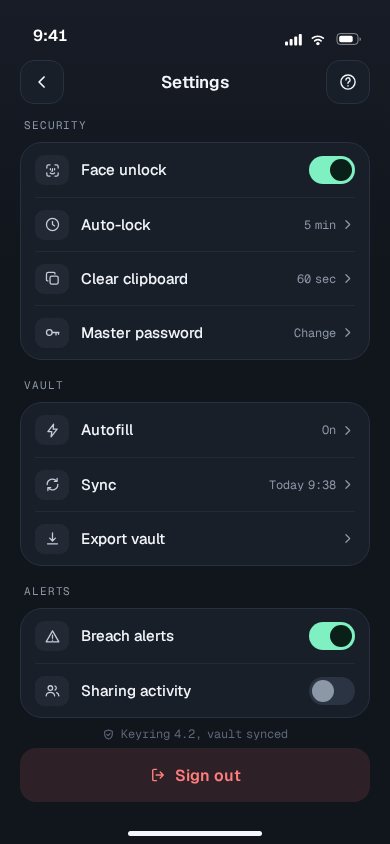
Keyring is a complete password manager: welcome, sign in, a master password with a strength meter, a recovery kit, passcode unlock, the vault home, search, every login, a login with its one-time code and history, new items, a password generator, cards, secure notes, a security score with weak, reused and breached passwords, a breach alert, autofill setup, shared vaults and sharing an item, alerts, a Plus plan, profile and settings. Mint means safe, apricot means weak and coral means breached.
| Detail | Value |
|---|---|
| Screen type | Settings |
| App | Keyring: Password manager |
| Category | Productivity |
| Design language | Dark-first, dark |
| Type | Geist |
| Colours | #11151c background, #191f29 surface, #f3f6fa text, #8c97a8 text-muted, #7ef0c1 accent, #0a1f18 accent-contrast, #a7b4ff secondary, #283140 border, #ff7d7d danger |
What this screen says
- Settings
- Security
- Face unlock
- Auto-lock
- 5 min
- Clear clipboard
- 60 sec
- Master password
- Change
- Vault
- Autofill
- On
- Sync
- Today 9:38
- Export vault
- Alerts
- Breach alerts
- Sharing activity
- Keyring 4.2, vault synced
- Sign out
Around it in Keyring
More settings screens
- Daybook Settings: Calendar and planner
- Scanly Settings: Document scanner
- Rota Settings: Shift scheduling for hourly teams
- Inkwell Settings: Daily journal
- Shortlist Settings: Job search and application tracker
- Parley Settings: Team messenger
- Docket Settings: Task and sprint planner
- Kanso Settings: Tasks, calendar and chat
- Margin Settings: AI note taking
- Aide Settings: Executive AI assistant
- Juno Settings: AI chat assistant
- Opal Settings: Studio dashboard
Every productivity app settings screen
What makes a good settings screen
- Group options into clear sections. Account, notifications, privacy, appearance and help, with headings, so people scan to the right group.
- Label settings by their effect. "Daily reminder at 8:00" is clearer than "Reminders". Add a short description under options that need one.
- Use the right control. Toggles for on and off, a row that opens a list for choices, and sliders only for ranges.
- Apply changes immediately. Most mobile settings take effect when changed, with no Save button to forget.
The full settings screen guide and every example
Remix Keyring free: describe your own app and it is drawn in this design. Or get its files from $10: Figma, React Native, SwiftUI, Flutter and HTML.