Templates · Settings screens · Productivity app · Staffroom
Staffroom Settings screen
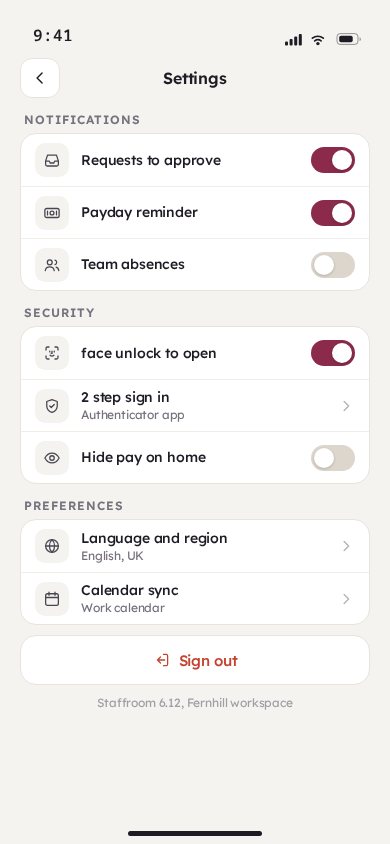
A settings screen from Staffroom, a productivity app template in an Enterprise style. Screen 25 of 25.
Staffroom is a complete employee HR app: welcome, workspace sign in and a 6 digit code, a home with next payday, requests waiting and the leave balance, a manager inbox with a time off approval, time off balances, a calendar request with review and confirmation, a team absence calendar, pay with a year chart, a full UK payslip, expenses with a receipt scanner and a new claim form, benefits and a health cover plan picker, a people directory, a colleague profile, an org chart, a quarterly check in, notifications, a staff badge profile and settings. Warm stone and white with deep claret and ochre.
| Detail | Value |
|---|---|
| Screen type | Settings |
| App | Staffroom: HR, payslips and time off |
| Category | Productivity |
| Design language | Enterprise, light |
| Type | Lexend |
| Colours | #f5f3ef background, #ffffff surface, #1f1b24 text, #77717d text-muted, #8b2a4a accent, #ffffff accent-contrast, #c9851b secondary, #e8e3dc border, #c4422f danger |
What this screen says
- Settings
- Notifications
- Requests to approve
- Payday reminder
- Team absences
- Security
- face unlock to open
- 2 step sign inAuthenticator app
- Hide pay on home
- Preferences
- Language and regionEnglish, UK
- Calendar syncWork calendar
- Sign out
- Staffroom 6.12, Fernhill workspace
Around it in Staffroom
More settings screens
- Inkwell Settings: Daily journal
- Shortlist Settings: Job search and application tracker
- Parley Settings: Team messenger
- Docket Settings: Task and sprint planner
- Kanso Settings: Tasks, calendar and chat
- Margin Settings: AI note taking
- Aide Settings: Executive AI assistant
- Juno Settings: AI chat assistant
- Opal Settings: Studio dashboard
- Jot Settings: Quick notes and checklists
- Chrono Settings: World clock, timers and stopwatch
- Frontdesk Settings: Customer support inbox
Every productivity app settings screen
What makes a good settings screen
- Group options into clear sections. Account, notifications, privacy, appearance and help, with headings, so people scan to the right group.
- Label settings by their effect. "Daily reminder at 8:00" is clearer than "Reminders". Add a short description under options that need one.
- Use the right control. Toggles for on and off, a row that opens a list for choices, and sliders only for ranges.
- Apply changes immediately. Most mobile settings take effect when changed, with no Save button to forget.
The full settings screen guide and every example
Remix Staffroom free: describe your own app and it is drawn in this design. Or get its files from $10: Figma, React Native, SwiftUI, Flutter and HTML.