Templates · Settings screens · Productivity app · Tunnel
Tunnel Settings screen
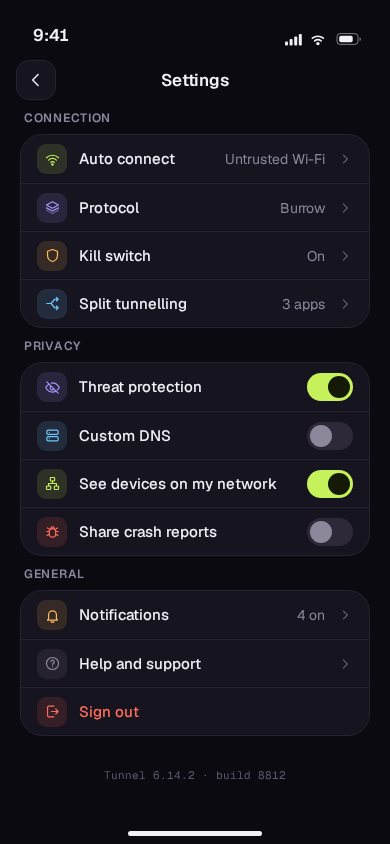
A settings screen from Tunnel, a VPN and online privacy app template in a Dark-first style. Screen 25 of 25.
Tunnel is a complete VPN and privacy app: welcome, sign in and VPN permission, a one tap connect home inside a glowing tunnel, the connecting handshake, a dot matrix server map, a country list and a country with its cities, live connection details, specialty servers and double hop, protocols, kill switch, split tunnelling, threat protection with a blocked log, a data breach monitor and a leak, a speed test, plans, checkout and a success screen, notifications, account and settings. Aubergine black and plum graphite with signal lime and lavender.
| Detail | Value |
|---|---|
| Screen type | Settings |
| App | Tunnel: VPN and online privacy |
| Category | Productivity |
| Design language | Dark-first, dark |
| Type | Bricolage Grotesque for headings, Geist for text |
| Colours | #0b0a11 background, #16141e surface, #f2f0f7 text, #8d879b text-muted, #c5f25a accent, #141a05 accent-contrast, #a796ff secondary, #26222f border, #ff6b5b danger |
What this screen says
- Settings
- Connection
- Auto connect
- Untrusted Wi-Fi
- Protocol
- Burrow
- Kill switch
- On
- Split tunnelling
- 3 apps
- Privacy
- Threat protection
- Custom DNS
- See devices on my network
- Share crash reports
- General
- Notifications
- 4 on
- Help and support
- Sign out
- Tunnel 6.14.2 · build 8812
Around it in Tunnel
More settings screens
- Bench Settings: Freelance marketplace
- Convene Settings: Video meetings
- Unplug Settings: Screen time blocker
- Streak Reminders: Small days, long chains
- Deskly Settings: Hybrid office booking
- Pomo Settings: Focus timer
- Postbox Settings: Email for busy teams
- Daybook Settings: Calendar and planner
- Scanly Settings: Document scanner
- Keyring Autofill: Password manager
- Rota Settings: Shift scheduling for hourly teams
- Inkwell Settings: Daily journal
Every productivity app settings screen
What makes a good settings screen
- Group options into clear sections. Account, notifications, privacy, appearance and help, with headings, so people scan to the right group.
- Label settings by their effect. "Daily reminder at 8:00" is clearer than "Reminders". Add a short description under options that need one.
- Use the right control. Toggles for on and off, a row that opens a list for choices, and sliders only for ranges.
- Apply changes immediately. Most mobile settings take effect when changed, with no Save button to forget.
The full settings screen guide and every example
Remix Tunnel free: describe your own app and it is drawn in this design. Or get its files from $10: Figma, React Native, SwiftUI, Flutter and HTML.