Templates · Settings screens · Education app · Tuckin
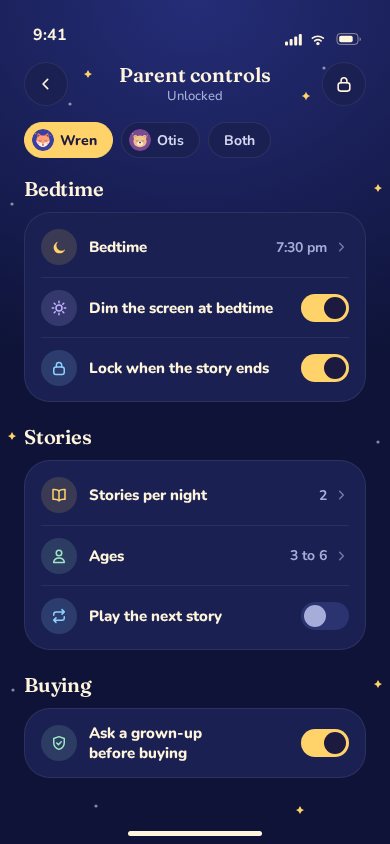
Tuckin Parent controls screen
A settings screen from Tuckin, a bedtime stories for kids app template in a Playful style. Screen 23 of 25.
Tuckin is a complete bedtime story app: welcome, sign in, adding a child and a bedtime, picking who is listening, a home with tonight's story, a library, search and collections, a story page, an illustrated reader, a narration player with a sleep timer, sleep sounds, a goodnight screen, favourites, a bedtime diary, child and family profiles, a parent gate, parent controls, a Plus plan and settings. Everything a child can tap is star yellow; everything for parents is calm and plain.
| Detail | Value |
|---|---|
| Screen type | Settings |
| App | Tuckin: Bedtime stories for kids |
| Category | Education |
| Design language | Playful, dark |
| Type | Nunito |
| Colours | #0e1337 background, #1a2152 surface, #fff4dc text, #a6add8 text-muted, #ffd36a accent, #1c1a3f accent-contrast, #ffb199 secondary, #2b3370 border, #ff8a94 danger |
What this screen says
- Parent controls
- Unlocked
- Wren
- Otis Both
- Bedtime
- 7:30 pm
- Dim the screen at bedtime
- Lock when the story ends
- Stories
- Stories per night
- Ages
- 3 to 6
- Play the next story
- Buying
- Ask a grown-up
- before buying
Around it in Tuckin
More settings screens
- Gambit Settings: Chess training
- Buzzer Settings: Live trivia
- Homeroom Settings: School, all on one page
- Parla Settings: Language learning
- Recall Settings: Flashcards and spaced repetition
- Numo Settings: Kids maths game
- Syntax Settings: Learn to code
- Zenith Settings: Night sky guide
- Chalk Settings: Design courses
- Encore Settings: Creator courses
- Classroom Settings: Class stream and assignments
- Studyhall Settings: Free lessons and practice for school
Every education app settings screen
What makes a good settings screen
- Group options into clear sections. Account, notifications, privacy, appearance and help, with headings, so people scan to the right group.
- Label settings by their effect. "Daily reminder at 8:00" is clearer than "Reminders". Add a short description under options that need one.
- Use the right control. Toggles for on and off, a row that opens a list for choices, and sliders only for ranges.
- Apply changes immediately. Most mobile settings take effect when changed, with no Save button to forget.
The full settings screen guide and every example
Remix Tuckin free: describe your own app and it is drawn in this design. Or get its files from $10: Figma, React Native, SwiftUI, Flutter and HTML.