Templates · Settings screens · Education app · Quanta
Quanta Settings screen
A settings screen from Quanta, an interactive physics lessons app template in a Dark-first style. Screen 25 of 25.
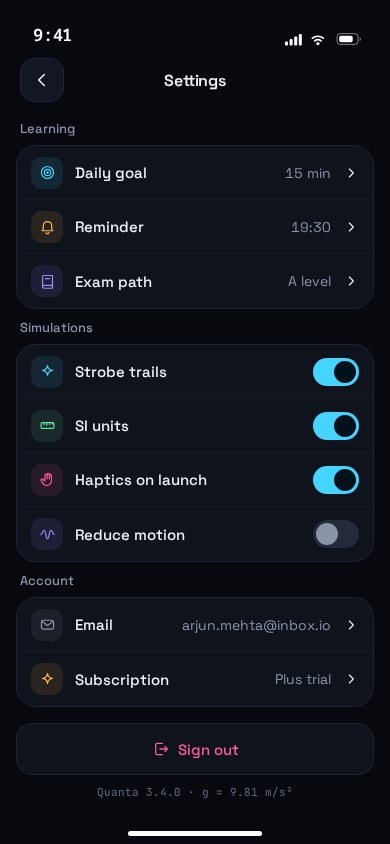
Quanta is a complete physics learning app: welcome, a goal picker and sign in, a home with the lesson in progress, explore by topic, a course map, a lesson page, an interactive projectile simulation with sliders, an animated explainer, a quiz with feedback and a lesson complete screen, a live pendulum lab, a lab notebook and a results form, a formula sheet and formula page, progress stats, live tutor labs with booking and confirmation, a Plus plan, notifications, profile and settings. Ink black and graph paper with photon cyan, amber energy and magenta force.
| Detail | Value |
|---|---|
| Screen type | Settings |
| App | Quanta: Interactive physics lessons |
| Category | Education |
| Design language | Dark-first, dark |
| Type | Instrument Serif for headings, Space Grotesk for text |
| Colours | #07090f background, #0f131c surface, #eef1f8 text, #8a93a8 text-muted, #45d4ff accent, #03121a accent-contrast, #ffb547 secondary, #1e2433 border, #ff5c9a danger |
What this screen says
- Settings
- Learning
- Daily goal15 min
- Reminder19:30
- Exam pathA level
- Simulations
- Strobe trails
- SI units
- Haptics on launch
- Reduce motion
- Account
- Emailarjun.mehta@inbox.io
- SubscriptionPlus trial
- Sign out
- Quanta 3.4.0 · g = 9.81 m/s²
Around it in Quanta
More settings screens
- Buzzer Settings: Live trivia
- Homeroom Settings: School, all on one page
- Parla Settings: Language learning
- Recall Settings: Flashcards and spaced repetition
- Numo Settings: Kids maths game
- Syntax Settings: Learn to code
- Tuckin Parent controls: Bedtime stories for kids
- Zenith Settings: Night sky guide
- Chalk Settings: Design courses
- Encore Settings: Creator courses
- Classroom Settings: Class stream and assignments
- Studyhall Settings: Free lessons and practice for school
Every education app settings screen
What makes a good settings screen
- Group options into clear sections. Account, notifications, privacy, appearance and help, with headings, so people scan to the right group.
- Label settings by their effect. "Daily reminder at 8:00" is clearer than "Reminders". Add a short description under options that need one.
- Use the right control. Toggles for on and off, a row that opens a list for choices, and sliders only for ranges.
- Apply changes immediately. Most mobile settings take effect when changed, with no Save button to forget.
The full settings screen guide and every example
Remix Quanta free: describe your own app and it is drawn in this design. Or get its files from $10: Figma, React Native, SwiftUI, Flutter and HTML.