Templates · Home screens · Productivity app · Aide
Aide Home screen
A home screen from Aide, an executive AI assistant app template in a Dark-first style. Screen 5 of 25.
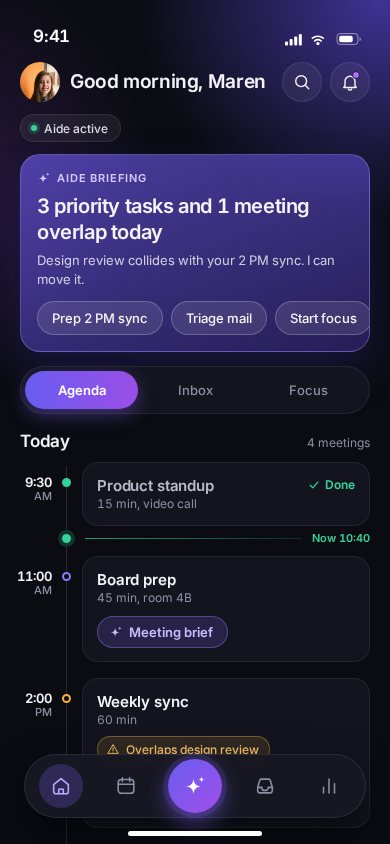
Aide is a complete AI chief of staff app: welcome, account and verification, connecting calendar and mail, a home with the daily briefing and agenda timeline, voice and typed commands, an inbox triaged with summaries and ready drafts, meeting briefs with overlap fixes, tasks and delegation, a focus timer, travel and documents at a glance, weekly insights, a plan screen, profile and settings. Near-black with a violet aurora, emerald status marks and amber warnings.
| Detail | Value |
|---|---|
| Screen type | Home |
| App | Aide: Executive AI assistant |
| Category | Productivity |
| Design language | Dark-first, dark |
| Type | Inter |
| Colours | #0b0c12 background, #15161f surface, #f4f4f8 text, #8d90a3 text-muted, #7c5cf2 accent, #ffffff accent-contrast, #34d399 secondary, #262836 border, #f26d78 danger |
What this screen says
- Good morning, Maren
- Aide active
- Aide briefing
- 3 priority tasks and 1 meeting overlap today
- Design review collides with your 2 PM sync. I can move it.
- Prep 2 PM sync Triage mail Start focus
- Agenda Inbox Focus
- Today
- 4 meetings
- 9:30AM
- Product standup
- 15 min, video call
- Done
- Now 10:40
- 11:00AM
- Board prep
- 45 min, room 4B
- Meeting brief
- 2:00PM
- Weekly sync
- 60 min
- Overlaps design review
Around it in Aide
More home screens
- Easel Boards: Collaborative whiteboard
- Token Codes: Two-factor codes and sign-in approvals
- Beam Home: Send big files
- Parchment Home: Documents, edit and share
- Lectern Home: Slides and presenter remote
- Ringer Favourites: Phone, contacts and voicemail
- Pipeline Today: Sales CRM on the road
- Aim Today: Goals and key results
- Scribe Home: Voice memos to notes
- Inkline Home: Sign and send contracts
- Dispatch Today: Field service jobs for technicians
- Stash Home: Read-it-later and highlights
Every productivity app home screen
What makes a good home screen
- Put the most important thing first. Decide the one thing most people come for, like today's workout, a balance or the next booking, and give it the top of the screen.
- Make it feel current. Greetings with the time of day, today's date, fresh numbers and recent activity tell people the app is alive and about them.
- Keep quick actions within thumb reach. The two or three things people do most should be one tap away, in the lower part of the screen or a floating button.
- Group related content in clear sections. Use headings and spacing so the screen scans as a few blocks, not a long mixed list.
The full home screen guide and every example
Remix Aide free: describe your own app and it is drawn in this design. Or get its files from $10: Figma, React Native, SwiftUI, Flutter and HTML.