Templates · Onboarding screens · Productivity app · Aide
Aide Connect screen
An onboarding screen from Aide, an executive AI assistant app template in a Dark-first style. Screen 4 of 25.
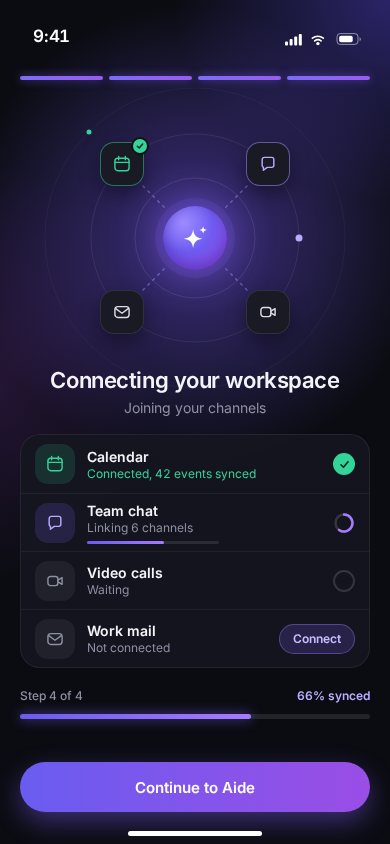
Aide is a complete AI chief of staff app: welcome, account and verification, connecting calendar and mail, a home with the daily briefing and agenda timeline, voice and typed commands, an inbox triaged with summaries and ready drafts, meeting briefs with overlap fixes, tasks and delegation, a focus timer, travel and documents at a glance, weekly insights, a plan screen, profile and settings. Near-black with a violet aurora, emerald status marks and amber warnings.
| Detail | Value |
|---|---|
| Screen type | Onboarding |
| App | Aide: Executive AI assistant |
| Category | Productivity |
| Design language | Dark-first, dark |
| Type | Inter |
| Colours | #0b0c12 background, #15161f surface, #f4f4f8 text, #8d90a3 text-muted, #7c5cf2 accent, #ffffff accent-contrast, #34d399 secondary, #262836 border, #f26d78 danger |
What this screen says
- Connecting your workspace
- Joining your channels
- Calendar
- Connected, 42 events synced
- Team chat
- Linking 6 channels
- Video calls
- Waiting
- Work mail
- Not connected
- Connect
- Step 4 of 4 66% synced
- Continue to Aide
Around it in Aide
More onboarding screens
- Scanly Welcome: Document scanner
- Keyring Welcome: Password manager
- Rota Welcome: Shift scheduling for hourly teams
- Inkwell Welcome: Daily journal
- Shortlist Welcome: Job search and application tracker
- Parley Welcome: Team messenger
- Docket Welcome: Task and sprint planner
- Kanso Welcome: Tasks, calendar and chat
- Margin Welcome: AI note taking
- Juno Welcome: AI chat assistant
- Opal Welcome: Studio dashboard
- Jot Welcome: Quick notes and checklists
Every productivity app onboarding screen
What makes a good onboarding screen
- One idea per screen. Each screen should say one thing in a headline people can read in a second. If a screen needs a paragraph, it is doing too much.
- Personalise with a purpose. Ask a question only if the answer changes what people see next, like a goal, a level or an interest. Then show that the answer mattered.
- Explain permissions before asking. Show your own screen saying why you need notifications, location or the camera before the system prompt. People who understand the reason are more likely to allow it.
- Let people skip. A visible skip or "I'll do this later" respects returning users and the impatient. Make sure skipping still lands them somewhere useful.
The full onboarding screen guide and every example
Remix Aide free: describe your own app and it is drawn in this design. Or get its files from $10: Figma, React Native, SwiftUI, Flutter and HTML.