Templates · Figma templates · Productivity · Tunnel
Tunnel Figma template: VPN and online privacy app UI kit
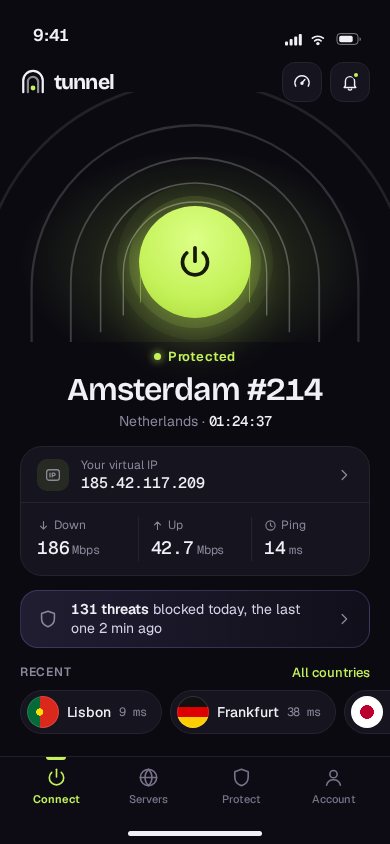
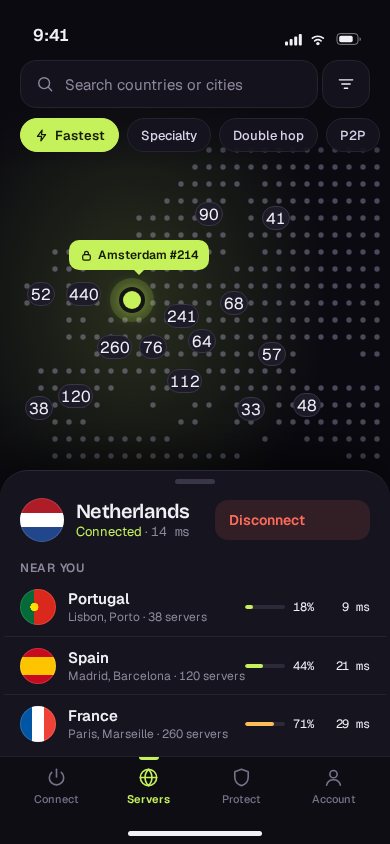
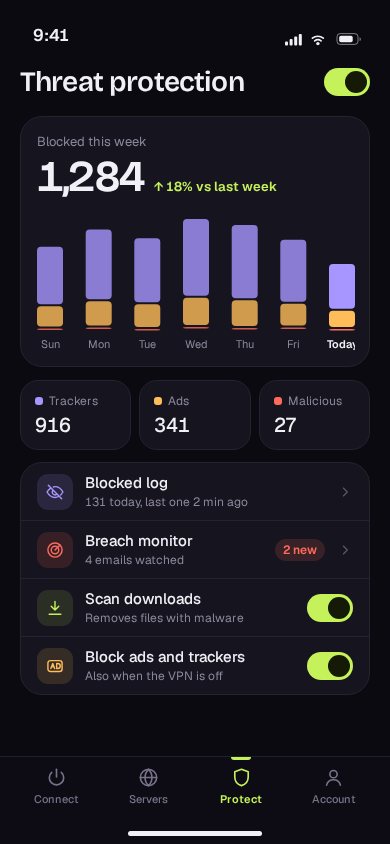
Tunnel is a VPN and online privacy app design in a Dark-first style, and its Figma file holds all 25 screens as real, editable layers: frames you can resize, text you can rewrite, and the palette and type saved as styles. A complete VPN and privacy app: welcome, sign in and VPN permission, a one tap connect home inside a glowing tunnel, the connecting handshake, a dot matrix server map, a country list and a country with its cities, live connection details, specialty servers and double hop, protocols, kill switch, split tunnelling, threat protection with a blocked log, a data breach monitor and a leak, a speed test, plans, checkout and a success screen, notifications, account and settings. Aubergine black and plum graphite with signal lime and lavender.
25 screens · Dark-first · Dark · Productivity
What the Figma file contains
| Part | What you get |
|---|---|
| Frames | 25 frames at 390 by 844, one per screen, each named after its screen (Welcome, Sign in, Allow VPN and the rest). |
| Layers | Named layers in the order they draw: containers as frames, every label as live text you can edit, nothing flattened into a picture. |
| Colour styles | 9 colour styles, one per palette role (background, surface, text, text-muted and more), with the hex values below. Created when you import with the DraftScreens plugin. |
| Text styles | Headings in Bricolage Grotesque and body text in Geist, saved as text styles on import with the plugin. |
| Photos | The template's photos as image fills, at full resolution. They are free-licence stock used as placeholders: swap in your own before launch. |
| Vectors | Icons, logos and illustrations as vector layers, so they stay sharp and take a new colour in one click. |
Colour styles
| Style | Hex |
|---|---|
| Tunnel/background | #0b0a11 |
| Tunnel/surface | #16141e |
| Tunnel/text | #f2f0f7 |
| Tunnel/text-muted | #8d879b |
| Tunnel/accent | #c5f25a |
| Tunnel/accent-contrast | #141a05 |
| Tunnel/secondary | #a796ff |
| Tunnel/border | #26222f |
| Tunnel/danger | #ff6b5b |
Text styles and fonts
Headings: Bricolage Grotesque. Body text: Geist. Quiet and watchful on aubergine black: a #0b0a11 page, raised plum graphite cards (#16141e) with a 1px #26222f border and grouped rows split by hairlines. One signal lime (#c5f25a) means protected: the connect button, the connected state, the primary button and the active tab; lavender (#a796ff) marks trackers and secondary data, amber (#ffbd59) ads and warnings, coral (#ff6b5b) malware, leaks and the unprotected state. The signature motif is a tunnel of nested arches scaled toward a vanishing point, its inner arches and a soft radial glow lit lime when connected; the logo is two nested arches with a lime dot. Servers live on a dot matrix world map with lime pins. Titles are set in Bricolage Grotesque at 28 to 34px with tight tracking; IP addresses, timers and speeds in Geist Mono. Countries are round flag discs drawn in CSS stripes.
The 25 frames
| Frame | Screen type |
|---|---|
| Welcome | Onboarding |
| Sign in | Sign in |
| Allow VPN | Onboarding |
| Home | Home |
| Connecting | Tracking |
| Map | Search |
| Countries | Search |
| Country | Detail |
| Connection | Detail |
| Specialty servers | List |
| Double hop | Form |
| Protocol | Settings |
| Kill switch | Settings |
| Split tunnelling | List |
| Threat protection | Dashboard |
| Blocked | List |
| Breach monitor | Dashboard |
| Breach | Detail |
| Speed test | Tracking |
| Plans | Paywall |
| Checkout | Checkout |
| Plan active | Success |
| Notifications | List |
| Account | Profile |
| Settings | Settings |
How to import it into Figma
- Get the template. Buy Tunnel (files from $10, every format included), use a free download from a paid plan, or open it with a Template Pass.
- Install DraftScreens for Figma. Download the plugin, then in the Figma desktop app choose Plugins, Development, Import plugin from manifest. A Figma Community listing is coming.
- Connect and import. Run the plugin, connect your DraftScreens account with a one-time code, pick Tunnel and import. The frames, colour styles and text styles land in the open file.
- Or drag in the SVGs. No plugin needed: the Figma download is also a folder of SVGs, one per screen. Drag them onto the canvas and each opens as editable layers.
Get the files
Remixing Tunnel is free. To get the template itself, the files are from $10, and one price unlocks every format:
- Figma. Every screen as editable layers: named frames, text, vectors and photos, with colour and text styles.
- React Native (Expo). An Expo Router project with every screen, the navigation between them, the theme and the icons.
- SwiftUI. An Xcode project for iOS 17 with a SwiftUI view per screen, fonts and assets.
- Flutter. A Flutter app with go_router, a widget per screen, fonts and assets.
- HTML. Each screen as a standalone HTML file with its fonts and photos, plus the design tokens as CSS and JSON.
Get the Tunnel files · Tunnel in Figma · Tunnel in React Native · Every template with a Template Pass ($49 for a year)
Tunnel in other formats
- Tunnel React Native template
- Tunnel in SwiftUI (in the same purchase)
- Tunnel in Flutter (in the same purchase)
- See every Tunnel screen and remix it free
More productivity Figma templates
- Stow: Cloud storage
- Meridian: Mobile web browser
- Swarm: Torrent client
- Bench: Freelance marketplace
- Convene: Video meetings
- Unplug: Screen time blocker
- Productivity app templates
- All Figma templates
Questions people ask
- What do I need installed?
- A Figma account (the free plan works). To import with the DraftScreens for Figma plugin you need the Figma desktop app until the plugin is listed in Figma Community. Dragging in the SVGs works anywhere, including Figma in the browser.
- Is it editable, or pictures of screens?
- Editable. Text stays live text in the template's fonts, icons are vectors, containers are frames, and colours and type are saved as styles. Photos are image fills you can replace.
- Does the same purchase include code?
- Yes. One price unlocks every format of Tunnel: Figma, React Native (Expo), SwiftUI, Flutter and HTML. A Template Pass ($49 for a year) unlocks every template.
- Can I use the Tunnel template commercially?
- Yes. You can build and ship commercial apps with it, for yourself or for clients, as many as you like. What you cannot do is resell or give away the template files themselves, as a template or a UI kit. The photos are free-licence stock used as placeholders: swap in your own before launch.
- Do I get updates?
- Yes, free. You buy the template, not a version: every download builds from the latest Tunnel design, and your library flags a template that changed since you last downloaded it.
- Is a backend included?
- No. The download is the interface: screens, navigation, styles and assets. There is no server, database, sign in, payments or API code, and the content on each screen is static sample data for you to replace.
- What is the difference between buying and remixing?
- Remixing is free: you describe your own app and it is drawn in Tunnel's design, in the DraftScreens studio. Buying gets you Tunnel itself as files, from $10, in Figma, React Native (Expo), SwiftUI, Flutter and HTML.