Templates · Settings screens · Smart home app · Lobby
Lobby Settings screen
A settings screen from Lobby, an apartment building app template in an Enterprise style. Screen 25 of 25.
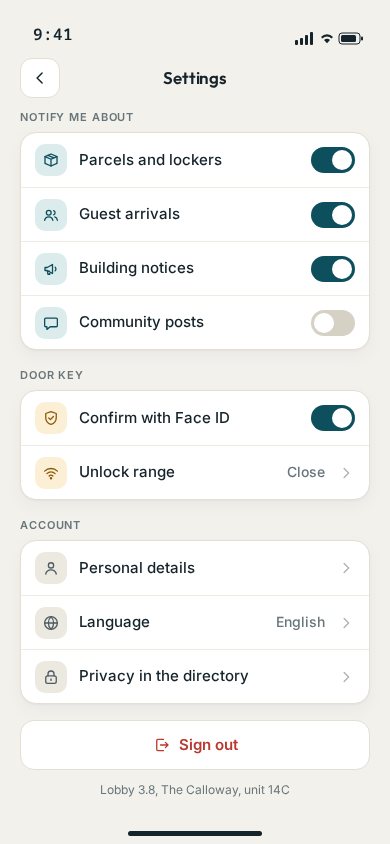
Lobby is a complete resident app for a 22 floor apartment building: welcome, sign in with a building invite, a home with your unit on a brass elevator dial, a phone door key, packages with locker codes, guest passes with a QR, amenity search, a rooftop booking with time slots and confirmation, maintenance requests with a live timeline, building notices, elevator and service status, laundry machines, a community board, utility usage, notifications, a concierge plan, profile and settings. Limestone and white with deep petrol teal and brass.
| Detail | Value |
|---|---|
| Screen type | Settings |
| App | Lobby: Apartment building app |
| Category | Smart home |
| Design language | Enterprise, light |
| Type | Outfit for headings, Inter for text |
| Colours | #f3f1ec background, #ffffff surface, #15232a text, #68767b text-muted, #0d4f5c accent, #ffffff accent-contrast, #c4983f secondary, #e3dfd5 border, #b8392f danger |
What this screen says
- Settings
- Notify me about
- Parcels and lockers
- Guest arrivals
- Building notices
- Community posts
- Door key
- Confirm with Face ID
- Unlock range Close
- Account
- Personal details
- Language English
- Privacy in the directory
- Sign out
- Lobby 3.8, The Calloway, unit 14C
Around it in Lobby
More settings screens
- Dusk Settings: Smart home scenarios
- Lumen Settings: Smart home energy
- Abode Settings: Smart home devices
- Boxed Settings: Book movers and plan moving day
- Meter Settings: Your energy supplier account
- Couch Settings: TV remote, casting and watchlist
- Chime Settings: Voice assistant and smart speaker
- Latch Auto-lock: Smart locks and guest access
- Mesh Settings: Home Wi-Fi network
- Decibel System: Multi-room speakers
- Nursery Alerts: Baby monitor camera and sleep
- Porch Camera settings: Home security cameras
Every smart home app settings screen
What makes a good settings screen
- Group options into clear sections. Account, notifications, privacy, appearance and help, with headings, so people scan to the right group.
- Label settings by their effect. "Daily reminder at 8:00" is clearer than "Reminders". Add a short description under options that need one.
- Use the right control. Toggles for on and off, a row that opens a list for choices, and sliders only for ranges.
- Apply changes immediately. Most mobile settings take effect when changed, with no Save button to forget.
The full settings screen guide and every example
Remix Lobby free: describe your own app and it is drawn in this design. Or get its files from $10: Figma, React Native, SwiftUI, Flutter and HTML.