Templates · Settings screens · Smart home app · Chime
Chime Settings screen
A settings screen from Chime, a voice assistant and smart speaker app template in a Glass style. Screen 25 of 25.
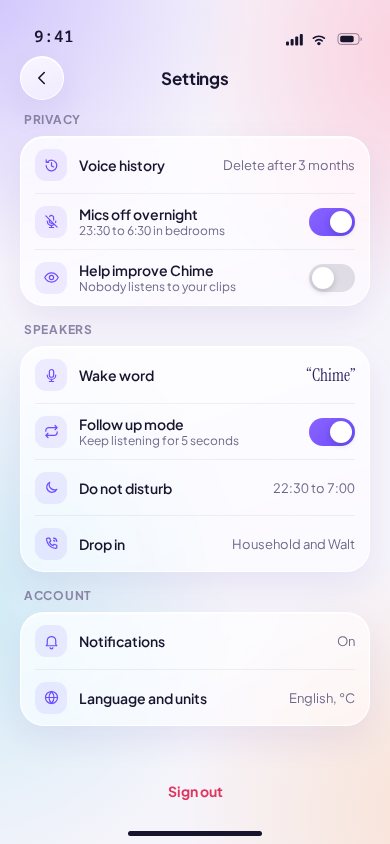
Chime is a complete voice assistant and smart speaker app: welcome, sign in and speaker setup, a home with the listening orb, now playing, a running timer and favourite devices, a live listening screen with transcript, an answer thread with a weather card and reminder, devices grouped by room, a living room with scenes and a thermostat dial, a light with a brightness capsule, routines with a builder and a success screen, timers and alarms, a shared shopping list, drop in, announcements, music on a speaker group, a skills directory, voice history with privacy controls, weekly activity, a Plus plan, notifications, a household profile and settings. Pearly lilac glass with an iridescent violet orb.
| Detail | Value |
|---|---|
| Screen type | Settings |
| App | Chime: Voice assistant and smart speaker |
| Category | Smart home |
| Design language | Glass, light |
| Type | Instrument Serif for headings, Plus Jakarta Sans for text |
| Colours | #f6f4fb background, #ffffff surface, #17142e text, #6d6889 text-muted, #6c4cff accent, #ffffff accent-contrast, #ff8fb8 secondary, #e6e2f2 border, #f0466e danger |
What this screen says
- Settings
- Privacy
- Voice history
- Delete after 3 months
- Mics off overnight
- 23:30 to 6:30 in bedrooms
- Help improve Chime
- Nobody listens to your clips
- Speakers
- Wake word
- “Chime”
- Follow up mode
- Keep listening for 5 seconds
- Do not disturb
- 22:30 to 7:00
- Drop in
- Household and Walt
- Account
- Notifications
- On
- Language and units
- English, °C
- Sign out
Around it in Chime
More settings screens
- Mesh Settings: Home Wi-Fi network
- Decibel System: Multi-room speakers
- Nursery Alerts: Baby monitor camera and sleep
- Porch Camera settings: Home security cameras
- Sundial Settings: Solar panels and home battery
- Puddle Settings: Garden watering and sprinklers
- Upkeep Settings: Home maintenance calendar
- Kelvin Settings: Climate and thermostat
- Glow Settings: Light scenes and colour
- Tagged Settings: Home inventory for insurance
- Lobby Settings: Apartment building app
- Sweep Settings: Robot vacuum and mop
Every smart home app settings screen
What makes a good settings screen
- Group options into clear sections. Account, notifications, privacy, appearance and help, with headings, so people scan to the right group.
- Label settings by their effect. "Daily reminder at 8:00" is clearer than "Reminders". Add a short description under options that need one.
- Use the right control. Toggles for on and off, a row that opens a list for choices, and sliders only for ranges.
- Apply changes immediately. Most mobile settings take effect when changed, with no Save button to forget.
The full settings screen guide and every example
Remix Chime free: describe your own app and it is drawn in this design. Or get its files from $10: Figma, React Native, SwiftUI, Flutter and HTML.