Templates · Success and confirmation screens · Productivity app · Outpost
Outpost Scheduled screen
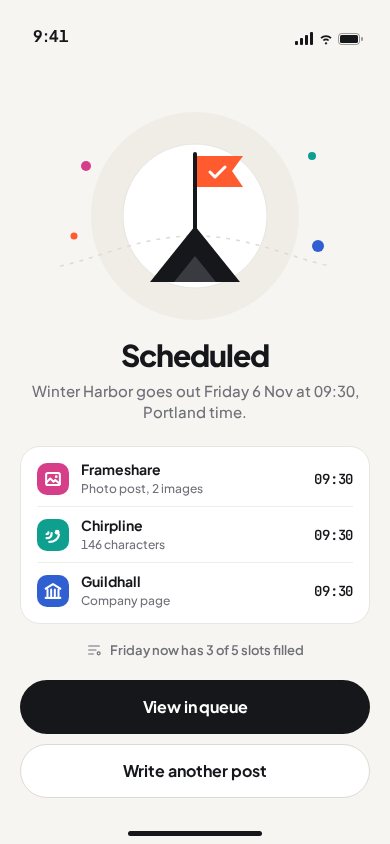
A success screen from Outpost, a schedule social posts app template in a Minimal style. Screen 9 of 25.
Outpost is a complete social scheduling app for a small team: welcome, channel connecting, sign in, a queue of time slots, compose with per-channel previews, image cropping, scheduling with best times and a confirmation, a month calendar, post details, an ideas board, posting times, analytics and post stats, a channel page, an engagement inbox and replies, team approvals and review, search, notifications, a Pro plan, profile and settings. Paper white and ink with a signal orange accent and a colour per channel.
| Detail | Value |
|---|---|
| Screen type | Success |
| App | Outpost: Schedule social posts |
| Category | Productivity |
| Design language | Minimal, light |
| Type | JetBrains Mono for headings, Plus Jakarta Sans for text |
| Colours | #f6f5f1 background, #ffffff surface, #16171b text, #6f7078 text-muted, #ff5b2e accent, #fff0ea accent-soft, #e8e6e0 border, #1f9d63 success, #0e9f8e channel-1, #d63e8a channel-2, #2f5fd0 channel-3, #6a4cf5 channel-4, #5f8f2e channel-5 |
What this screen says
- Scheduled
- Winter Harbor goes out Friday 6 Nov at 09:30, Portland time.
- FramesharePhoto post, 2 images
- Chirpline146 characters
- GuildhallCompany page
- Friday now has 3 of 5 slots filled
- View in queue
- Write another post
Around it in Outpost
More success and confirmation screens
- Staffroom Request sent: HR, payslips and time off
- Slot Confirmed: Booking links and meeting scheduling
- Sheet Submitted: Spreadsheets and databases
- Tunnel Plan active: VPN and online privacy
- Ping Result: Internet speed test
- Glance Order placed: Visual search with the camera
- Replay Video ready: Record and share screen videos
- Easel Invite sent: Collaborative whiteboard
- Token Account added: Two-factor codes and sign-in approvals
- Beam Sent: Send big files
- Parchment Invite sent: Documents, edit and share
- Lectern Exported: Slides and presenter remote
Every productivity app success screen
What makes a good confirmation screen
- Confirm in the headline. "Payment sent", "Table booked for Friday at 8" or "Lesson complete" in plain words, with a clear success colour or icon.
- Repeat the key details. Amount, date, reference number or score, so people do not need to check elsewhere that the right thing happened.
- Say what happens next. When the order arrives, when the money lands, when the next lesson unlocks.
- Offer the next step. Track the order, add to calendar, share, or start the next lesson. One primary action and a way back home.
The full confirmation screen guide and every example
Remix Outpost free: describe your own app and it is drawn in this design. Or get its files from $10: Figma, React Native, SwiftUI, Flutter and HTML.