Templates · Success and confirmation screens · Productivity app · Lectern
Lectern Exported screen
A success screen from Lectern, a slides and presenter remote app template in a Dark-first style. Screen 21 of 25.
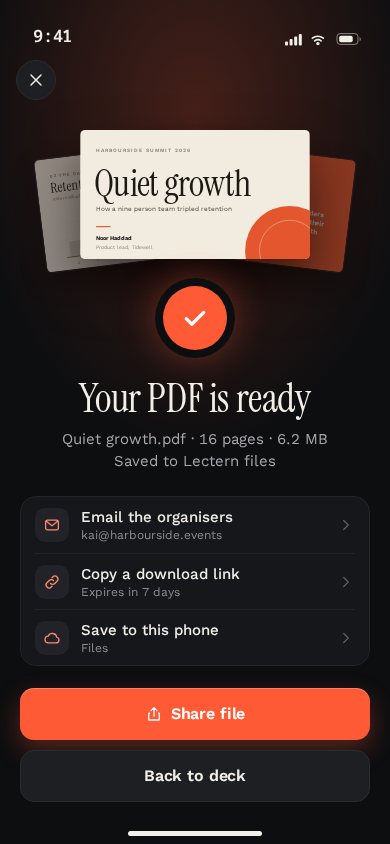
Lectern is a complete slides app: welcome, sign in, a deck gallery with the next talk, search across slides and notes, themes for a new deck, a deck page, the slide navigator, a slide editor with text format, layouts, chart data and builds, comments, rehearsal with a live timer and a report, connecting to a screen, presenter view with notes, the phone as a remote and laser, share, export and a ready file, a Pro plan, activity, profile and settings. Graphite backstage, cream paper slides and a laser vermilion.
| Detail | Value |
|---|---|
| Screen type | Success |
| App | Lectern: Slides and presenter remote |
| Category | Productivity |
| Design language | Dark-first, dark |
| Type | Instrument Serif for headings, Work Sans for text |
| Colours | #0d0e10 background, #16171a surface, #f2efe9 text, #8e8c93 text-muted, #ff5a36 accent, #ffffff accent-contrast, #f2ece0 secondary, #2a2b30 border, #ffc14d warning, #5ad1b0 success |
What this screen says
- Your PDF is ready
- Quiet growth.pdf · 16 pages · 6.2 MB
- Saved to Lectern files
- Email the organisers
- kai@harbourside.events
- Copy a download link
- Expires in 7 days
- Save to this phone
- Files
- Share file
- Back to deck
Around it in Lectern
More success and confirmation screens
- Unplug Session done: Screen time blocker
- Streak Day complete: Small days, long chains
- Deskly Checked in: Hybrid office booking
- Pomo Session done: Focus timer
- Postbox Message sent: Email for busy teams
- Daybook Invite sent: Calendar and planner
- Scanly Exported: Document scanner
- Keyring Item saved: Password manager
- Rota Shift summary: Shift scheduling for hourly teams
- Inkwell Entry saved: Daily journal
- Shortlist Application sent: Job search and application tracker
- Parley Group created: Team messenger
Every productivity app success screen
What makes a good confirmation screen
- Confirm in the headline. "Payment sent", "Table booked for Friday at 8" or "Lesson complete" in plain words, with a clear success colour or icon.
- Repeat the key details. Amount, date, reference number or score, so people do not need to check elsewhere that the right thing happened.
- Say what happens next. When the order arrives, when the money lands, when the next lesson unlocks.
- Offer the next step. Track the order, add to calendar, share, or start the next lesson. One primary action and a way back home.
The full confirmation screen guide and every example
Remix Lectern free: describe your own app and it is drawn in this design. Or get its files from $10: Figma, React Native, SwiftUI, Flutter and HTML.