Templates · Onboarding screens · Education app · Leaf
Leaf Welcome screen
An onboarding screen from Leaf, an e-books and reading app template in a Minimal style. Screen 1 of 25.
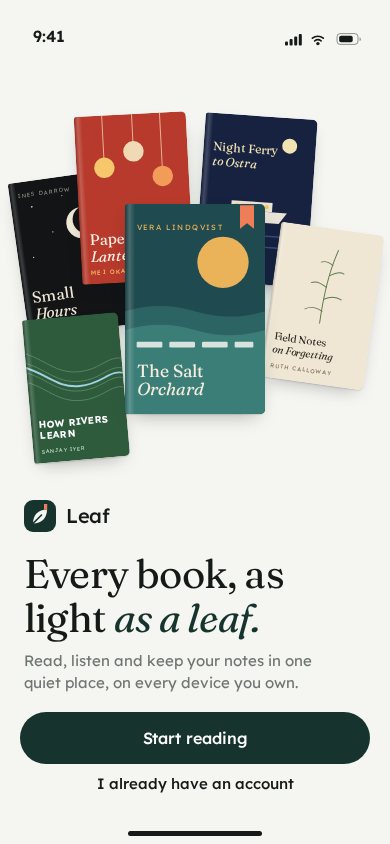
Leaf is a complete e-book and reading app: welcome, taste picker and sign in, a home that picks up where you left off, a library of covers with progress, a serif reader with its menu, display sheet, contents, highlights, dictionary, notebook and notes, narration with a synced page, the store, search, a book page with checkout and a purchased screen, an author page, reading stats, a membership plan, notifications, profile and settings. Paper white and pine green with an apricot ribbon.
| Detail | Value |
|---|---|
| Screen type | Onboarding |
| App | Leaf: E-books and reading |
| Category | Education |
| Design language | Minimal, light |
| Type | Fraunces for headings, Lexend for text |
| Colours | #f5f5f1 background, #ffffff surface, #151a19 text, #6f7674 text-muted, #ef7d57 accent, #151a19 accent-contrast, #17332e secondary, #e5e6e1 border, #d6452f danger |
What this screen says
- Leaf
- Every book, as light as a leaf.
- Read, listen and keep your notes in one quiet place, on every device you own.
- Start reading
- I already have an account
Around it in Leaf
More onboarding screens
- Zenith Welcome: Night sky guide
- Chalk Welcome: Design courses
- Encore Welcome: Creator courses
- Classroom Welcome: Class stream and assignments
- Studyhall Welcome: Free lessons and practice for school
- Tutor Welcome: Book online tutors for any skill
- Almanac Welcome: The free encyclopedia reader
- Tiles Welcome: Daily word and number puzzles
- Stacks Welcome: Borrow e-books and audiobooks from your library
- Penpal Welcome: Language exchange chat
- Lexis Welcome: A word a day
- Quanta Welcome: Interactive physics lessons
Every education app onboarding screen
What makes a good onboarding screen
- One idea per screen. Each screen should say one thing in a headline people can read in a second. If a screen needs a paragraph, it is doing too much.
- Personalise with a purpose. Ask a question only if the answer changes what people see next, like a goal, a level or an interest. Then show that the answer mattered.
- Explain permissions before asking. Show your own screen saying why you need notifications, location or the camera before the system prompt. People who understand the reason are more likely to allow it.
- Let people skip. A visible skip or "I'll do this later" respects returning users and the impatient. Make sure skipping still lands them somewhere useful.
The full onboarding screen guide and every example
Remix Leaf free: describe your own app and it is drawn in this design. Or get its files from $10: Figma, React Native, SwiftUI, Flutter and HTML.