Templates · Onboarding screens · Education app · Classroom
Classroom Welcome screen
An onboarding screen from Classroom, a class stream and assignments app template in a Minimal style. Screen 1 of 25.
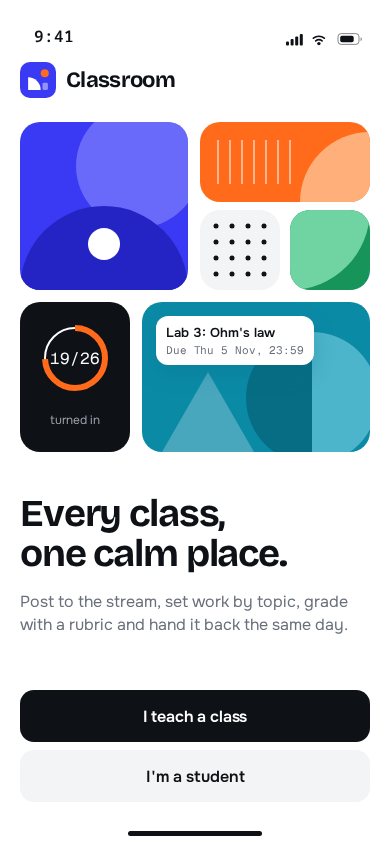
Classroom is a complete class stream and assignments app: welcome, sign in, a classes home with today's lessons and work to review, a class stream with announcements and comments, a new post, classwork by topic, an assignment with attachments and turn in counts, creating an assignment, a rubric builder, submissions, grading a lab report against the rubric, returning grades, private comments, people, a calendar of due work, a to do list, the student's own work with files, adding files, scanning notebook pages, turning in, class insights, activity, a Plus plan, profile and settings. White and soft grey with ultramarine, and tangerine, moss and teal for the other classes.
| Detail | Value |
|---|---|
| Screen type | Onboarding |
| App | Classroom: Class stream and assignments |
| Category | Education |
| Design language | Minimal, light |
| Type | Bricolage Grotesque for headings, Onest for text |
| Colours | #ffffff background, #f3f4f6 surface, #0e1116 text, #6a707b text-muted, #3a3af4 accent, #ffffff accent-contrast, #ff6b1a secondary, #e8eaee border, #e5484d danger |
What this screen says
- Classroom
- Lab 3: Ohm's lawDue Thu 5 Nov, 23:59
- Every class,
- one calm place.
- Post to the stream, set work by topic, grade with a rubric and hand it back the same day.
- I teach a class
- I'm a student
Around it in Classroom
More onboarding screens
- Quanta Welcome: Interactive physics lessons
- Cram Welcome: Exam prep and mock tests
- Quad Welcome: University campus app
- Palm Welcome: Learn sign language
- Epoch Welcome: History on a timeline
- Wren Welcome: Early reading for kids
- Proof Welcome: Maths tutor that shows its working
- Skim Welcome: Speed reading trainer
- Terra Welcome: Geography and flags quiz
- Gambit Welcome: Chess training
- Buzzer Welcome: Live trivia
- Homeroom Welcome: School, all on one page
Every education app onboarding screen
What makes a good onboarding screen
- One idea per screen. Each screen should say one thing in a headline people can read in a second. If a screen needs a paragraph, it is doing too much.
- Personalise with a purpose. Ask a question only if the answer changes what people see next, like a goal, a level or an interest. Then show that the answer mattered.
- Explain permissions before asking. Show your own screen saying why you need notifications, location or the camera before the system prompt. People who understand the reason are more likely to allow it.
- Let people skip. A visible skip or "I'll do this later" respects returning users and the impatient. Make sure skipping still lands them somewhere useful.
The full onboarding screen guide and every example
Remix Classroom free: describe your own app and it is drawn in this design. Or get its files from $10: Figma, React Native, SwiftUI, Flutter and HTML.