Templates · Figma templates · Education · Leaf
Leaf Figma template: e-books and reading app UI kit
Leaf is an e-books and reading app design in a Minimal style, and its Figma file holds all 25 screens as real, editable layers: frames you can resize, text you can rewrite, and the palette and type saved as styles. A complete e-book and reading app: welcome, taste picker and sign in, a home that picks up where you left off, a library of covers with progress, a serif reader with its menu, display sheet, contents, highlights, dictionary, notebook and notes, narration with a synced page, the store, search, a book page with checkout and a purchased screen, an author page, reading stats, a membership plan, notifications, profile and settings. Paper white and pine green with an apricot ribbon.
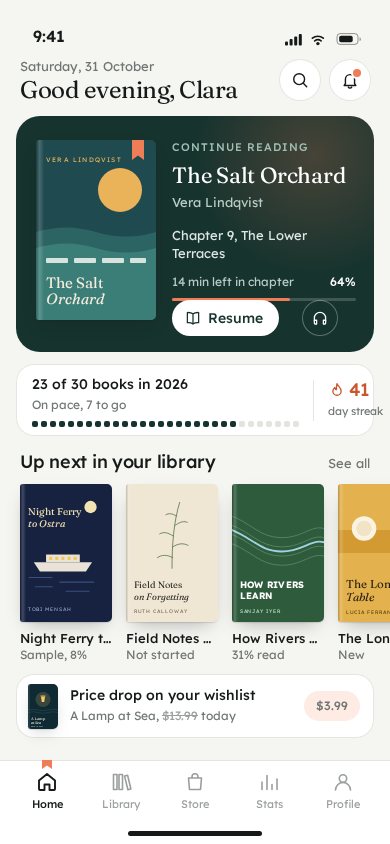
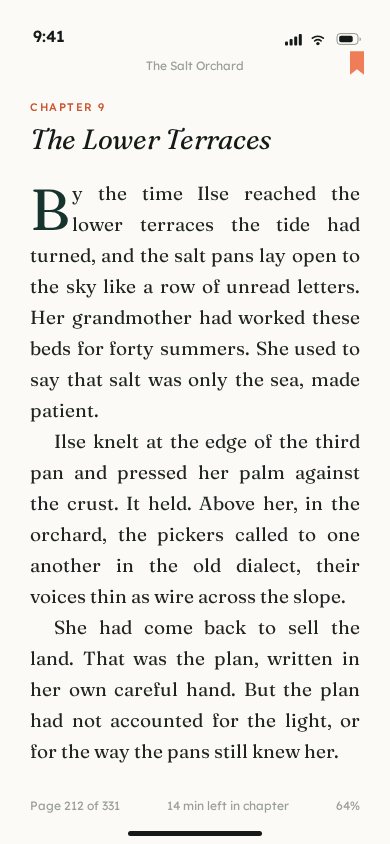
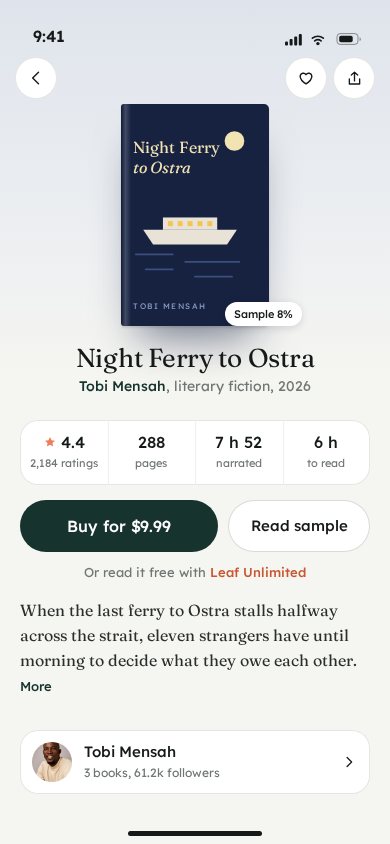
25 screens · Minimal · Light · Education
What the Figma file contains
| Part | What you get |
|---|---|
| Frames | 25 frames at 390 by 844, one per screen, each named after its screen (Welcome, Your taste, Sign in and the rest). |
| Layers | Named layers in the order they draw: containers as frames, every label as live text you can edit, nothing flattened into a picture. |
| Colour styles | 9 colour styles, one per palette role (background, surface, text, text-muted and more), with the hex values below. Created when you import with the DraftScreens plugin. |
| Text styles | Headings in Fraunces and body text in Lexend, saved as text styles on import with the plugin. |
| Photos | The template's photos as image fills, at full resolution. They are free-licence stock used as placeholders: swap in your own before launch. |
| Vectors | Icons, logos and illustrations as vector layers, so they stay sharp and take a new colour in one click. |
Colour styles
| Style | Hex |
|---|---|
| Leaf/background | #f5f5f1 |
| Leaf/surface | #ffffff |
| Leaf/text | #151a19 |
| Leaf/text-muted | #6f7674 |
| Leaf/accent | #ef7d57 |
| Leaf/accent-contrast | #151a19 |
| Leaf/secondary | #17332e |
| Leaf/border | #e5e6e1 |
| Leaf/danger | #d6452f |
Text styles and fonts
Headings: Fraunces. Body text: Lexend. Quiet and bookish minimalism: a cool paper white page (#f5f5f1), white cards with a 1px #e5e6e1 hairline instead of shadows, and one deep pine (#17332e) panel or button per screen. The signature is an apricot (#ef7d57) ribbon bookmark: it hangs from the cover of the book you are reading, marks the active tab and the current chapter, and colours progress dots. Book covers are original flat paintings with a soft spine shade on the left edge, a 3px radius and a soft drop shadow. Titles of books and big headings are set in Fraunces, often with the second line in italic; the interface is Lexend. Reading pages are Fraunces 19px on 31px lines, with highlights in butter yellow (#fbe38e).
The 25 frames
| Frame | Screen type |
|---|---|
| Welcome | Onboarding |
| Your taste | Onboarding |
| Sign in | Sign in |
| Home | Home |
| Library | List |
| Reader | Media |
| Reader menu | Media |
| Display | Settings |
| Contents | List |
| Highlight | Media |
| Dictionary | Detail |
| Notebook | List |
| New note | Form |
| Listen | Media |
| Store | Search |
| Search | Search |
| Book | Detail |
| Buy | Checkout |
| Purchased | Success |
| Author | Profile |
| Reading stats | Dashboard |
| Leaf Unlimited | Paywall |
| Notifications | List |
| Profile | Profile |
| Settings | Settings |
How to import it into Figma
- Get the template. Buy Leaf (files from $10, every format included), use a free download from a paid plan, or open it with a Template Pass.
- Install DraftScreens for Figma. Download the plugin, then in the Figma desktop app choose Plugins, Development, Import plugin from manifest. A Figma Community listing is coming.
- Connect and import. Run the plugin, connect your DraftScreens account with a one-time code, pick Leaf and import. The frames, colour styles and text styles land in the open file.
- Or drag in the SVGs. No plugin needed: the Figma download is also a folder of SVGs, one per screen. Drag them onto the canvas and each opens as editable layers.
Get the files
Remixing Leaf is free. To get the template itself, the files are from $10, and one price unlocks every format:
- Figma. Every screen as editable layers: named frames, text, vectors and photos, with colour and text styles.
- React Native (Expo). An Expo Router project with every screen, the navigation between them, the theme and the icons.
- SwiftUI. An Xcode project for iOS 17 with a SwiftUI view per screen, fonts and assets.
- Flutter. A Flutter app with go_router, a widget per screen, fonts and assets.
- HTML. Each screen as a standalone HTML file with its fonts and photos, plus the design tokens as CSS and JSON.
Get the Leaf files · Leaf in Figma · Leaf in React Native · Every template with a Template Pass ($49 for a year)
Leaf in other formats
- Leaf React Native template
- Leaf in SwiftUI (in the same purchase)
- Leaf in Flutter (in the same purchase)
- See every Leaf screen and remix it free
More education Figma templates
- Gambit: Chess training
- Buzzer: Live trivia
- Homeroom: School, all on one page
- Parla: Language learning
- Recall: Flashcards and spaced repetition
- Numo: Kids maths game
- Education app templates
- All Figma templates
Questions people ask
- What do I need installed?
- A Figma account (the free plan works). To import with the DraftScreens for Figma plugin you need the Figma desktop app until the plugin is listed in Figma Community. Dragging in the SVGs works anywhere, including Figma in the browser.
- Is it editable, or pictures of screens?
- Editable. Text stays live text in the template's fonts, icons are vectors, containers are frames, and colours and type are saved as styles. Photos are image fills you can replace.
- Does the same purchase include code?
- Yes. One price unlocks every format of Leaf: Figma, React Native (Expo), SwiftUI, Flutter and HTML. A Template Pass ($49 for a year) unlocks every template.
- Can I use the Leaf template commercially?
- Yes. You can build and ship commercial apps with it, for yourself or for clients, as many as you like. What you cannot do is resell or give away the template files themselves, as a template or a UI kit. The photos are free-licence stock used as placeholders: swap in your own before launch.
- Do I get updates?
- Yes, free. You buy the template, not a version: every download builds from the latest Leaf design, and your library flags a template that changed since you last downloaded it.
- Is a backend included?
- No. The download is the interface: screens, navigation, styles and assets. There is no server, database, sign in, payments or API code, and the content on each screen is static sample data for you to replace.
- What is the difference between buying and remixing?
- Remixing is free: you describe your own app and it is drawn in Leaf's design, in the DraftScreens studio. Buying gets you Leaf itself as files, from $10, in Figma, React Native (Expo), SwiftUI, Flutter and HTML.