Templates · Onboarding screens · Smart home app · Upkeep
Upkeep Your home screen
An onboarding screen from Upkeep, a home maintenance calendar app template in a Minimal style. Screen 2 of 25.
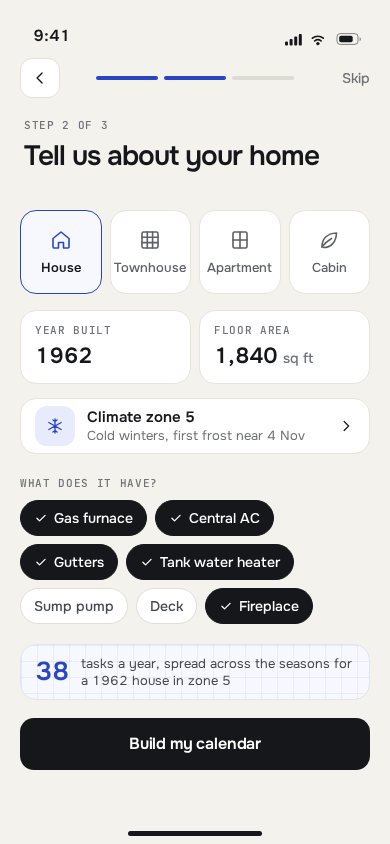
Upkeep is a complete home maintenance app: welcome, home setup and sign in, a today screen with the overdue task and the next two weeks, a month calendar, task details with a step by step guide, logging a task and its confirmation, new recurring tasks, a blueprint floor plan with pinned tasks, rooms, equipment with lifespans, an appliance page, a rating label scanner, finding, booking and confirming a local pro, costs, a home log, notifications, Upkeep Plus, profile and settings. Stone and white with cobalt blueprint drawings, ochre for soon and brick for late.
| Detail | Value |
|---|---|
| Screen type | Onboarding |
| App | Upkeep: Home maintenance calendar |
| Category | Smart home |
| Design language | Minimal, light |
| Type | Onest |
| Colours | #f3f2ed background, #ffffff surface, #15171a text, #6f7277 text-muted, #2846c4 accent, #ffffff accent-contrast, #c98a1b secondary, #e6e4dc border, #c9502c danger |
What this screen says
- Skip
- Step 2 of 3
- Tell us about your home
- House
- Townhouse
- Apartment
- Cabin
- Year built
- Floor area
- 1,840 sq ft
- Climate zone 5Cold winters, first frost near 4 Nov
- What does it have?
- Gas furnace
- Central AC
- Gutters
- Tank water heater
- Sump pump
- Deck
- Fireplace
- tasks a year, spread across the seasons for a 1962 house in zone 5
- Build my calendar
Around it in Upkeep
More onboarding screens
- Lumen Welcome: Smart home energy
- Abode Welcome: Smart home devices
- Boxed Welcome: Book movers and plan moving day
- Meter Welcome: Your energy supplier account
- Couch Welcome: TV remote, casting and watchlist
- Chime Welcome: Voice assistant and smart speaker
- Latch Welcome: Smart locks and guest access
- Mesh Welcome: Home Wi-Fi network
- Decibel Welcome: Multi-room speakers
- Nursery Welcome: Baby monitor camera and sleep
- Porch Welcome: Home security cameras
- Sundial Welcome: Solar panels and home battery
Every smart home app onboarding screen
What makes a good onboarding screen
- One idea per screen. Each screen should say one thing in a headline people can read in a second. If a screen needs a paragraph, it is doing too much.
- Personalise with a purpose. Ask a question only if the answer changes what people see next, like a goal, a level or an interest. Then show that the answer mattered.
- Explain permissions before asking. Show your own screen saying why you need notifications, location or the camera before the system prompt. People who understand the reason are more likely to allow it.
- Let people skip. A visible skip or "I'll do this later" respects returning users and the impatient. Make sure skipping still lands them somewhere useful.
The full onboarding screen guide and every example
Remix Upkeep free: describe your own app and it is drawn in this design. Or get its files from $10: Figma, React Native, SwiftUI, Flutter and HTML.