Templates · Onboarding screens · Smart home app · Nursery
Nursery Welcome screen
An onboarding screen from Nursery, a baby monitor camera and sleep app template in a Glass style. Screen 1 of 25.
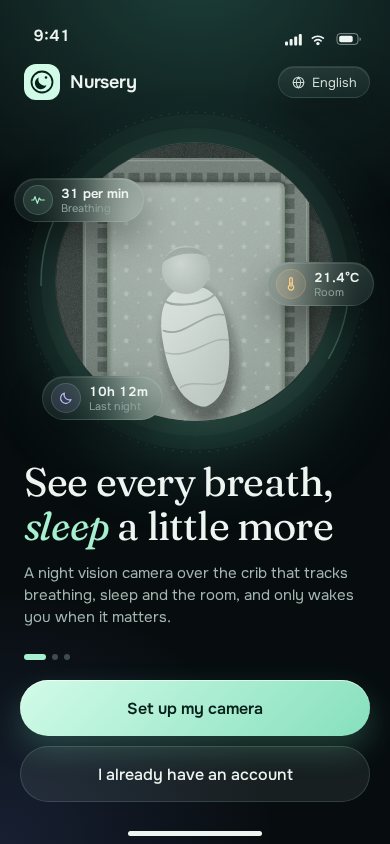
Nursery is a complete baby monitor and sleep app: welcome, pairing the camera, sign in, a home with the live crib view, breathing and the room, a full screen night vision live view with talk back and lullabies, a live breathing band, room temperature and humidity, the night's events and clips, last night's sleep band, weekly trends, a sleep log, auto saved moments, a sleep coach, alert settings, notifications, caregivers with an invite flow, a Plus plan with checkout, the baby's profile and settings. Midnight moss glass with mint, honey and lavender.
| Detail | Value |
|---|---|
| Screen type | Onboarding |
| App | Nursery: Baby monitor camera and sleep |
| Category | Smart home |
| Design language | Glass, dark |
| Type | Fraunces for headings, Onest for text |
| Colours | #070d0f background, #13201f surface (glass: white at 3.5 to 9.5% over the page), #eef5f1 text, #8fa39b text-muted, #a6f0cf accent, #06201a accent-contrast, #ffcf8a secondary, #bdb7ff tertiary, #ff9d8c danger |
What this screen says
- Nursery
- English
- 31 per minBreathing
- 21.4°CRoom
- 10h 12mLast night
- See every breath, sleep a little more
- A night vision camera over the crib that tracks breathing, sleep and the room, and only wakes you when it matters.
- Set up my camera
- I already have an account
Around it in Nursery
More onboarding screens
- Tagged Welcome: Home inventory for insurance
- Lobby Welcome: Apartment building app
- Sweep Welcome: Robot vacuum and mop
- Dusk Welcome: Smart home scenarios
- Lumen Welcome: Smart home energy
- Abode Welcome: Smart home devices
- Boxed Welcome: Book movers and plan moving day
- Meter Welcome: Your energy supplier account
- Couch Welcome: TV remote, casting and watchlist
- Chime Welcome: Voice assistant and smart speaker
- Latch Welcome: Smart locks and guest access
- Mesh Welcome: Home Wi-Fi network
Every smart home app onboarding screen
What makes a good onboarding screen
- One idea per screen. Each screen should say one thing in a headline people can read in a second. If a screen needs a paragraph, it is doing too much.
- Personalise with a purpose. Ask a question only if the answer changes what people see next, like a goal, a level or an interest. Then show that the answer mattered.
- Explain permissions before asking. Show your own screen saying why you need notifications, location or the camera before the system prompt. People who understand the reason are more likely to allow it.
- Let people skip. A visible skip or "I'll do this later" respects returning users and the impatient. Make sure skipping still lands them somewhere useful.
The full onboarding screen guide and every example
Remix Nursery free: describe your own app and it is drawn in this design. Or get its files from $10: Figma, React Native, SwiftUI, Flutter and HTML.