Templates · Onboarding screens · Smart home app · Meter
Meter Welcome screen
An onboarding screen from Meter, a smart home app template in a Clinical style. Screen 1 of 25.
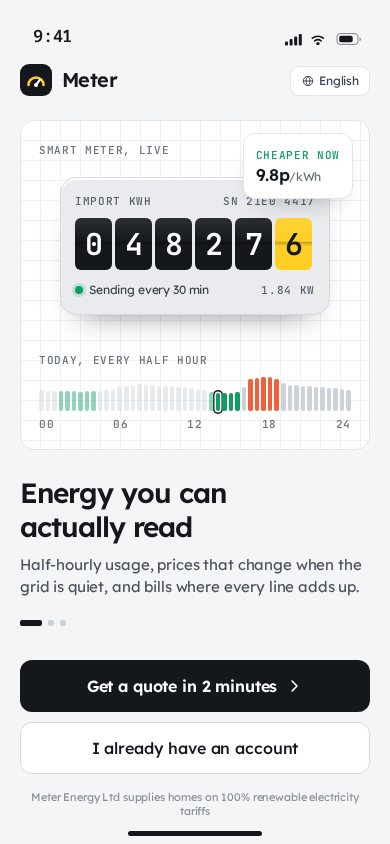
Meter is a complete energy supplier account: welcome and sign in, a home with the account balance, the next cheaper window and today's use, half-hourly smart meter usage, monthly insights, live usage, meter readings with a photo scan, confirm and sent, tariff details with unit rates, compare and switch tariff with review and confirmation, bills and a statement breakdown, balance, direct debit, cheaper time alerts, notifications, fault reporting with a live engineer visit, help, account and settings. Pale grey and white with graphite and signal yellow.
| Detail | Value |
|---|---|
| Screen type | Onboarding |
| App | Meter: Your energy supplier account |
| Category | Smart home |
| Design language | Clinical, light |
| Type | JetBrains Mono for headings, Lexend for text |
| Colours | #f4f5f7 background, #ffffff surface, #14171c text, #6b717c text-muted, #ffcf24 accent, #14171c accent-contrast, #2f6bff secondary, #e2e5ea border, #e5484d danger |
What this screen says
- Meter
- English
- Smart meter, live
- Import kWh SN 21E0 4417
- Sending every 30 min 1.84 kW
- Cheaper now 9.8p/kWh
- Today, every half hour
- Energy you can
- actually read
- Half-hourly usage, prices that change when the grid is quiet, and bills where every line adds up.
- Get a quote in 2 minutes
- I already have an account
- Meter Energy Ltd supplies homes on 100% renewable electricity tariffs
Around it in Meter
More onboarding screens
- Abode Welcome: Smart home devices
- Boxed Welcome: Book movers and plan moving day
- Couch Welcome: TV remote, casting and watchlist
- Chime Welcome: Voice assistant and smart speaker
- Latch Welcome: Smart locks and guest access
- Mesh Welcome: Home Wi-Fi network
- Decibel Welcome: Multi-room speakers
- Nursery Welcome: Baby monitor camera and sleep
- Porch Welcome: Home security cameras
- Sundial Welcome: Solar panels and home battery
- Puddle Welcome: Garden watering and sprinklers
- Upkeep Welcome: Home maintenance calendar
Every smart home app onboarding screen
What makes a good onboarding screen
- One idea per screen. Each screen should say one thing in a headline people can read in a second. If a screen needs a paragraph, it is doing too much.
- Personalise with a purpose. Ask a question only if the answer changes what people see next, like a goal, a level or an interest. Then show that the answer mattered.
- Explain permissions before asking. Show your own screen saying why you need notifications, location or the camera before the system prompt. People who understand the reason are more likely to allow it.
- Let people skip. A visible skip or "I'll do this later" respects returning users and the impatient. Make sure skipping still lands them somewhere useful.
The full onboarding screen guide and every example
Remix Meter free: describe your own app and it is drawn in this design. Or get its files from $10: Figma, React Native, SwiftUI, Flutter and HTML.