Templates · Onboarding screens · Smart home app · Chime
Chime Welcome screen
An onboarding screen from Chime, a voice assistant and smart speaker app template in a Glass style. Screen 1 of 25.
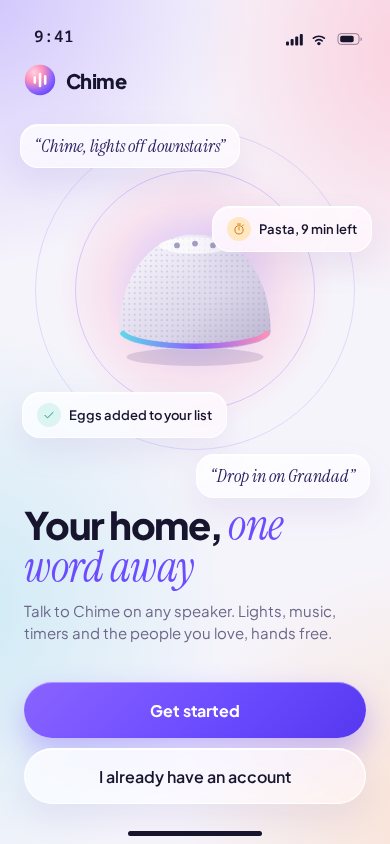
Chime is a complete voice assistant and smart speaker app: welcome, sign in and speaker setup, a home with the listening orb, now playing, a running timer and favourite devices, a live listening screen with transcript, an answer thread with a weather card and reminder, devices grouped by room, a living room with scenes and a thermostat dial, a light with a brightness capsule, routines with a builder and a success screen, timers and alarms, a shared shopping list, drop in, announcements, music on a speaker group, a skills directory, voice history with privacy controls, weekly activity, a Plus plan, notifications, a household profile and settings. Pearly lilac glass with an iridescent violet orb.
| Detail | Value |
|---|---|
| Screen type | Onboarding |
| App | Chime: Voice assistant and smart speaker |
| Category | Smart home |
| Design language | Glass, light |
| Type | Instrument Serif for headings, Plus Jakarta Sans for text |
| Colours | #f6f4fb background, #ffffff surface, #17142e text, #6d6889 text-muted, #6c4cff accent, #ffffff accent-contrast, #ff8fb8 secondary, #e6e2f2 border, #f0466e danger |
What this screen says
- Chime
- “Chime, lights off downstairs”
- Pasta, 9 min left
- Eggs added to your list
- “Drop in on Grandad”
- Your home, one word away
- Talk to Chime on any speaker. Lights, music, timers and the people you love, hands free.
- Get startedI already have an account
Around it in Chime
More onboarding screens
- Couch Welcome: TV remote, casting and watchlist
- Latch Welcome: Smart locks and guest access
- Mesh Welcome: Home Wi-Fi network
- Decibel Welcome: Multi-room speakers
- Nursery Welcome: Baby monitor camera and sleep
- Porch Welcome: Home security cameras
- Sundial Welcome: Solar panels and home battery
- Puddle Welcome: Garden watering and sprinklers
- Upkeep Welcome: Home maintenance calendar
- Kelvin Welcome: Climate and thermostat
- Glow Welcome: Light scenes and colour
- Tagged Welcome: Home inventory for insurance
Every smart home app onboarding screen
What makes a good onboarding screen
- One idea per screen. Each screen should say one thing in a headline people can read in a second. If a screen needs a paragraph, it is doing too much.
- Personalise with a purpose. Ask a question only if the answer changes what people see next, like a goal, a level or an interest. Then show that the answer mattered.
- Explain permissions before asking. Show your own screen saying why you need notifications, location or the camera before the system prompt. People who understand the reason are more likely to allow it.
- Let people skip. A visible skip or "I'll do this later" respects returning users and the impatient. Make sure skipping still lands them somewhere useful.
The full onboarding screen guide and every example
Remix Chime free: describe your own app and it is drawn in this design. Or get its files from $10: Figma, React Native, SwiftUI, Flutter and HTML.