Templates · Onboarding screens · Productivity app · Tandem
Tandem Workspaces screen
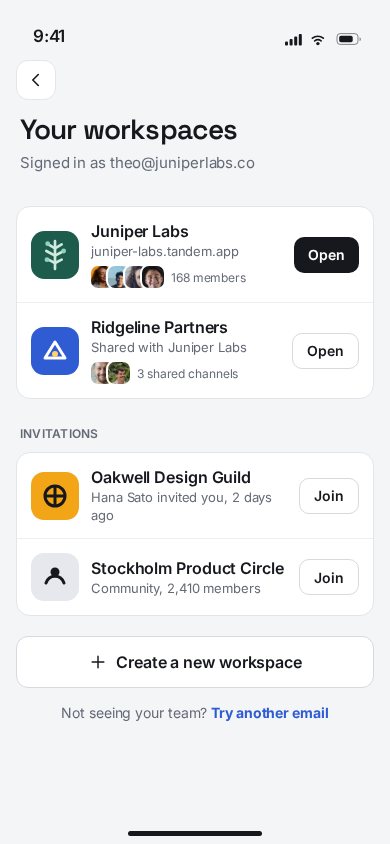
An onboarding screen from Tandem, a productivity app template in an Enterprise style. Screen 4 of 25.
Tandem is a complete team chat app: welcome, sign in with an emailed code, a workspace picker, a home with unread channels, a live huddle and direct messages, a channel with reactions and threads, a thread, a composer with mentions and formatting, direct messages, a live huddle with a shared screen, activity, search, browsing and creating channels, channel details, files, saved for later, setting a status, workspace analytics, a Pro plan with a seat based checkout, profile and notification settings. Cool grey and white with ink and persimmon.
| Detail | Value |
|---|---|
| Screen type | Onboarding |
| App | Tandem: Team chat, channels and huddles |
| Category | Productivity |
| Design language | Enterprise, light |
| Type | Space Grotesk for headings, Inter for text |
| Colours | #f4f5f7 background, #ffffff surface, #16181d text, #646a76 text-muted, #ea4f22 accent, #ffffff accent-contrast, #16181d secondary, #e3e5ea border, #d93a3a danger, #1f9d6a success |
What this screen says
- Your workspaces
- Signed in as theo@juniperlabs.co
- Juniper Labsjuniper-labs.tandem.app
- 168 members
- Open
- Ridgeline PartnersShared with Juniper Labs
- 3 shared channels
- INVITATIONS
- Oakwell Design GuildHana Sato invited you, 2 days ago
- Join
- Stockholm Product CircleCommunity, 2,410 members
- Create a new workspace
- Not seeing your team? Try another email
Around it in Tandem
More onboarding screens
- Outpost Welcome: Schedule social posts
- Pageview Welcome: Website analytics
- Polish Welcome: Writing assistant and keyboard
- Tapline Welcome: Link-in-bio pages and analytics
- Quill Welcome: Docs, wikis and databases in one workspace
- Shipyard Welcome: Issue tracking for product teams
- Canvas Welcome: Design files and comments on mobile
- Merge Welcome: Code, pull requests and reviews
- Query Welcome: AI answers with sources
- Glossa Welcome: Translate text, voice and camera
- Layout Welcome: Design anything from templates
- Tick Welcome: To-do lists and reminders
Every productivity app onboarding screen
What makes a good onboarding screen
- One idea per screen. Each screen should say one thing in a headline people can read in a second. If a screen needs a paragraph, it is doing too much.
- Personalise with a purpose. Ask a question only if the answer changes what people see next, like a goal, a level or an interest. Then show that the answer mattered.
- Explain permissions before asking. Show your own screen saying why you need notifications, location or the camera before the system prompt. People who understand the reason are more likely to allow it.
- Let people skip. A visible skip or "I'll do this later" respects returning users and the impatient. Make sure skipping still lands them somewhere useful.
The full onboarding screen guide and every example
Remix Tandem free: describe your own app and it is drawn in this design. Or get its files from $10: Figma, React Native, SwiftUI, Flutter and HTML.