Templates · Onboarding screens · Productivity app · Tick
Tick Welcome screen
An onboarding screen from Tick, a to-do lists and reminders app template in a Minimal style. Screen 1 of 25.
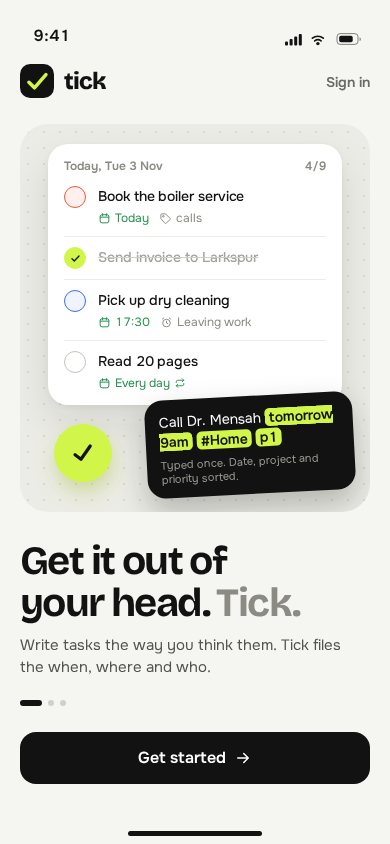
Tick is a complete to-do app: welcome, set up, sign in, a Today list with overdue tasks and a daily goal ring, inbox, an upcoming week strip, quick add with plain language dates, task details with subtasks, a date picker and reminders, projects as a list or a board, filters and labels, search, sharing, activity, productivity stats, templates, a Pro plan with checkout and confirmation, notifications, profile and settings. Paper white and ink with a single chartreuse accent.
| Detail | Value |
|---|---|
| Screen type | Onboarding |
| App | Tick: To-do lists and reminders |
| Category | Productivity |
| Design language | Minimal, light |
| Type | Bricolage Grotesque for headings, Onest for text |
| Colours | #f5f5f1 background, #ffffff surface, #121212 text, #8b8b84 text-muted, #d2f54a accent, #121212 accent-contrast, #e8e7e0 border, #f2553a danger, #22914d success |
What this screen says
- tick
- Sign in
- Today, Tue 3 Nov 4/9
- Book the boiler service
- Today calls
- Send invoice to Larkspur
- Pick up dry cleaning
- 17:30 Leaving work
- Read 20 pages
- Every day
- Call Dr. Mensah tomorrow 9am #Home p1
- Typed once. Date, project and priority sorted.
- Get it out of
- your head. Tick.
- Write tasks the way you think them. Tick files the when, where and who.
- Get started
Around it in Tick
More onboarding screens
- Deskly Welcome: Hybrid office booking
- Pomo Welcome: Focus timer
- Postbox Welcome: Email for busy teams
- Daybook Welcome: Calendar and planner
- Scanly Welcome: Document scanner
- Keyring Welcome: Password manager
- Rota Welcome: Shift scheduling for hourly teams
- Inkwell Welcome: Daily journal
- Shortlist Welcome: Job search and application tracker
- Parley Welcome: Team messenger
- Docket Welcome: Task and sprint planner
- Kanso Welcome: Tasks, calendar and chat
Every productivity app onboarding screen
What makes a good onboarding screen
- One idea per screen. Each screen should say one thing in a headline people can read in a second. If a screen needs a paragraph, it is doing too much.
- Personalise with a purpose. Ask a question only if the answer changes what people see next, like a goal, a level or an interest. Then show that the answer mattered.
- Explain permissions before asking. Show your own screen saying why you need notifications, location or the camera before the system prompt. People who understand the reason are more likely to allow it.
- Let people skip. A visible skip or "I'll do this later" respects returning users and the impatient. Make sure skipping still lands them somewhere useful.
The full onboarding screen guide and every example
Remix Tick free: describe your own app and it is drawn in this design. Or get its files from $10: Figma, React Native, SwiftUI, Flutter and HTML.