Templates · Onboarding screens · Productivity app · Canvas
Canvas Welcome screen
An onboarding screen from Canvas, a productivity app template in a Glass style. Screen 1 of 25.
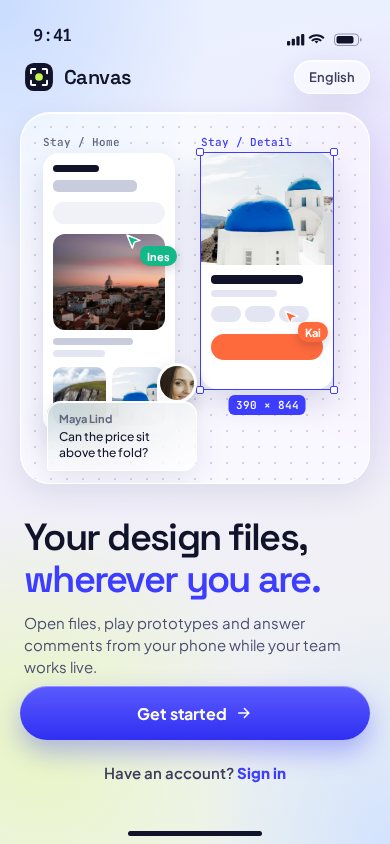
Canvas is a complete design file companion: welcome and sign in, recent files with who is editing live, search across files, frames and components, team projects, a file on a dotted canvas with multiplayer cursors, pages and layers, inspect with sizes, colours and code, a prototype player, live mirror that follows a teammate, comment threads with pins, mentions and resolve, sharing and permissions, version history, a whiteboard, a component library, team insights, activity, a plan upgrade with checkout and a confirmation, profile and settings. Frosted glass on an ice blue and lilac haze with ultramarine and a lime spark.
| Detail | Value |
|---|---|
| Screen type | Onboarding |
| App | Canvas: Design files and comments on mobile |
| Category | Productivity |
| Design language | Glass, light |
| Type | Space Grotesk for headings, Plus Jakarta Sans for text |
| Colours | #eef1f8 background, #ffffff surface, #11132a text, #626780 text-muted, #3d3dff accent, #ffffff accent-contrast, #c6f24e secondary, #e2e5f1 border, #ff4d5e danger |
What this screen says
- Canvas
- English
- Stay / Home
- Stay / Detail
- Kai
- Ines
- Maya LindCan the price sit above the fold?
- Your design files, wherever you are.
- Open files, play prototypes and answer comments from your phone while your team works live.
- Get started
- Have an account? Sign in
Around it in Canvas
More onboarding screens
- Kanso Welcome: Tasks, calendar and chat
- Margin Welcome: AI note taking
- Aide Welcome: Executive AI assistant
- Juno Welcome: AI chat assistant
- Opal Welcome: Studio dashboard
- Jot Welcome: Quick notes and checklists
- Chrono Welcome: World clock, timers and stopwatch
- Frontdesk Welcome: Customer support inbox
- Campaign Welcome: Email marketing campaigns
- Outpost Welcome: Schedule social posts
- Pageview Welcome: Website analytics
- Polish Welcome: Writing assistant and keyboard
Every productivity app onboarding screen
What makes a good onboarding screen
- One idea per screen. Each screen should say one thing in a headline people can read in a second. If a screen needs a paragraph, it is doing too much.
- Personalise with a purpose. Ask a question only if the answer changes what people see next, like a goal, a level or an interest. Then show that the answer mattered.
- Explain permissions before asking. Show your own screen saying why you need notifications, location or the camera before the system prompt. People who understand the reason are more likely to allow it.
- Let people skip. A visible skip or "I'll do this later" respects returning users and the impatient. Make sure skipping still lands them somewhere useful.
The full onboarding screen guide and every example
Remix Canvas free: describe your own app and it is drawn in this design. Or get its files from $10: Figma, React Native, SwiftUI, Flutter and HTML.