Templates · Success and confirmation screens · Productivity app · Scribe
Scribe Shared screen
A success screen from Scribe, a voice memos to notes app template in a Glass style. Screen 16 of 25.
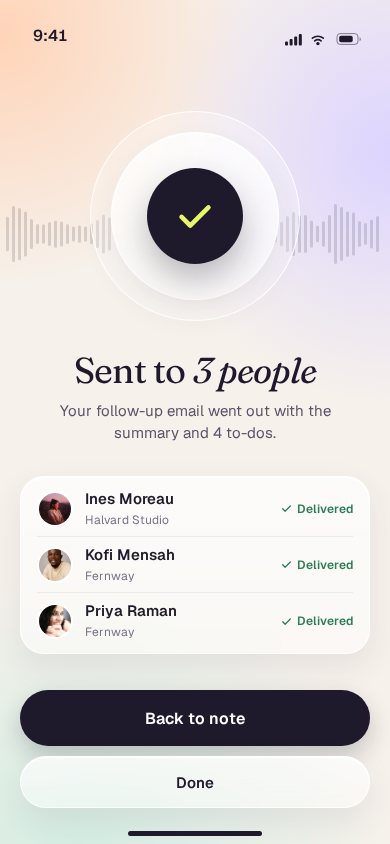
Scribe is a complete voice to notes app: welcome, setup and sign in, a home with the latest note and open to-dos, live recording with a running transcript, a transcribing tracker, a note with summary, key points and a pull quote, a karaoke style transcript player with speaker lanes, action items, library, search inside audio, folders, ask your notes, rewrite formats, sharing with a confirmation, saved highlights, audio import, monthly insights, notifications, a Pro plan with checkout and success, profile and settings. Warm pearl glass with aubergine ink, vermilion and a citron highlighter.
| Detail | Value |
|---|---|
| Screen type | Success |
| App | Scribe: Voice memos to notes |
| Category | Productivity |
| Design language | Glass, light |
| Type | Fraunces for headings, Geist for text |
| Colours | #f6f1eb background, #ffffff surface, #1f1a2b text, #7a7287 text-muted, #ff4d2e accent, #ffffff accent-contrast, #8c7cf0 secondary, #e9f56a highlight, #ebe4dc border, #e8361d danger |
What this screen says
- Sent to 3 people
- Your follow-up email went out with the summary and 4 to-dos.
- Ines MoreauHalvard Studio
- Delivered
- Kofi MensahFernway
- Priya RamanFernway
- Back to note
- Done
Around it in Scribe
More success and confirmation screens
- Layout Saved: Design anything from templates
- Tick Pro is on: To-do lists and reminders
- Beacon Lost mode on: Find your devices and people
- Staffroom Request sent: HR, payslips and time off
- Slot Confirmed: Booking links and meeting scheduling
- Sheet Submitted: Spreadsheets and databases
- Tunnel Plan active: VPN and online privacy
- Ping Result: Internet speed test
- Glance Order placed: Visual search with the camera
- Replay Video ready: Record and share screen videos
- Easel Invite sent: Collaborative whiteboard
- Token Account added: Two-factor codes and sign-in approvals
Every productivity app success screen
What makes a good confirmation screen
- Confirm in the headline. "Payment sent", "Table booked for Friday at 8" or "Lesson complete" in plain words, with a clear success colour or icon.
- Repeat the key details. Amount, date, reference number or score, so people do not need to check elsewhere that the right thing happened.
- Say what happens next. When the order arrives, when the money lands, when the next lesson unlocks.
- Offer the next step. Track the order, add to calendar, share, or start the next lesson. One primary action and a way back home.
The full confirmation screen guide and every example
Remix Scribe free: describe your own app and it is drawn in this design. Or get its files from $10: Figma, React Native, SwiftUI, Flutter and HTML.