Templates · Success and confirmation screens · Productivity app · Tick
Tick Pro is on screen
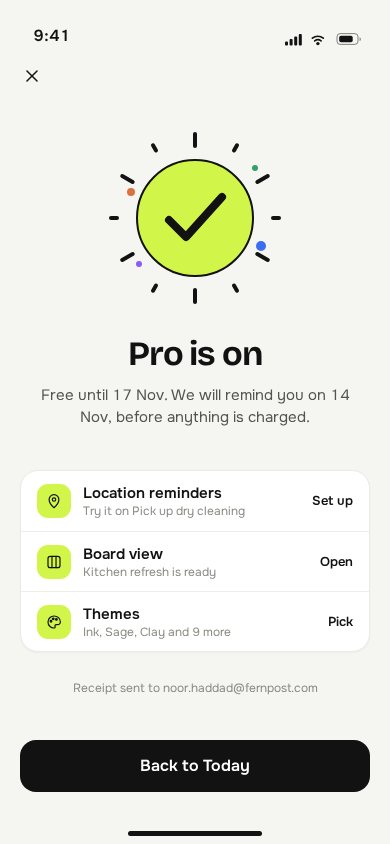
A success screen from Tick, a to-do lists and reminders app template in a Minimal style. Screen 22 of 25.
Tick is a complete to-do app: welcome, set up, sign in, a Today list with overdue tasks and a daily goal ring, inbox, an upcoming week strip, quick add with plain language dates, task details with subtasks, a date picker and reminders, projects as a list or a board, filters and labels, search, sharing, activity, productivity stats, templates, a Pro plan with checkout and confirmation, notifications, profile and settings. Paper white and ink with a single chartreuse accent.
| Detail | Value |
|---|---|
| Screen type | Success |
| App | Tick: To-do lists and reminders |
| Category | Productivity |
| Design language | Minimal, light |
| Type | Bricolage Grotesque for headings, Onest for text |
| Colours | #f5f5f1 background, #ffffff surface, #121212 text, #8b8b84 text-muted, #d2f54a accent, #121212 accent-contrast, #e8e7e0 border, #f2553a danger, #22914d success |
What this screen says
- Pro is on
- Free until 17 Nov. We will remind you on 14 Nov, before anything is charged.
- Location remindersTry it on Pick up dry cleaning
- Set up
- Board viewKitchen refresh is ready
- Open
- ThemesInk, Sage, Clay and 9 more
- Pick
- Receipt sent to noor.haddad@fernpost.com
- Back to Today
Around it in Tick
More success and confirmation screens
- Rota Shift summary: Shift scheduling for hourly teams
- Inkwell Entry saved: Daily journal
- Shortlist Application sent: Job search and application tracker
- Parley Group created: Team messenger
- Docket Sprint done: Task and sprint planner
- Kanso Task done: Tasks, calendar and chat
- Margin Upgraded: AI note taking
- Aide Session complete: Executive AI assistant
- Juno Subscribed: AI chat assistant
- Opal Invoice sent: Studio dashboard
- Jot Invite sent: Quick notes and checklists
- Chrono Invite sent: World clock, timers and stopwatch
Every productivity app success screen
What makes a good confirmation screen
- Confirm in the headline. "Payment sent", "Table booked for Friday at 8" or "Lesson complete" in plain words, with a clear success colour or icon.
- Repeat the key details. Amount, date, reference number or score, so people do not need to check elsewhere that the right thing happened.
- Say what happens next. When the order arrives, when the money lands, when the next lesson unlocks.
- Offer the next step. Track the order, add to calendar, share, or start the next lesson. One primary action and a way back home.
The full confirmation screen guide and every example
Remix Tick free: describe your own app and it is drawn in this design. Or get its files from $10: Figma, React Native, SwiftUI, Flutter and HTML.