Templates · Onboarding screens · Food app · Omakase
Omakase Welcome screen
An onboarding screen from Omakase, a chef's counter reservations app template in a Luxury style. Screen 1 of 25.
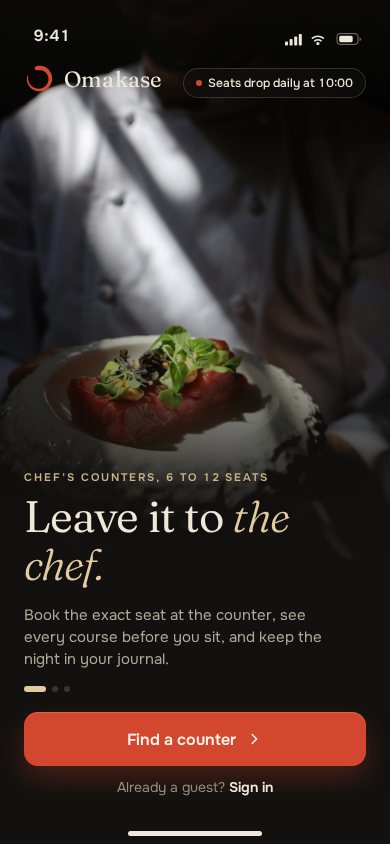
Omakase is a complete chef's counter booking app: welcome, your palate and allergies, sign in, a home with your next seat and the next seat drop, discover, a counter page, the chef, tonight's courses, a seat picker on a drawn hinoki counter, date and seating, guests and notes, review and pay, a sealed confirmation, reservations, a reservation ticket, waitlist alerts, a live course tracker at the counter, a tasting journal and notes, a passport of seals and stats, saved counters, a Reserve membership, notifications, profile and settings. Sumi ink and hinoki wood with one vermilion accent.
| Detail | Value |
|---|---|
| Screen type | Onboarding |
| App | Omakase: Chef's counter reservations |
| Category | Food |
| Design language | Luxury, dark |
| Type | Fraunces for headings, Onest for text |
| Colours | #12110f background, #1b1916 surface, #efe7d8 text, #968d7f text-muted, #d4472f accent, #fff4ea accent-contrast, #e2cba3 secondary, #2a2722 border, #e0604a danger |
What this screen says
- Omakase
- Seats drop daily at 10:00
- Chef's counters, 6 to 12 seats
- Leave it to the chef.
- Book the exact seat at the counter, see every course before you sit, and keep the night in your journal.
- Find a counter
- Already a guest? Sign in
Around it in Omakase
More onboarding screens
- Forage Welcome: Farmers market and veg box
- Ember Welcome: Smoker and grill thermometer
- Steep Welcome: Tea brewing and tasting notes
- Brigade Welcome: Restaurant kitchen and line ops
- Nibs Welcome: Food allergy and label scanner
- Ladle Welcome: Recipes and meal planning
- Pantry Welcome: Grocery delivery
- Brewly Welcome: Coffee ordering and loyalty
- Tabla Welcome: Tables worth dressing for
- Corked Welcome: Wine journal and cellar
- Crumb Welcome: Neighbourhood bakery
- Tiffin Welcome: Food delivery
Every food app onboarding screen
What makes a good onboarding screen
- One idea per screen. Each screen should say one thing in a headline people can read in a second. If a screen needs a paragraph, it is doing too much.
- Personalise with a purpose. Ask a question only if the answer changes what people see next, like a goal, a level or an interest. Then show that the answer mattered.
- Explain permissions before asking. Show your own screen saying why you need notifications, location or the camera before the system prompt. People who understand the reason are more likely to allow it.
- Let people skip. A visible skip or "I'll do this later" respects returning users and the impatient. Make sure skipping still lands them somewhere useful.
The full onboarding screen guide and every example
Remix Omakase free: describe your own app and it is drawn in this design. Or get its files from $10: Figma, React Native, SwiftUI, Flutter and HTML.