Templates · Onboarding screens · Food app · Ember
Ember Welcome screen
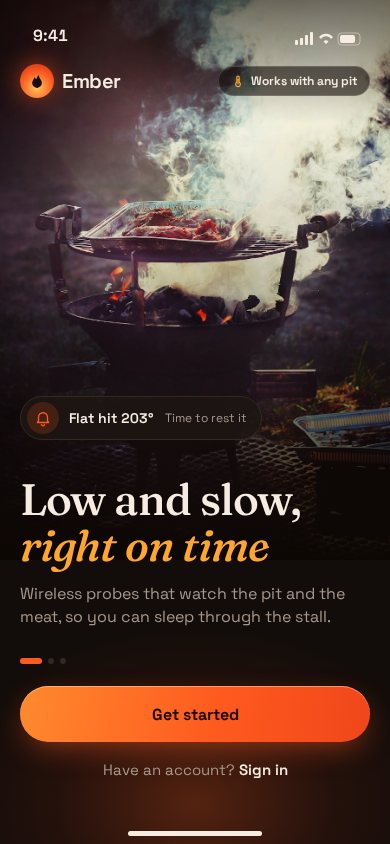
An onboarding screen from Ember, a smoker and grill thermometer app template in a Dark-first style. Screen 1 of 25.
Ember is a complete wireless meat thermometer: welcome, pairing the probes, sign in, a home with the cook in progress, a live cook dial with pit and meat temperatures, a single probe with its four sensors, the cook graph with the stall and the wrap, alerts, starting a new cook, cut guides and a recipe, a rest timer, a finished cook, the cook log and a recap, pit stats, devices, a shop with checkout and an order placed, a Pro plan, notifications, profile and settings. Soot black and charcoal with an ember to amber glow.
| Detail | Value |
|---|---|
| Screen type | Onboarding |
| App | Ember: Smoker and grill thermometer |
| Category | Food |
| Design language | Dark-first, dark |
| Type | Fraunces for headings, Space Grotesk for text |
| Colours | #120d0a background, #1c1612 surface, #f7ece1 text, #a8978a text-muted, #ff5b1f accent, #1a0b04 accent-contrast, #ffa62b secondary, #33291f border, #8ab4c8 info, #9ed27a success |
What this screen says
- Ember
- Works with any pit
- Flat hit 203°Time to rest it
- Low and slow, right on time
- Wireless probes that watch the pit and the meat, so you can sleep through the stall.
- Get started
- Have an account? Sign in
Around it in Ember
More onboarding screens
- Courier Welcome: Food delivery driver app
- Picker Welcome: Grocery shopper app
- Queue Welcome: Join the waitlist from anywhere
- Nosh Welcome: Local restaurant reviews
- Buns Welcome: Burger chain ordering and deals
- Slice Welcome: Pizza ordering with a live tracker
- Crate Welcome: Meal kits delivered weekly
- Dash Welcome: Ten minute grocery delivery
- Aisle Welcome: Shared grocery lists
- Menu Welcome: Scan, order and pay at the table
- Mart Welcome: Supermarket app with loyalty and scan and go
- Rescue Welcome: Surprise bags of surplus food
Every food app onboarding screen
What makes a good onboarding screen
- One idea per screen. Each screen should say one thing in a headline people can read in a second. If a screen needs a paragraph, it is doing too much.
- Personalise with a purpose. Ask a question only if the answer changes what people see next, like a goal, a level or an interest. Then show that the answer mattered.
- Explain permissions before asking. Show your own screen saying why you need notifications, location or the camera before the system prompt. People who understand the reason are more likely to allow it.
- Let people skip. A visible skip or "I'll do this later" respects returning users and the impatient. Make sure skipping still lands them somewhere useful.
The full onboarding screen guide and every example
Remix Ember free: describe your own app and it is drawn in this design. Or get its files from $10: Figma, React Native, SwiftUI, Flutter and HTML.