Templates · Onboarding screens · Food app · Ladle
Ladle Welcome screen
An onboarding screen from Ladle, a recipes and meal planning app template in a Minimal style. Screen 1 of 25.
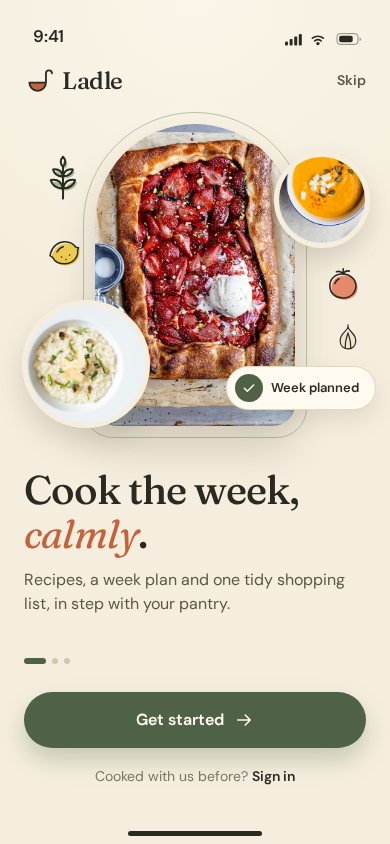
Ladle is a complete recipe and meal planning app: onboarding and taste picks, sign in, a home with tonight's dinner, search, a recipe with scalable ingredients, a step by step cook mode with timers, a week planner, one shopping list sorted by aisle, a pantry with use it up ideas, collections, nutrition, a recipe editor, a plan, notifications, profile and settings. Cream, sage and terracotta with arch and circle photo crops.
| Detail | Value |
|---|---|
| Screen type | Onboarding |
| App | Ladle: Recipes and meal planning |
| Category | Food |
| Design language | Minimal, light |
| Type | DM Sans |
| Colours | #f5eedf background, #fffaf0 surface, #2b2a22 text, #857f6c text-muted, #4f6146 accent, #fffaf0 accent-contrast, #c4623c secondary, #e2d7c0 border, #b3402e danger |
What this screen says
- Ladle
- Skip
- Week planned
- Cook the week,
- calmly.
- Recipes, a week plan and one tidy shopping list, in step with your pantry.
- Get started
- Cooked with us before? Sign in
Around it in Ladle
More onboarding screens
- Queue Welcome: Join the waitlist from anywhere
- Nosh Welcome: Local restaurant reviews
- Buns Welcome: Burger chain ordering and deals
- Slice Welcome: Pizza ordering with a live tracker
- Crate Welcome: Meal kits delivered weekly
- Dash Welcome: Ten minute grocery delivery
- Aisle Welcome: Shared grocery lists
- Menu Welcome: Scan, order and pay at the table
- Mart Welcome: Supermarket app with loyalty and scan and go
- Rescue Welcome: Surprise bags of surplus food
- Omakase Welcome: Chef's counter reservations
- Lunchbox Welcome: School lunch planner for parents
Every food app onboarding screen
What makes a good onboarding screen
- One idea per screen. Each screen should say one thing in a headline people can read in a second. If a screen needs a paragraph, it is doing too much.
- Personalise with a purpose. Ask a question only if the answer changes what people see next, like a goal, a level or an interest. Then show that the answer mattered.
- Explain permissions before asking. Show your own screen saying why you need notifications, location or the camera before the system prompt. People who understand the reason are more likely to allow it.
- Let people skip. A visible skip or "I'll do this later" respects returning users and the impatient. Make sure skipping still lands them somewhere useful.
The full onboarding screen guide and every example
Remix Ladle free: describe your own app and it is drawn in this design. Or get its files from $10: Figma, React Native, SwiftUI, Flutter and HTML.