Templates · Onboarding screens · Food app · Menu
Menu Welcome screen
An onboarding screen from Menu, a food app template in a Minimal style. Screen 1 of 25.
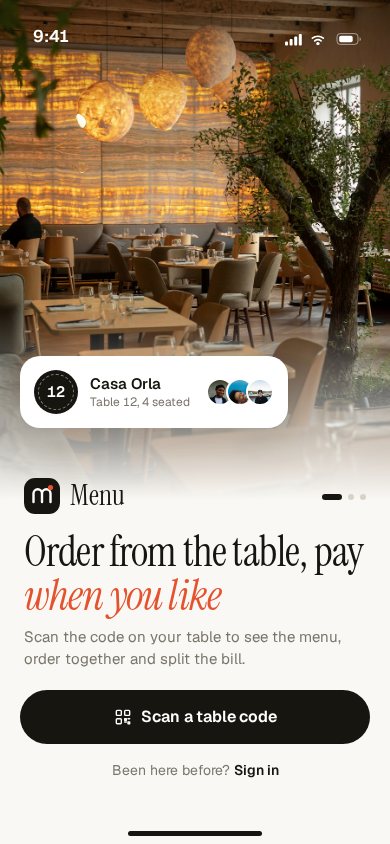
Menu is a complete scan, order and pay app: welcome, a camera that reads the table code, sign in, a table home with who has joined and what the kitchen is doing, a printed style menu, search with allergen filters, a dish with options and a note for the kitchen, the table's shared order, live order status, calling a server, the bill, splitting by items, tip, pay, a receipt, rewards, past visits, a Plus plan, notifications, profile and settings. Paper white and ink with tomato red and sage.
| Detail | Value |
|---|---|
| Screen type | Onboarding |
| App | Menu: Scan, order and pay at the table |
| Category | Food |
| Design language | Minimal, light |
| Type | Instrument Serif for headings, Geist for text |
| Colours | #faf8f4 background, #ffffff surface, #16150f text, #7a766c text-muted, #e4522e accent, #ffffff accent-contrast, #3f6f55 secondary, #ebe7de border, #d93b2b danger |
What this screen says
- Casa Orla
- Table 12, 4 seated
- Menu
- Order from the table, pay when you like
- Scan the code on your table to see the menu, order together and split the bill.
- Scan a table code
- Been here before? Sign in
Around it in Menu
More onboarding screens
- Steep Welcome: Tea brewing and tasting notes
- Brigade Welcome: Restaurant kitchen and line ops
- Nibs Welcome: Food allergy and label scanner
- Ladle Welcome: Recipes and meal planning
- Pantry Welcome: Grocery delivery
- Brewly Welcome: Coffee ordering and loyalty
- Tabla Welcome: Tables worth dressing for
- Corked Welcome: Wine journal and cellar
- Crumb Welcome: Neighbourhood bakery
- Tiffin Welcome: Food delivery
- Courier Welcome: Food delivery driver app
- Picker Welcome: Grocery shopper app
Every food app onboarding screen
What makes a good onboarding screen
- One idea per screen. Each screen should say one thing in a headline people can read in a second. If a screen needs a paragraph, it is doing too much.
- Personalise with a purpose. Ask a question only if the answer changes what people see next, like a goal, a level or an interest. Then show that the answer mattered.
- Explain permissions before asking. Show your own screen saying why you need notifications, location or the camera before the system prompt. People who understand the reason are more likely to allow it.
- Let people skip. A visible skip or "I'll do this later" respects returning users and the impatient. Make sure skipping still lands them somewhere useful.
The full onboarding screen guide and every example
Remix Menu free: describe your own app and it is drawn in this design. Or get its files from $10: Figma, React Native, SwiftUI, Flutter and HTML.