Templates · Onboarding screens · Productivity app · Keyring
Keyring Recovery kit screen
An onboarding screen from Keyring, a password manager app template in a Dark-first style. Screen 5 of 25.
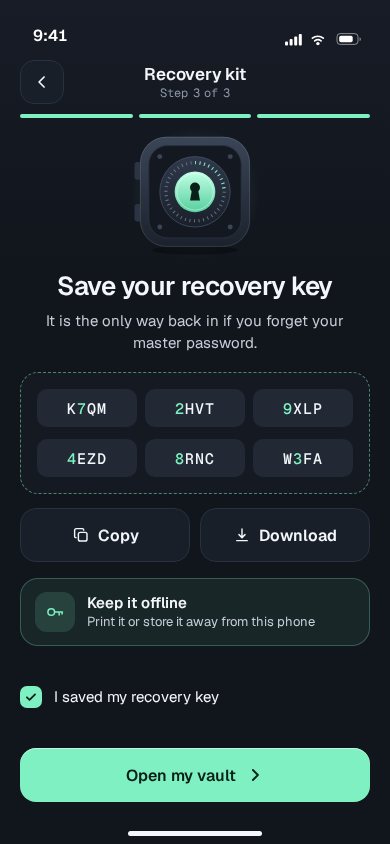
Keyring is a complete password manager: welcome, sign in, a master password with a strength meter, a recovery kit, passcode unlock, the vault home, search, every login, a login with its one-time code and history, new items, a password generator, cards, secure notes, a security score with weak, reused and breached passwords, a breach alert, autofill setup, shared vaults and sharing an item, alerts, a Plus plan, profile and settings. Mint means safe, apricot means weak and coral means breached.
| Detail | Value |
|---|---|
| Screen type | Onboarding |
| App | Keyring: Password manager |
| Category | Productivity |
| Design language | Dark-first, dark |
| Type | Geist |
| Colours | #11151c background, #191f29 surface, #f3f6fa text, #8c97a8 text-muted, #7ef0c1 accent, #0a1f18 accent-contrast, #a7b4ff secondary, #283140 border, #ff7d7d danger |
What this screen says
- Recovery kit
- Step 3 of 3
- Save your recovery key
- It is the only way back in if you forget your master password.
- K7QM 2HVT 9XLP 4EZD 8RNC W3FA
- Copy
- Download
- Keep it offline
- Print it or store it away from this phone
- I saved my recovery key
- Open my vault
Around it in Keyring
More onboarding screens
- Ping Welcome: Internet speed test
- Glance Welcome: Visual search with the camera
- Replay Welcome: Record and share screen videos
- Easel Welcome: Collaborative whiteboard
- Token Welcome: Two-factor codes and sign-in approvals
- Beam Welcome: Send big files
- Parchment Welcome: Documents, edit and share
- Lectern Welcome: Slides and presenter remote
- Ringer Welcome: Phone, contacts and voicemail
- Pipeline Welcome: Sales CRM on the road
- Aim Welcome: Goals and key results
- Scribe Welcome: Voice memos to notes
Every productivity app onboarding screen
What makes a good onboarding screen
- One idea per screen. Each screen should say one thing in a headline people can read in a second. If a screen needs a paragraph, it is doing too much.
- Personalise with a purpose. Ask a question only if the answer changes what people see next, like a goal, a level or an interest. Then show that the answer mattered.
- Explain permissions before asking. Show your own screen saying why you need notifications, location or the camera before the system prompt. People who understand the reason are more likely to allow it.
- Let people skip. A visible skip or "I'll do this later" respects returning users and the impatient. Make sure skipping still lands them somewhere useful.
The full onboarding screen guide and every example
Remix Keyring free: describe your own app and it is drawn in this design. Or get its files from $10: Figma, React Native, SwiftUI, Flutter and HTML.