Templates · Onboarding screens · Productivity app · Beam
Beam Welcome screen
An onboarding screen from Beam, a send big files app template in a Playful style. Screen 1 of 25.
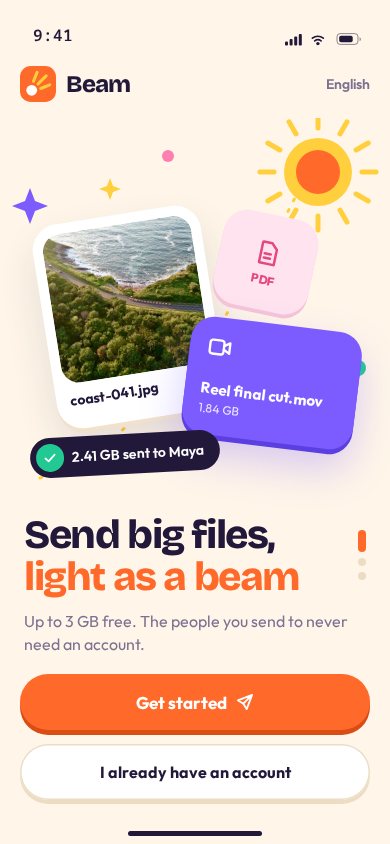
Beam is a complete big file sending app: welcome, sign in and a code, a home with a drop zone and recent transfers, picking photos and files, a new transfer by email or link with a message, expiry and password options, a live upload, sent and link ready screens, sent transfers with download counts, a transfer with who downloaded what, stats, received transfers, the receiver's download page, a photo preview, a password lock, search, file requests, notifications, a Plus plan with checkout, a branded download page, profile and settings. Warm cream with tangerine, sun yellow and grape ink.
| Detail | Value |
|---|---|
| Screen type | Onboarding |
| App | Beam: Send big files |
| Category | Productivity |
| Design language | Playful, light |
| Type | Bricolage Grotesque for headings, Outfit for text |
| Colours | #fff6e9 background, #ffffff surface, #22183a text, #7b7191 text-muted, #ff6a2b accent, #ffffff accent-contrast, #ffcf3d secondary, #f1e2cc border, #ef4b5f danger |
What this screen says
- Beam
- English
- coast-041.jpg
- Reel final cut.mov1.84 GB
- 2.41 GB sent to Maya
- Send big files,
- light as a beam
- Up to 3 GB free. The people you send to never need an account.
- Get started
- I already have an account
Around it in Beam
More onboarding screens
- Staffroom Welcome: HR, payslips and time off
- Slot Welcome: Booking links and meeting scheduling
- Sheet Welcome: Spreadsheets and databases
- Tunnel Welcome: VPN and online privacy
- Ping Welcome: Internet speed test
- Glance Welcome: Visual search with the camera
- Replay Welcome: Record and share screen videos
- Easel Welcome: Collaborative whiteboard
- Token Welcome: Two-factor codes and sign-in approvals
- Parchment Welcome: Documents, edit and share
- Lectern Welcome: Slides and presenter remote
- Ringer Welcome: Phone, contacts and voicemail
Every productivity app onboarding screen
What makes a good onboarding screen
- One idea per screen. Each screen should say one thing in a headline people can read in a second. If a screen needs a paragraph, it is doing too much.
- Personalise with a purpose. Ask a question only if the answer changes what people see next, like a goal, a level or an interest. Then show that the answer mattered.
- Explain permissions before asking. Show your own screen saying why you need notifications, location or the camera before the system prompt. People who understand the reason are more likely to allow it.
- Let people skip. A visible skip or "I'll do this later" respects returning users and the impatient. Make sure skipping still lands them somewhere useful.
The full onboarding screen guide and every example
Remix Beam free: describe your own app and it is drawn in this design. Or get its files from $10: Figma, React Native, SwiftUI, Flutter and HTML.