Templates · Sign in and sign up screens · Productivity app · Keyring
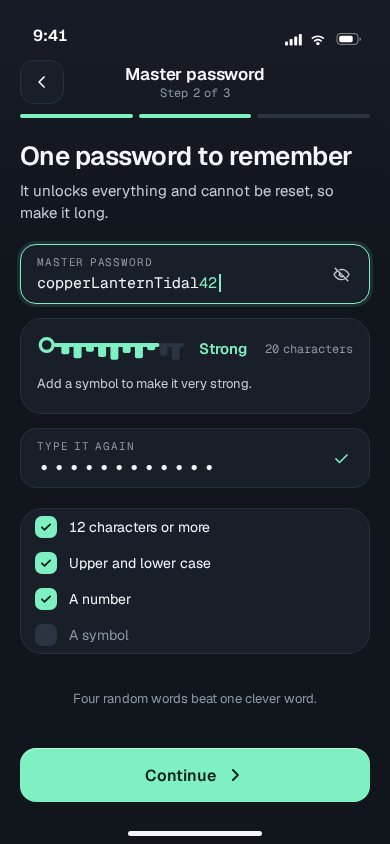
Keyring Master password screen
A sign in screen from Keyring, a password manager app template in a Dark-first style. Screen 4 of 25.
Keyring is a complete password manager: welcome, sign in, a master password with a strength meter, a recovery kit, passcode unlock, the vault home, search, every login, a login with its one-time code and history, new items, a password generator, cards, secure notes, a security score with weak, reused and breached passwords, a breach alert, autofill setup, shared vaults and sharing an item, alerts, a Plus plan, profile and settings. Mint means safe, apricot means weak and coral means breached.
| Detail | Value |
|---|---|
| Screen type | Sign in |
| App | Keyring: Password manager |
| Category | Productivity |
| Design language | Dark-first, dark |
| Type | Geist |
| Colours | #11151c background, #191f29 surface, #f3f6fa text, #8c97a8 text-muted, #7ef0c1 accent, #0a1f18 accent-contrast, #a7b4ff secondary, #283140 border, #ff7d7d danger |
What this screen says
- Master password
- Step 2 of 3
- One password to remember
- It unlocks everything and cannot be reset, so make it long.
- copperLanternTidal42
- Strong20 characters
- Add a symbol to make it very strong.
- Type it again
- ••••••••••••
- 12 characters or more
- Upper and lower case
- A number
- A symbol
- Four random words beat one clever word.
- Continue
Around it in Keyring
More sign in and sign up screens
- Scanly Sign in: Document scanner
- Rota Sign in: Shift scheduling for hourly teams
- Inkwell Sign in: Daily journal
- Shortlist Sign in: Job search and application tracker
- Parley Sign in: Team messenger
- Docket Sign in: Task and sprint planner
- Kanso Sign in: Tasks, calendar and chat
- Margin Sign in: AI note taking
- Aide Create account: Executive AI assistant
- Juno Sign in: AI chat assistant
- Opal Sign in: Studio dashboard
- Jot Sign in: Quick notes and checklists
Every productivity app sign in screen
What makes a good login screen
- Offer the fastest option first. Sign in with Apple, Google or a passkey takes one tap. If you support them, put them above the email form. Apple asks apps that use a third-party login like Google to also offer an equivalent privacy-focused option, such as Sign in with Apple.
- Separate sign in from sign up clearly. Use different headings and buttons, and a clear link to switch. People who already have an account should never end up creating a second one by accident.
- Use the right keyboard and autofill. Email fields should open the email keyboard and support password managers and one-time code autofill. Small details, big difference in how many people get through.
- Write errors that help. "That password doesn't match this email" is better than "Error 401". Keep what people typed so they only fix the part that was wrong.
The full login screen guide and every example
Remix Keyring free: describe your own app and it is drawn in this design. Or get its files from $10: Figma, React Native, SwiftUI, Flutter and HTML.