Templates · Onboarding screens · Productivity app · Tunnel
Tunnel Allow VPN screen
An onboarding screen from Tunnel, a VPN and online privacy app template in a Dark-first style. Screen 3 of 25.
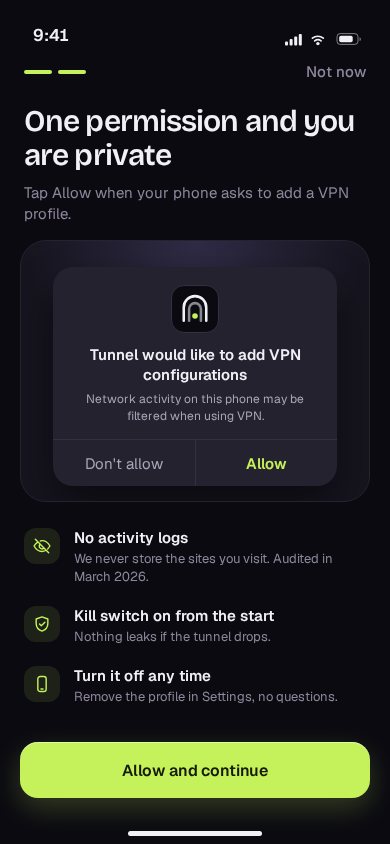
Tunnel is a complete VPN and privacy app: welcome, sign in and VPN permission, a one tap connect home inside a glowing tunnel, the connecting handshake, a dot matrix server map, a country list and a country with its cities, live connection details, specialty servers and double hop, protocols, kill switch, split tunnelling, threat protection with a blocked log, a data breach monitor and a leak, a speed test, plans, checkout and a success screen, notifications, account and settings. Aubergine black and plum graphite with signal lime and lavender.
| Detail | Value |
|---|---|
| Screen type | Onboarding |
| App | Tunnel: VPN and online privacy |
| Category | Productivity |
| Design language | Dark-first, dark |
| Type | Bricolage Grotesque for headings, Geist for text |
| Colours | #0b0a11 background, #16141e surface, #f2f0f7 text, #8d879b text-muted, #c5f25a accent, #141a05 accent-contrast, #a796ff secondary, #26222f border, #ff6b5b danger |
What this screen says
- Not now
- One permission and you are private
- Tap Allow when your phone asks to add a VPN profile.
- Tunnel would like to add VPN configurations
- Network activity on this phone may be filtered when using VPN.
- Don't allow Allow
- No activity logsWe never store the sites you visit. Audited in March 2026.
- Kill switch on from the startNothing leaks if the tunnel drops.
- Turn it off any timeRemove the profile in Settings, no questions.
- Allow and continue
Around it in Tunnel
More onboarding screens
- Parley Welcome: Team messenger
- Docket Welcome: Task and sprint planner
- Kanso Welcome: Tasks, calendar and chat
- Margin Welcome: AI note taking
- Aide Welcome: Executive AI assistant
- Juno Welcome: AI chat assistant
- Opal Welcome: Studio dashboard
- Jot Welcome: Quick notes and checklists
- Chrono Welcome: World clock, timers and stopwatch
- Frontdesk Welcome: Customer support inbox
- Campaign Welcome: Email marketing campaigns
- Outpost Welcome: Schedule social posts
Every productivity app onboarding screen
What makes a good onboarding screen
- One idea per screen. Each screen should say one thing in a headline people can read in a second. If a screen needs a paragraph, it is doing too much.
- Personalise with a purpose. Ask a question only if the answer changes what people see next, like a goal, a level or an interest. Then show that the answer mattered.
- Explain permissions before asking. Show your own screen saying why you need notifications, location or the camera before the system prompt. People who understand the reason are more likely to allow it.
- Let people skip. A visible skip or "I'll do this later" respects returning users and the impatient. Make sure skipping still lands them somewhere useful.
The full onboarding screen guide and every example
Remix Tunnel free: describe your own app and it is drawn in this design. Or get its files from $10: Figma, React Native, SwiftUI, Flutter and HTML.