Templates · Onboarding screens · Productivity app · Slot
Slot Connect calendar screen
An onboarding screen from Slot, a booking links and meeting scheduling app template in a Minimal style. Screen 2 of 25.
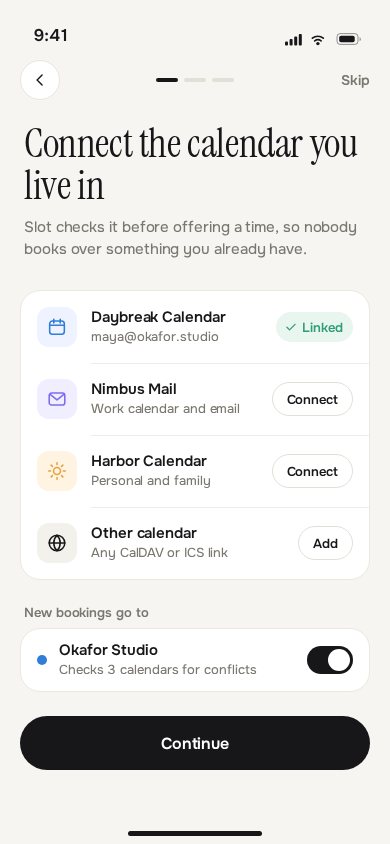
Slot is a complete scheduling app for people who take meetings: welcome, calendar connect, sign in, a home with today's timeline and your link, a week calendar, upcoming meetings and a meeting record, event types with an editor, weekly hours and date overrides, sharing, the invitee's booking page with day and time pickers, details and a confirmation, routing forms, reminder workflows, analytics, search, alerts, plans, account and settings. Paper and white with ink type, serif headlines and a vermilion accent.
| Detail | Value |
|---|---|
| Screen type | Onboarding |
| App | Slot: Booking links and meeting scheduling |
| Category | Productivity |
| Design language | Minimal, light |
| Type | Instrument Serif for headings, Onest for text |
| Colours | #f6f5f1 background, #ffffff surface, #17171a text, #7a776f text-muted, #ff5b2e accent, #fff0ea accent-soft, #e8e5dd border, #7c6cf2 event-violet, #2f9e74 event-pine / success, #e9a23b event-amber, #2f7fd8 event-ocean, #e0453a danger |
What this screen says
- Skip
- Connect the calendar you live in
- Slot checks it before offering a time, so nobody books over something you already have.
- Daybreak Calendarmaya@okafor.studio
- Linked
- Nimbus MailWork calendar and email
- Connect
- Harbor CalendarPersonal and family
- Other calendarAny CalDAV or ICS link
- Add
- New bookings go to
- Okafor StudioChecks 3 calendars for conflicts
- Continue
Around it in Slot
More onboarding screens
- Tandem Welcome: Team chat, channels and huddles
- Shipyard Welcome: Issue tracking for product teams
- Canvas Welcome: Design files and comments on mobile
- Merge Welcome: Code, pull requests and reviews
- Query Welcome: AI answers with sources
- Glossa Welcome: Translate text, voice and camera
- Layout Welcome: Design anything from templates
- Tick Welcome: To-do lists and reminders
- Beacon Welcome: Find your devices and people
- Staffroom Welcome: HR, payslips and time off
- Sheet Welcome: Spreadsheets and databases
- Tunnel Welcome: VPN and online privacy
Every productivity app onboarding screen
What makes a good onboarding screen
- One idea per screen. Each screen should say one thing in a headline people can read in a second. If a screen needs a paragraph, it is doing too much.
- Personalise with a purpose. Ask a question only if the answer changes what people see next, like a goal, a level or an interest. Then show that the answer mattered.
- Explain permissions before asking. Show your own screen saying why you need notifications, location or the camera before the system prompt. People who understand the reason are more likely to allow it.
- Let people skip. A visible skip or "I'll do this later" respects returning users and the impatient. Make sure skipping still lands them somewhere useful.
The full onboarding screen guide and every example
Remix Slot free: describe your own app and it is drawn in this design. Or get its files from $10: Figma, React Native, SwiftUI, Flutter and HTML.