Templates · Onboarding screens · Productivity app · Replay
Replay Permissions screen
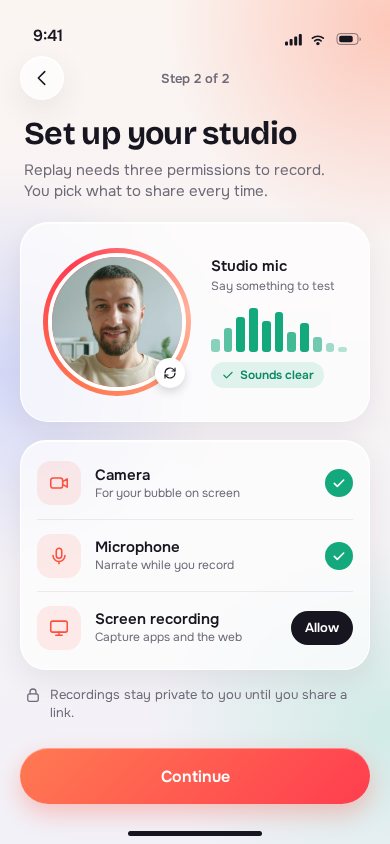
An onboarding screen from Replay, a record and share screen videos app template in a Glass style. Screen 2 of 25.
Replay is a complete async video app for teams: welcome, studio permissions and sign in, a home with record modes and recent videos, library, folders and transcript search, a recording setup, a live screen recording with a camera bubble and drawing, trim and smart cleanup, a ready screen with the link copied, the video page with timestamped reactions, transcript, AI summary and chapters, comments, share permissions, viewer insights and viewers, a workspace with spaces and invites, inbox, Pro plan, upgrade, profile and settings. Warm porcelain glass with coral, cobalt and mint.
| Detail | Value |
|---|---|
| Screen type | Onboarding |
| App | Replay: Record and share screen videos |
| Category | Productivity |
| Design language | Glass, light |
| Type | Bricolage Grotesque for headings, Onest for text |
| Colours | #fbf5f2 background, #ffffff surface, #17151f text, #6e6a78 text-muted, #ff4f3b accent, #ffffff accent-contrast, #3b5bff secondary, #ebe7ee border, #14a97c success, #e5402c danger |
What this screen says
- Step 2 of 2
- Set up your studio
- Replay needs three permissions to record. You pick what to share every time.
- Studio mic
- Say something to test
- Sounds clear
- Camera
- For your bubble on screen
- Microphone
- Narrate while you record
- Screen recording
- Capture apps and the web
- Allow
- Recordings stay private to you until you share a link.
- Continue
Around it in Replay
More onboarding screens
- Bench Welcome: Freelance marketplace
- Convene Welcome: Video meetings
- Unplug Welcome: Screen time blocker
- Streak Welcome: Small days, long chains
- Deskly Welcome: Hybrid office booking
- Pomo Welcome: Focus timer
- Postbox Welcome: Email for busy teams
- Daybook Welcome: Calendar and planner
- Scanly Welcome: Document scanner
- Keyring Welcome: Password manager
- Rota Welcome: Shift scheduling for hourly teams
- Inkwell Welcome: Daily journal
Every productivity app onboarding screen
What makes a good onboarding screen
- One idea per screen. Each screen should say one thing in a headline people can read in a second. If a screen needs a paragraph, it is doing too much.
- Personalise with a purpose. Ask a question only if the answer changes what people see next, like a goal, a level or an interest. Then show that the answer mattered.
- Explain permissions before asking. Show your own screen saying why you need notifications, location or the camera before the system prompt. People who understand the reason are more likely to allow it.
- Let people skip. A visible skip or "I'll do this later" respects returning users and the impatient. Make sure skipping still lands them somewhere useful.
The full onboarding screen guide and every example
Remix Replay free: describe your own app and it is drawn in this design. Or get its files from $10: Figma, React Native, SwiftUI, Flutter and HTML.