Templates · Onboarding screens · Music app · Hum
Hum Microphone screen
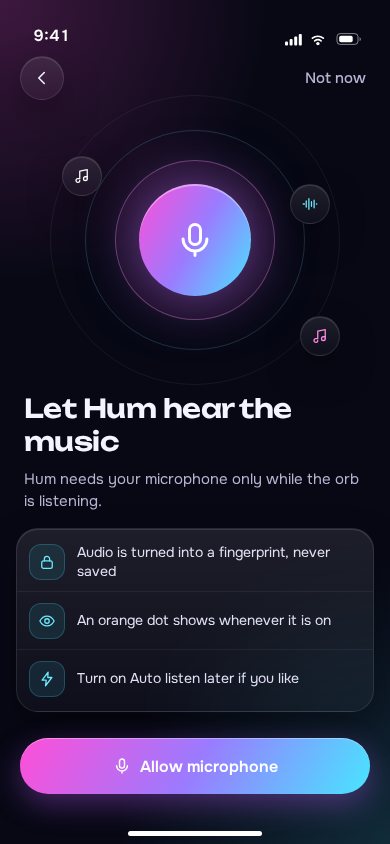
An onboarding screen from Hum, a song recognition app template in a Glass style. Screen 2 of 25.
Hum is a complete song recognition app: welcome, microphone access, sign in, a home with the listening orb and recent finds, listening and hum mode, the match with synced lyrics and a preview player, artist and album pages, your library of finds, search, city charts, songs found nearby on a map, your listening stats, concerts with tickets and a booking confirmation, a share card, Hum Plus, notifications, profile and settings. Ink navy glass lit by magenta and aqua.
| Detail | Value |
|---|---|
| Screen type | Onboarding |
| App | Hum: Song recognition |
| Category | Music |
| Design language | Glass, dark |
| Type | Unbounded for headings, Onest for text |
| Colours | #070814 background, #15152a surface, #f4f3ff text, #9a98b8 text-muted, #ff4fd8 accent, #ffffff accent-contrast, #48e5ff secondary, #26253f border, #ff5a7a danger |
What this screen says
- Not now
- Let Hum hear the music
- Hum needs your microphone only while the orb is listening.
- Audio is turned into a fingerprint, never saved
- An orange dot shows whenever it is on
- Turn on Auto listen later if you like
- Allow microphone
Around it in Hum
More onboarding screens
- Chorus Welcome: Singing lessons and pitch training
- Verse Welcome: Songwriting notebook
- Masters Welcome: Royalties and streams for artists
- Sonata Welcome: Concert hall season and tickets
- Quire Welcome: Sheet music and practice
- Wax Welcome: Music streaming
- Earshot Welcome: Podcast player
- Strum Welcome: Learn guitar, one chord at a time
- Gigly Welcome: Gig and festival tickets
- Padd Welcome: Beat maker
- Aria Welcome: Audiobook library
- Riff Welcome: Upload and discover new tracks
Every music app onboarding screen
What makes a good onboarding screen
- One idea per screen. Each screen should say one thing in a headline people can read in a second. If a screen needs a paragraph, it is doing too much.
- Personalise with a purpose. Ask a question only if the answer changes what people see next, like a goal, a level or an interest. Then show that the answer mattered.
- Explain permissions before asking. Show your own screen saying why you need notifications, location or the camera before the system prompt. People who understand the reason are more likely to allow it.
- Let people skip. A visible skip or "I'll do this later" respects returning users and the impatient. Make sure skipping still lands them somewhere useful.
The full onboarding screen guide and every example
Remix Hum free: describe your own app and it is drawn in this design. Or get its files from $10: Figma, React Native, SwiftUI, Flutter and HTML.