Templates · Onboarding screens · Music app · Verse
Verse Welcome screen
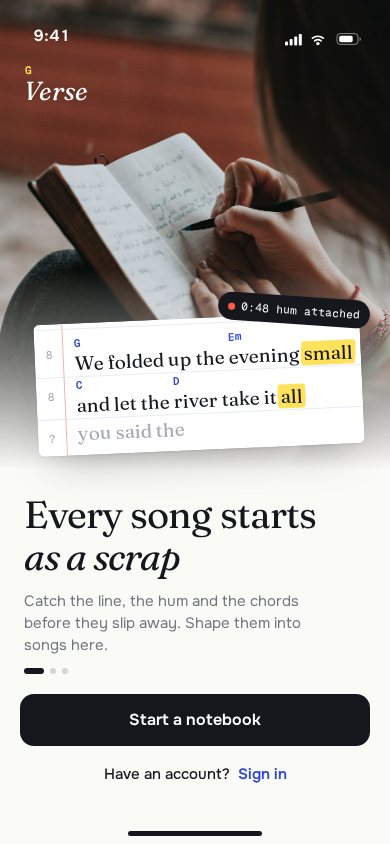
An onboarding screen from Verse, a songwriting notebook app template in a Minimal style. Screen 1 of 25.
Verse is a complete songwriting notebook: welcome, setup and sign in, a notebook home with today's prompt and songs in progress, a song library, a song page, a lyric editor with chords, syllable counts and rhyme letters, a rhyme finder, a chord progression builder, song structure, voice memo recording and playback with a transcript, ideas and quick capture, search, writing stats, co-writing with a split sheet and its signed confirmation, a Pro plan, activity, profile and settings. Paper white and ink with ballpoint blue and highlighter yellow.
| Detail | Value |
|---|---|
| Screen type | Onboarding |
| App | Verse: Songwriting notebook |
| Category | Music |
| Design language | Minimal, light |
| Type | Fraunces for headings, Onest for text |
| Colours | #fafaf7 background, #ffffff surface, #16171d text, #74767f text-muted, #2f45e0 accent, #ffffff accent-contrast, #ffe25c secondary, #e6e5df border, #ff5a45 danger |
What this screen says
- GVerse
- 0:48 hum attached
- 8GWe folded up the Emevening small
- 8Cand let the Driver take it all
- ?you said the
- Every song starts
- as a scrap
- Catch the line, the hum and the chords before they slip away. Shape them into songs here.
- Start a notebook
- Have an account? Sign in
Around it in Verse
More onboarding screens
- Wax Welcome: Music streaming
- Earshot Welcome: Podcast player
- Strum Welcome: Learn guitar, one chord at a time
- Gigly Welcome: Gig and festival tickets
- Padd Welcome: Beat maker
- Aria Welcome: Audiobook library
- Hum Welcome: Song recognition
- Riff Welcome: Upload and discover new tracks
- Groove Welcome: Vinyl collection and crate digging
- Crossfade Welcome: DJ mixing on the go
- Fork Welcome: Tuner and metronome
- Belt Welcome: Karaoke nights
Every music app onboarding screen
What makes a good onboarding screen
- One idea per screen. Each screen should say one thing in a headline people can read in a second. If a screen needs a paragraph, it is doing too much.
- Personalise with a purpose. Ask a question only if the answer changes what people see next, like a goal, a level or an interest. Then show that the answer mattered.
- Explain permissions before asking. Show your own screen saying why you need notifications, location or the camera before the system prompt. People who understand the reason are more likely to allow it.
- Let people skip. A visible skip or "I'll do this later" respects returning users and the impatient. Make sure skipping still lands them somewhere useful.
The full onboarding screen guide and every example
Remix Verse free: describe your own app and it is drawn in this design. Or get its files from $10: Figma, React Native, SwiftUI, Flutter and HTML.