Templates · Onboarding screens · Lifestyle app · Grain
Grain Welcome screen
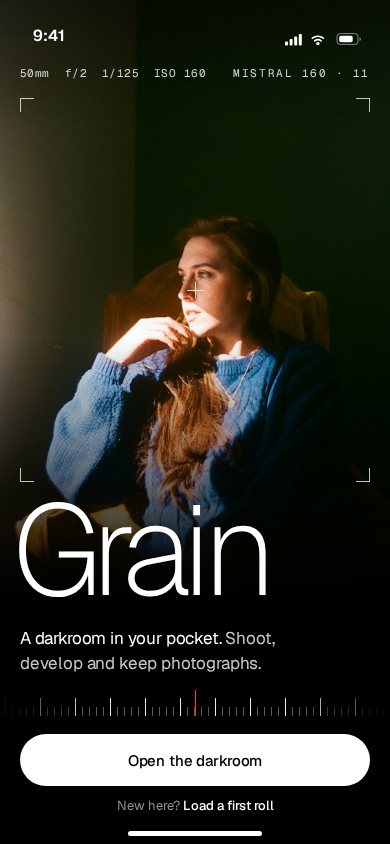
An onboarding screen from Grain, a camera and photo editor app template in a Dark-first style. Screen 1 of 25.
Grain is a complete camera and photo editor: welcome and sign in, a library kept as rolls and contact sheets, albums, a manual camera with level, peaking and an exposure dial, a photo viewer with EXIF, histogram and a drawn map, editing for light, colour, curves, crop and masks, a browser of six invented film stocks with their characteristic curves, compare, versions, export and a success screen, a community feed with photographer profiles and search, a year of shooting stats, a Pro plan, notifications, profile and settings.
| Detail | Value |
|---|---|
| Screen type | Onboarding |
| App | Grain: Camera and photo editor |
| Category | Lifestyle |
| Design language | Dark-first, dark |
| Type | Geist |
| Colours | #000000 background, #161616 surface, #ffffff text, #8f8f8f text-muted, #ffffff accent, #000000 accent-contrast, #5c5c5c secondary, #262626 border, #ff3b30 danger |
What this screen says
- 50mm f/2 1/125 ISO 160 Mistral 160 · 11
- Grain
- A darkroom in your pocket. Shoot, develop and keep photographs.
- Open the darkroom
- New here? Load a first roll
Around it in Grain
More onboarding screens
- Dorm Welcome: Find student housing
- Hem Welcome: Tailoring and alterations, collected
- Lendly Welcome: Borrow things from neighbours
- Stub Welcome: Fan to fan ticket resale
- Trove Welcome: Visual ideas and boards
- Vidi Welcome: Video platform for creators
- Roll Welcome: Photo library and backups
- Splice Welcome: Video editor for short clips
- Blush Welcome: Beauty and makeup shopping
- Flatpack Welcome: Furniture store with room previews
- Column Welcome: Newsletters and independent writers
- Fetch Welcome: Dog walkers and pet sitters
Every lifestyle app onboarding screen
What makes a good onboarding screen
- One idea per screen. Each screen should say one thing in a headline people can read in a second. If a screen needs a paragraph, it is doing too much.
- Personalise with a purpose. Ask a question only if the answer changes what people see next, like a goal, a level or an interest. Then show that the answer mattered.
- Explain permissions before asking. Show your own screen saying why you need notifications, location or the camera before the system prompt. People who understand the reason are more likely to allow it.
- Let people skip. A visible skip or "I'll do this later" respects returning users and the impatient. Make sure skipping still lands them somewhere useful.
The full onboarding screen guide and every example
Remix Grain free: describe your own app and it is drawn in this design. Or get its files from $10: Figma, React Native, SwiftUI, Flutter and HTML.