Templates · Onboarding screens · Lifestyle app · Collar
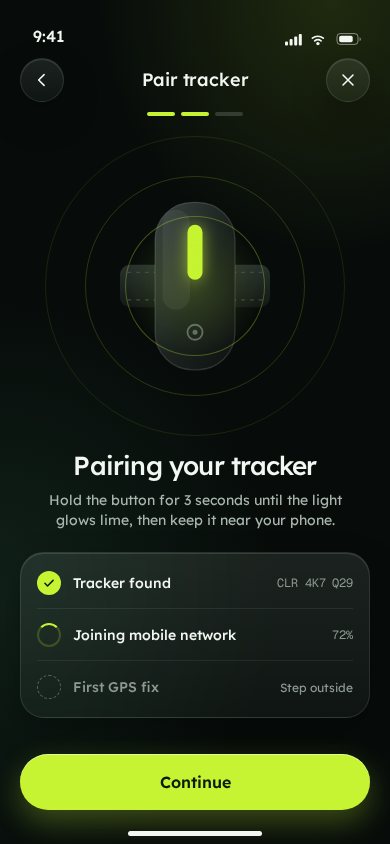
Collar Pair tracker screen
An onboarding screen from Collar, a GPS pet tracker app template in a Glass style. Screen 2 of 25.
Collar is a complete GPS pet tracker: welcome, pairing the tracker, sign in, a live map home with the pet's ring and safe zone, Live mode on a walk with a saved walk, find mode with light and sound, an escape alert, safe zones with a fence editor and place search, a location history trail, activity and sleep dashboards with a goal, pets, a pet profile, the tracker's battery and settings, family sharing and invites, plans, checkout, alerts and settings. Deep moss night maps under smoked glass with electric lime and a coral for alerts.
| Detail | Value |
|---|---|
| Screen type | Onboarding |
| App | Collar: GPS pet tracker |
| Category | Lifestyle |
| Design language | Glass, dark |
| Type | Lexend |
| Colours | #070c0a background, #121a16 surface, #f2f7f1 text, #8d9a92 text-muted, #c6f432 accent, #0d1a05 accent-contrast, #a99bff secondary, #22302a border, #ff6b4a danger |
What this screen says
- Pair tracker
- Pairing your tracker
- Hold the button for 3 seconds until the light glows lime, then keep it near your phone.
- Tracker found
- CLR 4K7 Q29
- Joining mobile network
- First GPS fix
- Step outside
- Continue
Around it in Collar
More onboarding screens
- Vow Welcome: Wedding planner
- Drizzle Welcome: Weather with living skies
- Byline Welcome: Daily news reader
- Shelf Welcome: Reading tracker and book club
- Marquee Welcome: Cinema tickets and watchlist
- Handy Welcome: Home services
- Tasker Welcome: Book and do local odd jobs
- Toolbox Welcome: Hardware store and project lists
- Brief Welcome: News in sixty words
- Kibble Welcome: Pet supplies and autoship
- Filmlog Welcome: Film diary and reviews
- Guardrail Welcome: Parental controls and screen time
Every lifestyle app onboarding screen
What makes a good onboarding screen
- One idea per screen. Each screen should say one thing in a headline people can read in a second. If a screen needs a paragraph, it is doing too much.
- Personalise with a purpose. Ask a question only if the answer changes what people see next, like a goal, a level or an interest. Then show that the answer mattered.
- Explain permissions before asking. Show your own screen saying why you need notifications, location or the camera before the system prompt. People who understand the reason are more likely to allow it.
- Let people skip. A visible skip or "I'll do this later" respects returning users and the impatient. Make sure skipping still lands them somewhere useful.
The full onboarding screen guide and every example
Remix Collar free: describe your own app and it is drawn in this design. Or get its files from $10: Figma, React Native, SwiftUI, Flutter and HTML.