Templates · Onboarding screens · Lifestyle app · Tasker
Tasker Welcome screen
An onboarding screen from Tasker, a lifestyle app template in a Minimal style. Screen 1 of 25.
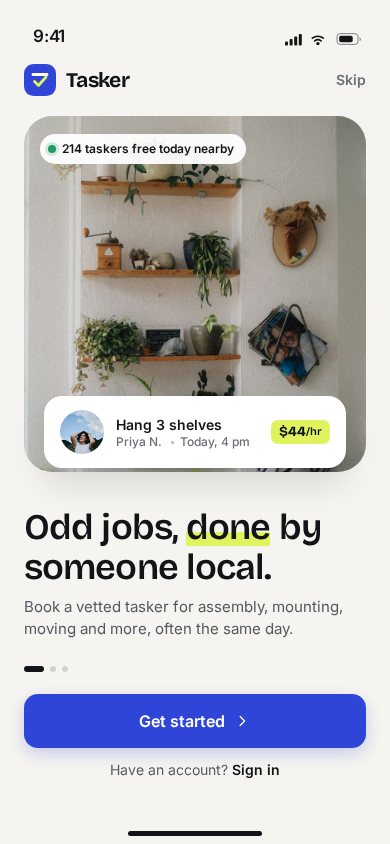
Tasker is a complete local odd jobs app: welcome, sign in, a home with the next booked task and categories, search, a furniture assembly page, describing the task with size, items and photos, choosing a tasker by rate and reviews, filters, a tasker profile, reviews, a calendar with time slots, a confirm screen and a booked ticket, messages and a chat, my tasks, a task timeline, live arrival on a map, a running task timer, pay and tip, rating, a Plus membership, notifications, account and settings. Warm paper and white with ultramarine and lime.
| Detail | Value |
|---|---|
| Screen type | Onboarding |
| App | Tasker: Book and do local odd jobs |
| Category | Lifestyle |
| Design language | Minimal, light |
| Type | Bricolage Grotesque for headings, Inter for text |
| Colours | #f5f4f0 background, #ffffff surface, #121417 text, #6c6f75 text-muted, #2f45d8 accent, #ffffff accent-contrast, #dff35f secondary, #e8e6e0 border, #d93f3f danger |
What this screen says
- TaskerSkip
- 214 taskers free today nearby
- Hang 3 shelves
- Priya N. Today, 4 pm
- $44/hr
- Odd jobs, done by someone local.
- Book a vetted tasker for assembly, mounting, moving and more, often the same day.
- Get started
- Have an account? Sign in
Around it in Tasker
More onboarding screens
- Vidi Welcome: Video platform for creators
- Roll Welcome: Photo library and backups
- Splice Welcome: Video editor for short clips
- Blush Welcome: Beauty and makeup shopping
- Flatpack Welcome: Furniture store with room previews
- Column Welcome: Newsletters and independent writers
- Fetch Welcome: Dog walkers and pet sitters
- Forecourt Welcome: Buy and sell used cars
- Tower Welcome: Mobile plan, data and bills
- Haul Welcome: Bargain fashion and finds
- Muse Welcome: AI image studio
- Admit Welcome: Events and tickets near you
Every lifestyle app onboarding screen
What makes a good onboarding screen
- One idea per screen. Each screen should say one thing in a headline people can read in a second. If a screen needs a paragraph, it is doing too much.
- Personalise with a purpose. Ask a question only if the answer changes what people see next, like a goal, a level or an interest. Then show that the answer mattered.
- Explain permissions before asking. Show your own screen saying why you need notifications, location or the camera before the system prompt. People who understand the reason are more likely to allow it.
- Let people skip. A visible skip or "I'll do this later" respects returning users and the impatient. Make sure skipping still lands them somewhere useful.
The full onboarding screen guide and every example
Remix Tasker free: describe your own app and it is drawn in this design. Or get its files from $10: Figma, React Native, SwiftUI, Flutter and HTML.