Templates · Onboarding screens · Lifestyle app · Shelf
Shelf Welcome screen
An onboarding screen from Shelf, a reading tracker and book club app template in a Minimal style. Screen 1 of 25.
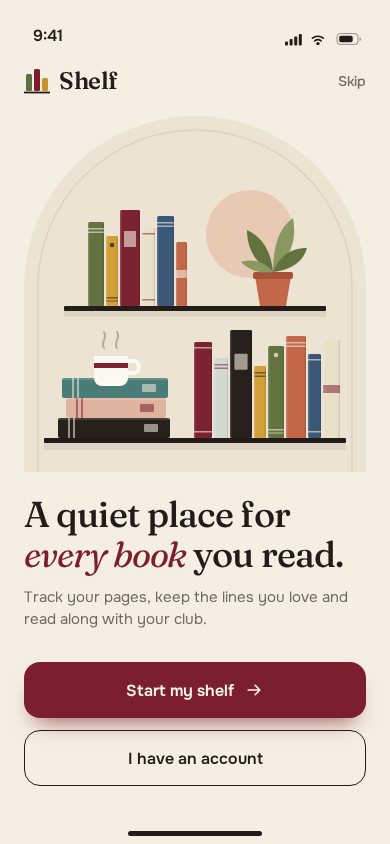
Shelf is a complete reading tracker and book club: onboarding with a yearly goal, a home with the book in hand, book pages, logging pages, a reading timer, finishing and reviewing, shelves drawn as rows of spines, search, a reading goal, the year in books, saved quotes, a club with discussion by chapter, voting on the next pick, meetings, a plan, profile and settings. Warm paper with oxblood, moss and Fraunces.
| Detail | Value |
|---|---|
| Screen type | Onboarding |
| App | Shelf: Reading tracker and book club |
| Category | Lifestyle |
| Design language | Minimal, light |
| Type | Onest |
| Colours | #f5efe3 background, #fcf9f2 surface, #231c18 text, #75695d text-muted, #7a1f2b accent, #fcf6ea accent-contrast, #5f6f3e secondary, #e0d6c3 border, #b3402e danger |
What this screen says
- Shelf
- Skip
- A quiet place for every book you read.
- Track your pages, keep the lines you love and read along with your club.
- Start my shelf
- I have an account
Around it in Shelf
More onboarding screens
- Tidy Welcome: Book home cleaners
- Dorm Welcome: Find student housing
- Hem Welcome: Tailoring and alterations, collected
- Lendly Welcome: Borrow things from neighbours
- Stub Welcome: Fan to fan ticket resale
- Trove Welcome: Visual ideas and boards
- Vidi Welcome: Video platform for creators
- Roll Welcome: Photo library and backups
- Splice Welcome: Video editor for short clips
- Blush Welcome: Beauty and makeup shopping
- Flatpack Welcome: Furniture store with room previews
- Column Welcome: Newsletters and independent writers
Every lifestyle app onboarding screen
What makes a good onboarding screen
- One idea per screen. Each screen should say one thing in a headline people can read in a second. If a screen needs a paragraph, it is doing too much.
- Personalise with a purpose. Ask a question only if the answer changes what people see next, like a goal, a level or an interest. Then show that the answer mattered.
- Explain permissions before asking. Show your own screen saying why you need notifications, location or the camera before the system prompt. People who understand the reason are more likely to allow it.
- Let people skip. A visible skip or "I'll do this later" respects returning users and the impatient. Make sure skipping still lands them somewhere useful.
The full onboarding screen guide and every example
Remix Shelf free: describe your own app and it is drawn in this design. Or get its files from $10: Figma, React Native, SwiftUI, Flutter and HTML.