Templates · Onboarding screens · Lifestyle app · Toolbox
Toolbox Welcome screen
An onboarding screen from Toolbox, a hardware store and project lists app template in an Enterprise style. Screen 1 of 25.
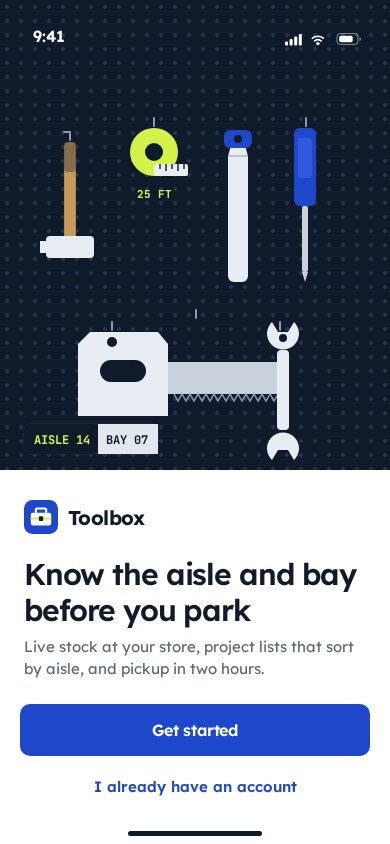
Toolbox is a complete hardware store app: welcome, choosing a home store, sign in, a home with a ready pickup, the active project and departments, search with aisle, bay and stock on every result, a product page with specs and questions, a store floor plan with a walking route, a barcode scanner, project lists sorted by aisle with a decking calculator, a cart split into pickup and delivery, checkout, order placed, orders and a pickup locker, tool rental with a reservation, a Pro plan with job spend, notifications, profile and settings. Cool grey and white with ink, cobalt and a lime signal.
| Detail | Value |
|---|---|
| Screen type | Onboarding |
| App | Toolbox: Hardware store and project lists |
| Category | Lifestyle |
| Design language | Enterprise, light |
| Type | Lexend |
| Colours | #eef1f4 background, #ffffff surface, #0f1a2a text, #5d6878 text-muted, #1f47c9 accent, #ffffff accent-contrast, #d4f34a secondary, #dce1e8 border, #cf3a3a danger |
What this screen says
- Toolbox
- Know the aisle and bay before you park
- Live stock at your store, project lists that sort by aisle, and pickup in two hours.
- Get started
- I already have an account
Around it in Toolbox
More onboarding screens
- Blush Welcome: Beauty and makeup shopping
- Flatpack Welcome: Furniture store with room previews
- Column Welcome: Newsletters and independent writers
- Fetch Welcome: Dog walkers and pet sitters
- Forecourt Welcome: Buy and sell used cars
- Tower Welcome: Mobile plan, data and bills
- Haul Welcome: Bargain fashion and finds
- Muse Welcome: AI image studio
- Admit Welcome: Events and tickets near you
- Arcade Welcome: Game store, library and friends
- Natal Welcome: Birth charts and daily astrology
- Sillage Welcome: Fragrance wardrobe
Every lifestyle app onboarding screen
What makes a good onboarding screen
- One idea per screen. Each screen should say one thing in a headline people can read in a second. If a screen needs a paragraph, it is doing too much.
- Personalise with a purpose. Ask a question only if the answer changes what people see next, like a goal, a level or an interest. Then show that the answer mattered.
- Explain permissions before asking. Show your own screen saying why you need notifications, location or the camera before the system prompt. People who understand the reason are more likely to allow it.
- Let people skip. A visible skip or "I'll do this later" respects returning users and the impatient. Make sure skipping still lands them somewhere useful.
The full onboarding screen guide and every example
Remix Toolbox free: describe your own app and it is drawn in this design. Or get its files from $10: Figma, React Native, SwiftUI, Flutter and HTML.