Templates · Onboarding screens · Productivity app · Branch
Branch Pick a start screen
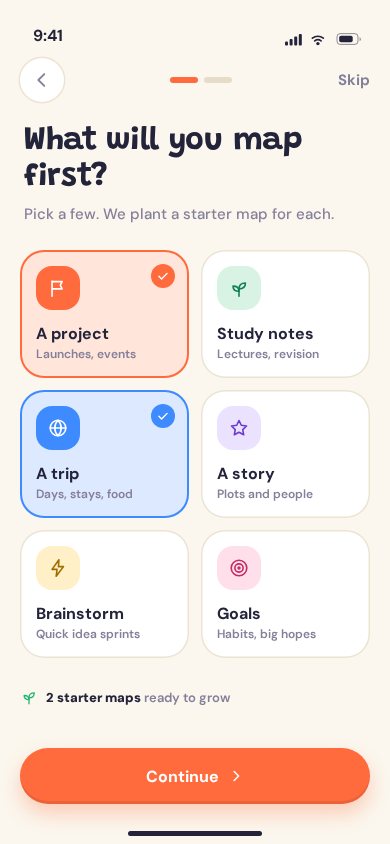
An onboarding screen from Branch, a mind maps app template in a Playful style. Screen 2 of 25.
Branch is a complete mind mapping app: welcome, a pick your first map step, sign in, a home with the map you are growing and a daily seed prompt, a library of maps, search across ideas and notes, a full canvas editor, an idea with photos, notes and a checklist, adding a branch, map style, an outline view, a timed idea sprint, AI sprouts, templates and a template preview, sharing, a live session with cursors and a huddle, comments, export to a PDF poster and its success screen, insights, a Plus plan, notifications, profile and settings. Warm paper and ink with six bright branch colours.
| Detail | Value |
|---|---|
| Screen type | Onboarding |
| App | Branch: Mind maps |
| Category | Productivity |
| Design language | Playful, light |
| Type | Grandstander for headings, DM Sans for text |
| Colours | #fbf7ee background, #ffffff surface, #23233a text, #85809a text-muted, #ff6b3d accent, #ffffff accent-contrast, #22b573 secondary, #ece4d3 border, #ff4f8b danger |
What this screen says
- Skip
- What will you map first?
- Pick a few. We plant a starter map for each.
- A projectLaunches, events
- Study notesLectures, revision
- A tripDays, stays, food
- A storyPlots and people
- BrainstormQuick idea sprints
- GoalsHabits, big hopes
- 2 starter maps ready to grow
- Continue
Around it in Branch
More onboarding screens
- Tunnel Welcome: VPN and online privacy
- Ping Welcome: Internet speed test
- Glance Welcome: Visual search with the camera
- Replay Welcome: Record and share screen videos
- Easel Welcome: Collaborative whiteboard
- Token Welcome: Two-factor codes and sign-in approvals
- Beam Welcome: Send big files
- Parchment Welcome: Documents, edit and share
- Lectern Welcome: Slides and presenter remote
- Ringer Welcome: Phone, contacts and voicemail
- Pipeline Welcome: Sales CRM on the road
- Aim Welcome: Goals and key results
Every productivity app onboarding screen
What makes a good onboarding screen
- One idea per screen. Each screen should say one thing in a headline people can read in a second. If a screen needs a paragraph, it is doing too much.
- Personalise with a purpose. Ask a question only if the answer changes what people see next, like a goal, a level or an interest. Then show that the answer mattered.
- Explain permissions before asking. Show your own screen saying why you need notifications, location or the camera before the system prompt. People who understand the reason are more likely to allow it.
- Let people skip. A visible skip or "I'll do this later" respects returning users and the impatient. Make sure skipping still lands them somewhere useful.
The full onboarding screen guide and every example
Remix Branch free: describe your own app and it is drawn in this design. Or get its files from $10: Figma, React Native, SwiftUI, Flutter and HTML.