Templates · Onboarding screens · Sports app · Whistle
Whistle Team setup screen
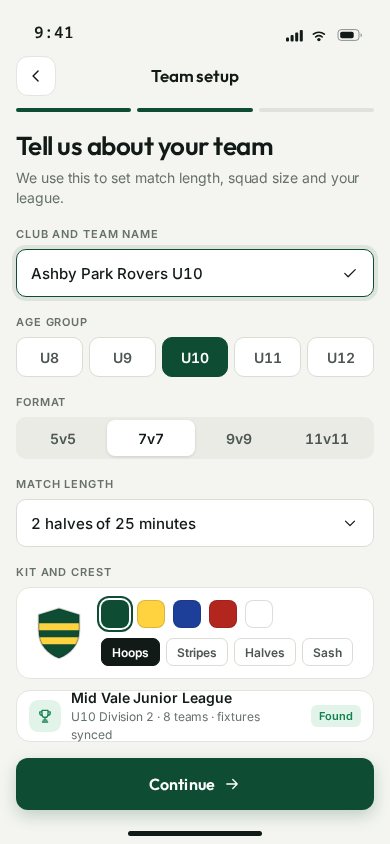
An onboarding screen from Whistle, a grassroots league manager for coaches app template in an Enterprise style. Screen 2 of 25.
Whistle is a complete team manager for a junior football coach: welcome, team setup and sign in, a match day home, fixtures, a match page, player availability, a drag and drop team sheet on a chalk pitch, a live match with a fair minutes tracker, goal logging and a full time report, the league table and team stats, the squad, a player, adding a player, a training plan, finding and booking a pitch, subs collection, notifications, a club plan, the coach profile and settings. Chalk white and mown turf green with kit yellow and shield crests.
| Detail | Value |
|---|---|
| Screen type | Onboarding |
| App | Whistle: Grassroots league manager for coaches |
| Category | Sports |
| Design language | Enterprise, light |
| Type | Outfit for headings, Inter for text |
| Colours | #f4f5f0 background, #ffffff surface, #111a16 text, #67716b text-muted, #0e4d34 accent, #ffffff accent-contrast, #ffd23f secondary, #e3e6de border, #c9372c danger |
What this screen says
- Team setup
- Tell us about your team
- We use this to set match length, squad size and your league.
- Club and team name
- Ashby Park Rovers U10
- Age group
- U8 U9 U10 U11 U12
- Format
- 5v5 7v7 9v9 11v11
- Match length
- 2 halves of 25 minutes
- Kit and crest
- Hoops Stripes Halves Sash
- Mid Vale Junior League
- U10 Division 2 · 8 teams · fixtures synced
- Found
- Continue
Around it in Whistle
More onboarding screens
- Lapse Welcome: Swim training
- Angler Welcome: A fishing log drawn on the depth chart
- Piste Welcome: Ski resort companion
- Crag Welcome: Climbing gym logbook
- Fairway Welcome: Golf course guide and scorecard
- Matchday Welcome: Football scores and fantasy
- Rally Welcome: Tennis and padel club
- Swell Welcome: Surf forecast
- Pitwall Welcome: Race engineering
- Elevens Welcome: Fantasy cricket leagues
- Scoreboard Welcome: Scores and news for every sport
- Bib Welcome: Find and enter races
Every sports app onboarding screen
What makes a good onboarding screen
- One idea per screen. Each screen should say one thing in a headline people can read in a second. If a screen needs a paragraph, it is doing too much.
- Personalise with a purpose. Ask a question only if the answer changes what people see next, like a goal, a level or an interest. Then show that the answer mattered.
- Explain permissions before asking. Show your own screen saying why you need notifications, location or the camera before the system prompt. People who understand the reason are more likely to allow it.
- Let people skip. A visible skip or "I'll do this later" respects returning users and the impatient. Make sure skipping still lands them somewhere useful.
The full onboarding screen guide and every example
Remix Whistle free: describe your own app and it is drawn in this design. Or get its files from $10: Figma, React Native, SwiftUI, Flutter and HTML.