Templates · List and feed screens · Productivity app · Unplug
Unplug Milestones screen
A list screen from Unplug, a screen time blocker app template in a Glass style. Screen 22 of 25.
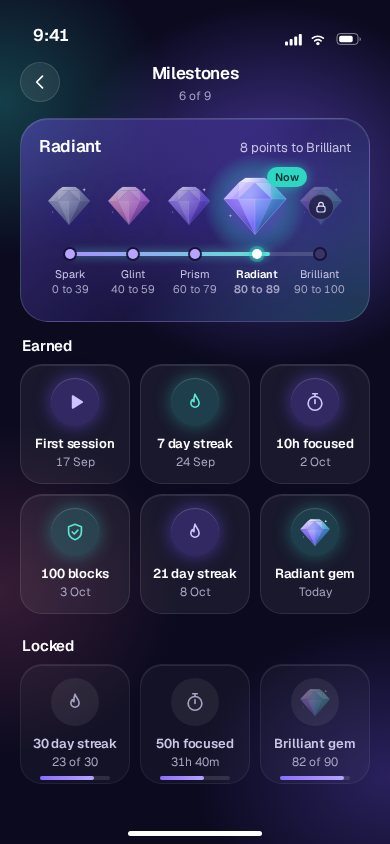
Unplug is a complete screen time app: an onboarding that projects your year on the phone, screen time access, choosing apps to block, a paywall, a home with the focus score, today's screen time by hour and the live session, a ring timer, the calm blocked screen, breaks, schedules, app limits, daily and weekly reports, insights, streaks, milestones and friends. Midnight indigo with aurora glows, frosted glass and a faceted gem that changes colour as the score climbs.
| Detail | Value |
|---|---|
| Screen type | List |
| App | Unplug: Screen time blocker |
| Category | Productivity |
| Design language | Glass, dark |
| Type | Geist |
| Colours | #0b0a1f background, #1a1836 surface, #ffffff text, #a5a3c2 text-muted, #7a5cff accent, #ffffff accent-contrast, #2fd6c3 secondary, #2b2850 border, #ff6f9c danger |
What this screen says
- Milestones
- 6 of 9
- Radiant 8 points to Brilliant
- Now
- Spark0 to 39
- Glint40 to 59
- Prism60 to 79
- Radiant80 to 89
- Brilliant90 to 100
- Earned
- First session
- 17 Sep
- 7 day streak
- 24 Sep
- 10h focused
- 2 Oct
- 100 blocks
- 3 Oct
- 21 day streak
- 8 Oct
- Radiant gem
- Today
- Locked
- 30 day streak
- 23 of 30
- 50h focused
- 31h 40m
- Brilliant gem
- 82 of 90
Around it in Unplug
More list and feed screens
- Convene Participants: Video meetings
- Streak Friends: Small days, long chains
- Deskly Rooms: Hybrid office booking
- Pomo Notifications: Focus timer
- Postbox Swipe actions: Email for busy teams
- Daybook Day: Calendar and planner
- Scanly Notifications: Document scanner
- Keyring Logins: Password manager
- Rota Notifications: Shift scheduling for hourly teams
- Inkwell Prompts: Daily journal
- Shortlist Notifications: Job search and application tracker
- Parley Add members: Team messenger
Every productivity app list screen
What makes a good list screen
- Show what people need to decide. Each row should carry just enough to choose: a title, one or two details and a status. Everything else belongs on the detail screen.
- Keep rows consistent. The same information in the same place on every row lets people scan down a column instead of reading each item.
- Group with headings. Dates, categories or status headings break long lists into chunks people can skip through.
- Make common actions quick. Swipe actions, a checkbox or a heart on the row save opening the item for small tasks.
The full list screen guide and every example
Remix Unplug free: describe your own app and it is drawn in this design. Or get its files from $10: Figma, React Native, SwiftUI, Flutter and HTML.