Templates · List and feed screens · Productivity app · Token
Token Requests screen
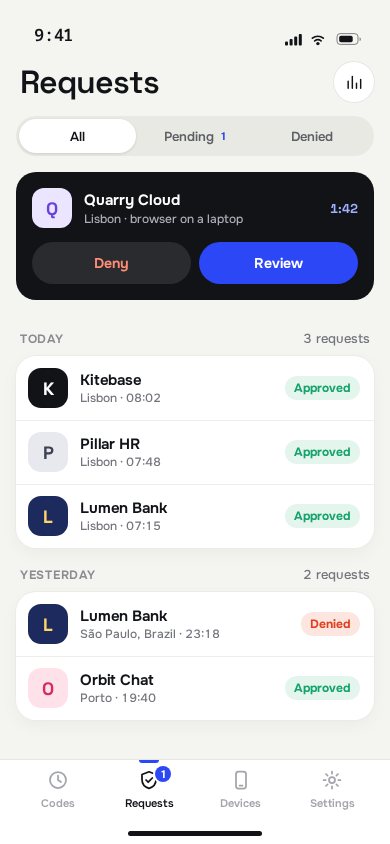
A list screen from Token, a two-factor codes and sign-in approvals app template in a Minimal style. Screen 13 of 25.
Token is a complete authenticator: welcome, phone sign up and code check, app unlock, a codes home with a live 30 second countdown, an account with its big code, scanning a QR code, adding a key by hand and a ready screen, search, a sign-in request with a map and its approval, request history, weekly activity, devices, backups with a backup password and export, editing an account, groups, alerts, a Plus plan, profile and settings. Paper white and ink, cobalt for time and action, vermilion when a code is about to change.
| Detail | Value |
|---|---|
| Screen type | List |
| App | Token: Two-factor codes and sign-in approvals |
| Category | Productivity |
| Design language | Minimal, light |
| Type | Space Grotesk for headings, Onest for text |
| Colours | #f4f4f1 background, #ffffff surface, #111317 text, #74767d text-muted, #2c47f5 accent, #e9ecfe accent-tint, #e7e7e2 border, #ef4b2b danger, #13a36b success |
What this screen says
- Requests
- All Pending 1 Denied
- Quarry Cloud
- Lisbon · browser on a laptop
- Deny
- Review
- Today 3 requests
- Kitebase
- Lisbon · 08:02
- Approved
- Pillar HR
- Lisbon · 07:48
- Lumen Bank
- Lisbon · 07:15
- Yesterday 2 requests
- São Paulo, Brazil · 23:18
- Denied
- Orbit Chat
- Porto · 19:40
- Codes
- 1Requests
- Devices
- Settings
Around it in Token
More list and feed screens
- Docket Notifications: Task and sprint planner
- Kanso Notifications: Tasks, calendar and chat
- Margin Notebooks: AI note taking
- Aide Notifications: Executive AI assistant
- Juno Models: AI chat assistant
- Opal Projects: Studio dashboard
- Jot Folders: Quick notes and checklists
- Chrono Alarms: World clock, timers and stopwatch
- Frontdesk Views: Customer support inbox
- Campaigns: Email marketing campaigns
- Outpost Calendar: Schedule social posts
- Pageview Reports: Website analytics
Every productivity app list screen
What makes a good list screen
- Show what people need to decide. Each row should carry just enough to choose: a title, one or two details and a status. Everything else belongs on the detail screen.
- Keep rows consistent. The same information in the same place on every row lets people scan down a column instead of reading each item.
- Group with headings. Dates, categories or status headings break long lists into chunks people can skip through.
- Make common actions quick. Swipe actions, a checkbox or a heart on the row save opening the item for small tasks.
The full list screen guide and every example
Remix Token free: describe your own app and it is drawn in this design. Or get its files from $10: Figma, React Native, SwiftUI, Flutter and HTML.